
Web filtering for schools: Policies that work
Set web filtering for schools with category policies, per-SSID rules, bell schedules and audit reports that protect pupils without blocking lessons.
Published 28 October 2026
The most popular advice about web filtering for schools is to block more categories and judge the result by how many requests the filter stops. That's a weak measure. A filter can produce an impressive block count while stopping a pupil from reaching a legitimate research source, leaving a teacher waiting for an override, or encouraging students to use personal phones instead.
A better policy starts with safe access and low classroom friction. Set clear rules for each network, schedule them around the school day, and check whether lessons can proceed without avoidable filter stops. The practical test isn't how much the filter blocks. It's whether the right content is blocked on the right network, while pupils and staff can still do their work.
Table of Contents
- Category Rules for Every School Network
- School-Day Schedules and Separate SSIDs
- How to Roll Out Filtering Without Breaking Lessons
- Audit Reports That Show Blocks and False Positives
- Tips When Filters Block Lessons or Pupils Bypass
- Put the Policy on a Protective DNS Layer
Category Rules for Every School Network
Before changing DNS settings, write down the policy for each network. This matrix gives safeguarding and IT teams a starting point for an acceptable-use policy. Adjust it for your school's age groups, curriculum and device management, rather than copying a single blacklist across the estate.
| Network | Who uses it | Always blocked | Allowed in lessons | Out of hours |
|---|---|---|---|---|
| Primary pupil WiFi | Years 1–6 | Adult content, gambling, social networking, chat, gaming, proxies, malware and phishing | Curriculum sites and approved video with Safe Search | No video, social networking or chat |
| Secondary pupil WiFi | Secondary pupils | Adult content, gambling, proxies, malware, phishing and unclassified new domains | Research, approved video and collaboration with Safe Search | Social networking and streaming off after the last bell |
| Staff VLAN | Teachers and administration | Adult content, gambling, anonymisers, malware and phishing | Research categories and administration portals | Same as the lesson profile |
| Guest and BYOD | Visitors and unmanaged phones | Adult content, gambling, social networking, streaming, proxies, malware and phishing | Family-safe browsing after the captive portal | Same strict set all day |
| Exam SSID | Candidates during assessments | Everything except the named exam services | Exam platform and identity provider only | SSID switched off |
Treat the table as a set of network-specific rules, not a single master blacklist with a few exceptions. Primary pupils can have social networking, chat, gaming and open video blocked, while secondary pupils can access approved classroom video and collaboration during lessons. Staff need legitimate research and administrative services, and guests need a strict baseline because the school doesn't manage their devices.
The American Association of School Librarians' 2012 national survey, which received 4,299 responses, shows why a school-wide blacklist is a poor shortcut. Social-networking sites were blocked by 88% of respondents, chat by 74% and gaming by 69%, yet 52% said keyword or topic blocks impeded student research. A common block rule can still be an educationally costly one. Use categories as a starting point, then apply them according to age, role, lesson context and whether the device is managed.
Make exceptions explicit
Write down who can request an unblock and who can approve it. For example, a teacher might request temporary access to a health resource for a specific lesson, while a designated reviewer checks whether the request should become a broader category exception. Don't leave the route hidden in an IT inbox or make pupils guess why a page won't load.
Tick each row against three questions before implementation: Is the rule suitable for this age group? Does it fit the user's role? Is the device managed by the school? If any answer changes, revisit the row before changing the network policy.
School-Day Schedules and Separate SSIDs
At first bell, the pupil network should switch to its lesson profile. At the last bell, only the networks that need to change should change. A clock-based rule is useful only when it applies to the right SSID or VLAN; otherwise, staff planning, guest browsing and exam access can inherit pupil rules they were never meant to use.
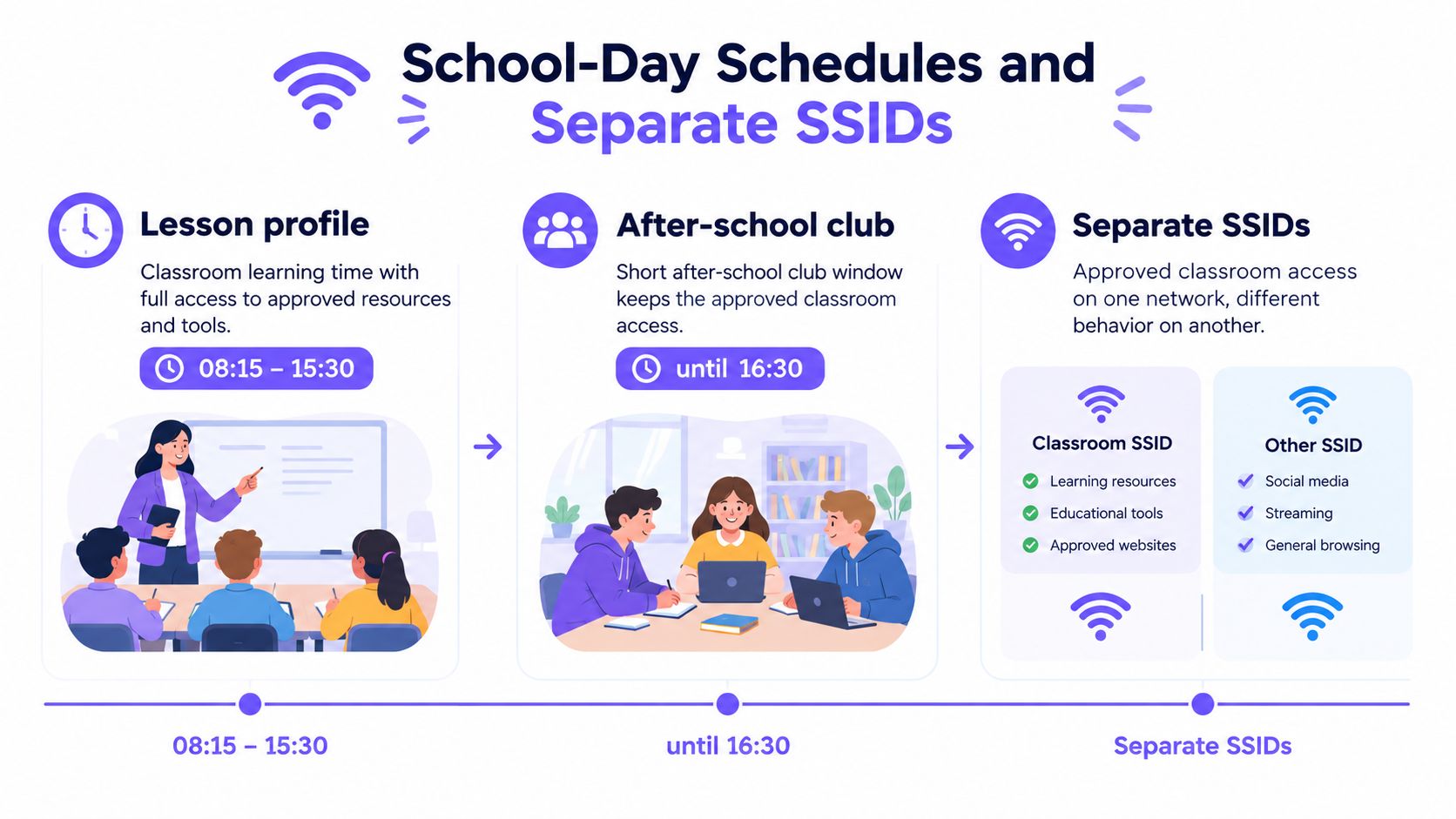
Set the lesson profile from 08:15 to 15:30. Keep approved classroom tools available during that window, including for secondary pupils using video and collaboration platforms. Then create a short after-school club window that retains those approved tools until 16:30. For boarding pupils, or devices left on site in the evening or at weekends, switch to a stricter profile instead of letting the school-day permissions run indefinitely.
| Window | Pupil WiFi | Staff VLAN | Guest and BYOD | Exam SSID |
|---|---|---|---|---|
| Lesson time, 08:15–15:30 | Lesson profile | Lesson profile | Strict set | Enabled only for an active assessment |
| After-school club, until 16:30 | Approved classroom access | Lesson profile | Strict set | Off unless an assessment is scheduled |
| Boarding or devices left on site | Strict set all day | Lesson profile | Strict set all day | Off |
A Tuesday illustrates the distinction. Pupils use their lesson profile during classes, and an after-school club keeps its approved classroom tools for its session. Staff stay on their lesson profile after the bell because email and planning don't stop at 15:30. Guest WiFi, reached through a captive portal, never inherits pupil allowances. An exam SSID is enabled for the assessment window and switched off when it ends.
Apply the change to the SSID or VLAN, not separately to each laptop. Point each network's devices at the filtering DNS resolver so phones, Chromebooks and consoles receive the policy without installing an agent. Keep guest traffic separate from the pupil network; network segmentation for schools helps clarify why different users and device types shouldn't automatically share the same access rules.
Test what the browser policy misses
Include encrypted DNS, VPNs, URL shorteners and translation proxies in the test plan. Check guest WiFi as well as managed devices, because a rule enforced only in a managed browser may not apply to other devices or traffic. Decide what should happen if the filtering service can't be reached. A fail-closed policy keeps the network from becoming unfiltered, but staff need to know what to do when that decision interrupts a lesson.
Give the wireless team a one-week timetable showing the SSID, profile, start time, end time and person responsible for each change. Include club sessions, assessments, boarding and weekends. A schedule that lives only in an administrator's memory is likely to be applied inconsistently.
How to Roll Out Filtering Without Breaking Lessons
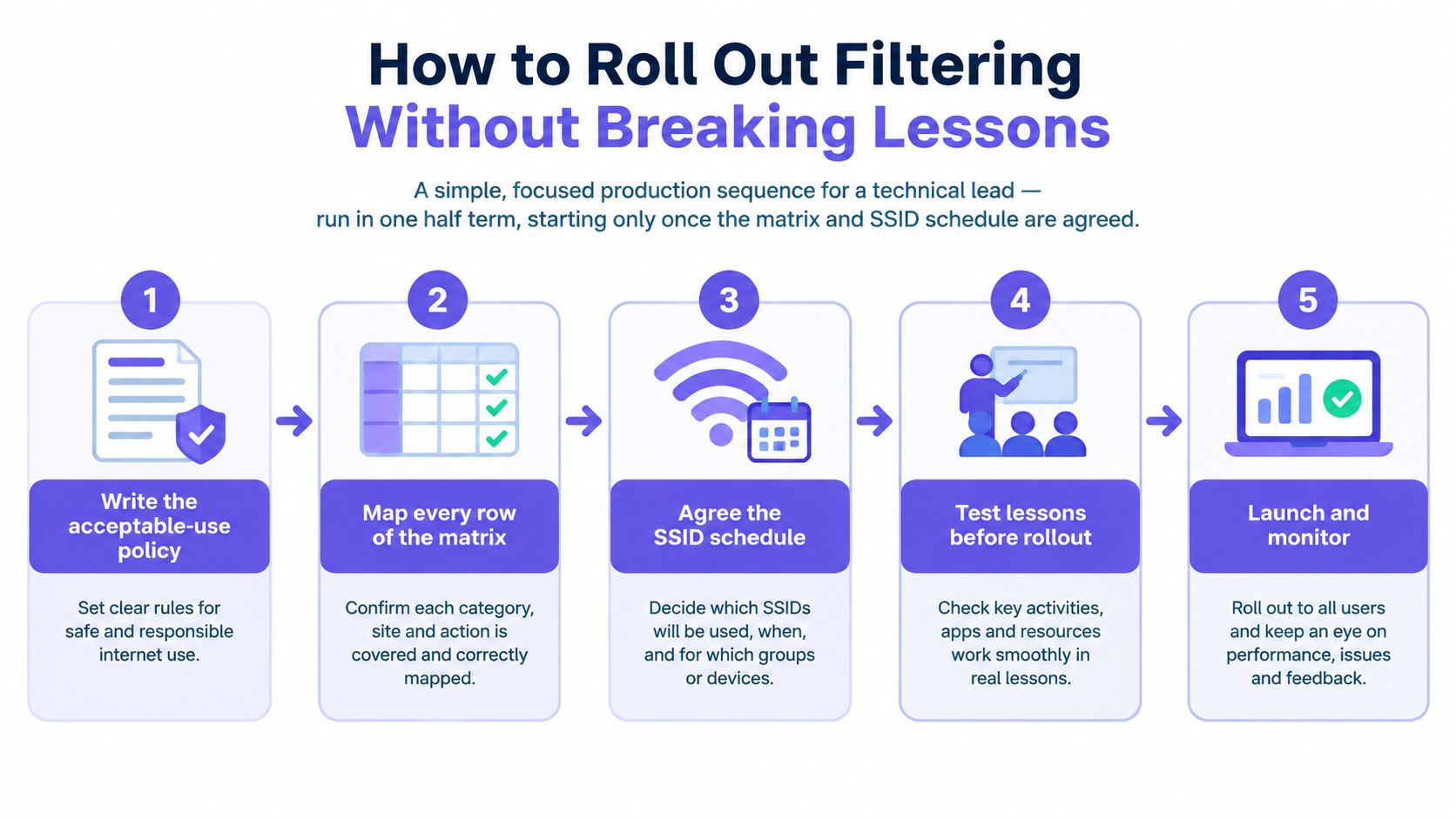
Don't deploy a new policy across the whole estate in one go. Agree the category matrix and SSID schedule first, then use a representative class network to find the problems that a tidy spreadsheet can't reveal. Test the actual teaching workflows pupils and staff depend on, not just whether a block page appears.
Write the acceptable-use policy. Map each network row to an age band and role, and name who may request an unblock. Without that detail, staff can't tell whether a denial is intentional or a mistake.
Choose one class SSID for the pilot. Pick a group and lessons that use a representative mix of resources. Don't begin with the whole estate, where a missed rule can interrupt more classes at once.
Test ordinary and edge-case teaching tasks. Check normal browsing, research using sensitive keywords, video, collaboration platforms, accessibility resources, software updates and teacher administration portals. Keyword-based blocks can catch legitimate research along with unwanted results, so test the subject terms pupils need.
Record each failure consistently. For every test, note the requested domain, category decision, block reason, user group and time to resolution. This record lets IT distinguish a bad category assignment from a rule that is working as intended but is too broad.
Make the remedy usable in a classroom. Give teachers an escalation queue, role-based exceptions and temporary allowances that expire at the end of the lesson. A permanent allow rule may solve today's problem by creating an unmanaged gap tomorrow.
Review the logs weekly before expanding. Check blocked domains and unblock requests, then extend the same tested policy to other SSIDs. Keep the pilot running until teachers can complete ordinary lessons without having to stop and find a network administrator.
A national survey of school librarians found that 92% said an unblock request process existed, while 68% said decisions were made at district level, a setup that can slow classroom remediation, according to the American Library Association's report on school filtering. A process on paper isn't enough if the person who can approve the request isn't available while the lesson is running. Give a teacher a clear route to request a temporary fix, and set a named owner for reviewing it.
The pilot measures are listed in the audit table below. Use them to judge whether the change protects pupils without disrupting teaching, rather than creating a separate score based on how many categories the filter blocks.
Teachers and parents can also benefit from a shared explanation of the online tools used in lessons. A guide to virtual classroom technology for parents can help families understand why a school may allow particular learning platforms while restricting unrelated services.
Go or no-go: move to estate-wide deployment only when the pilot class can finish a normal scheme of work without a filter stop. If it can't, fix the category, exception process or schedule before expanding the policy.
Audit Reports That Show Blocks and False Positives
Retire the monthly block total as your headline safeguarding measure. A large number can reflect effective protection, but it can also reflect broad categories, repeat attempts or legitimate pages that were wrongly denied. Sample the logs and sort requests into four groups: harmful-content blocks, legitimate educational blocks, approved exceptions and suspected bypasses.
Then report precision and recall separately. Precision is the share of blocked requests that violate policy. Recall is the share of policy-violating requests that the filter successfully blocks. A system can have strong recall but poor precision if it catches harmful requests while also blocking useful teaching resources. One combined “block score” hides that trade-off.
Older evidence summarized by the American Association of School Librarians on filtering beyond CIPA found that text filtering could overblock legitimate content or underblock sexually explicit content approximately 15–20% of the time. That estimate didn't cover visual images. Check text, images, video and embedded third-party players independently instead of assuming that one category test proves the whole lesson is covered.
| Metric | What to record | Healthy sign | Review |
|---|---|---|---|
| Harmful-content blocks | Blocks that match adult, illegal or malware policy | Stable and tied to real incidents | Weekly |
| False positives | Legitimate teaching URLs blocked | Falling week on week against the pilot baseline | Weekly sample |
| Median unblock time | Request to temporary allow | Same day for the teacher, not a district queue | Weekly |
| Lessons without a filter stop | Planned lessons finished as written | Rising across the half term | Half term |
| Bypass attempts | VPN, encrypted DNS, shorteners and translation proxies | Logged and closed on that SSID | Weekly |
| Precision and recall | Separate measures, not one combined block score | Both reported to safeguarding staff | Monthly |
Keep the audit useful and proportionate
Sample DNS, proxy or endpoint logs, then test them against current curriculum URLs and newly registered or reclassified domains. Include alternate domains, cached content, mobile devices and guest networks, not just the managed browser used in the classroom. A policy that looks sound in one test environment may behave differently on a personal phone or an embedded media player.
For each event you retain, record the timestamp, policy, category, action and network or identity scope. Keep only the pupil-level detail needed to investigate the incident. Send high-impact requests, including access to health, identity or suicide-prevention material, to a named human reviewer rather than allowing a silent category decision to end the request.
Give senior leaders, the designated safeguarding lead and heads of department a short report: what was stopped, what was wrongly stopped, how long it took to restore access and whether bypass attempts increased. A healthy term keeps harmful-content blocks in place while false positives and unblock times fall. That's a more useful result than a higher total of blocked requests.
Tips When Filters Block Lessons or Pupils Bypass
About 70% of teachers and students in a nationally representative survey said filters interfered with completing assignments, while roughly three-quarters of teachers said pupils used workarounds to reach an unfiltered internet, according to CalMatters' reporting on school web filtering. The same reporting describes blocks on sex education, LGBTQ+, reproductive-health, suicide-prevention and other legitimate research, and finds that Black and Latino students were more likely to report disproportionate blocking of content about people of color.
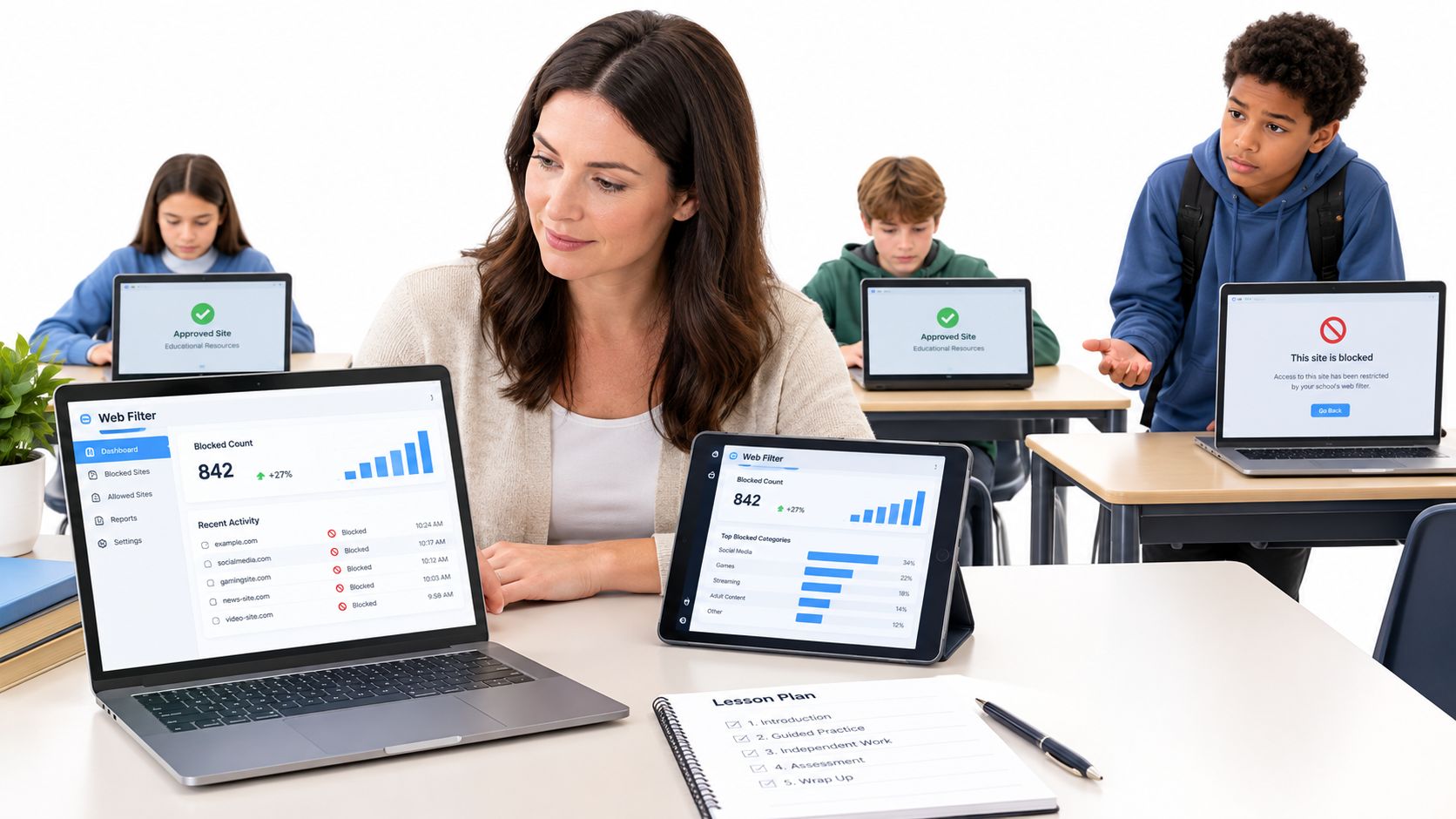
Treat a rising block count as a reason to investigate, not as proof that safety has improved. Ask which users and lessons are affected, and whether pupils are moving to another connection instead of requesting an exception.
Five operating fixes
Show the reason on the block page. Name the blocked category and provide a clear route to request review. A blank denial gives a teacher nothing to diagnose and a pupil no way to distinguish policy from an error.
Make teacher overrides temporary. Allow access for a specific lesson, then let the exception expire. Review overrides regularly so a quick classroom fix doesn't turn into a permanent opening.
Protect sensitive research from broad category rules. Keep a watch list of health, identity and curriculum domains, and test it after category changes. Where a request has a high impact on a lesson or student wellbeing, give it to a named human reviewer.
Govern AI tools by use, not by label. Don't automatically ban every AI service or leave them all open. Assess a named tool for a named age group and lesson; consider whether it retains prompts, how the class will be supervised, and whether its answers can be checked. Before allowing a service, complete a data-protection impact assessment and account for age, special educational needs and disabilities, and English-as-an-additional-language status, as set out in UK guidance on filtering and monitoring in schools.
Fix the network where bypasses happen. If attempts cluster on guest WiFi or personal phones, review the guest SSID and its policy. Tightening the managed classroom network further won't solve a gap on another connection. Test for encrypted DNS, VPNs, URL shorteners and translation proxies, and use the findings to update the rules for that network. For a plain-language explanation of DNS over HTTPS and why it matters to filtering, give the wireless team a shared reference before they test encrypted DNS behavior.
When evaluating AI services, distinguish content safety from privacy and instructional suitability. A tool might not contain harmful material but still be inappropriate for a lesson if it retains prompts, can't meet accessibility needs or produces answers pupils can't verify. Set a named owner for each approval and document the reason for allowing or blocking the service.
The useful measure is not how many pages the filter stops. It's whether the school blocked the risk without preventing the lesson. A block is only a success when the lesson still happened.
Put the Policy on a Protective DNS Layer
Once the category rules, bell schedule and audit fields are agreed, the next decision is where to enforce them. A protective DNS layer can apply the policy at the network level, so a pupil, staff, guest or exam SSID doesn't rely on an agent installed on every device. A practical guide to DNS filtering can help the technical team understand what this enforcement point does and how it fits alongside the rest of the network.
The key is to preserve the policy you designed. Each lookup should be checked against content categories, allow and block lists, the network schedule and threat intelligence. Staff should be able to see blocked URLs, threat analysis and usage in one dashboard, then adjust rules without piecing together separate reports.
Purple Shield runs on existing school WiFi or Purple Access, with policy set per SSID and VLAN. Once the DNS change is made, filtering covers every device on that network at once, with nothing installed on any device. Keep the first deployment small: load the policy matrix onto one secondary SSID, set the lesson window to 08:15–15:30, and compare false positives and unblock time with the previous week. Don't extend the change across the estate until that network has completed a normal week of lessons.
Purple Shield provides protective DNS and content filtering that applies rules by SSID, VLAN and schedule, with reporting for blocked URLs, threats and usage. Visit Purple Shield to assess whether it fits your school's policy, and start by testing the agreed rules on one secondary SSID before planning a wider rollout.