
Protective DNS service: How it keeps guest WiFi safe
Protective DNS service checks every lookup before a connection starts, blocking threats and unwanted content on guest and public WiFi.
Published 23 November 2026
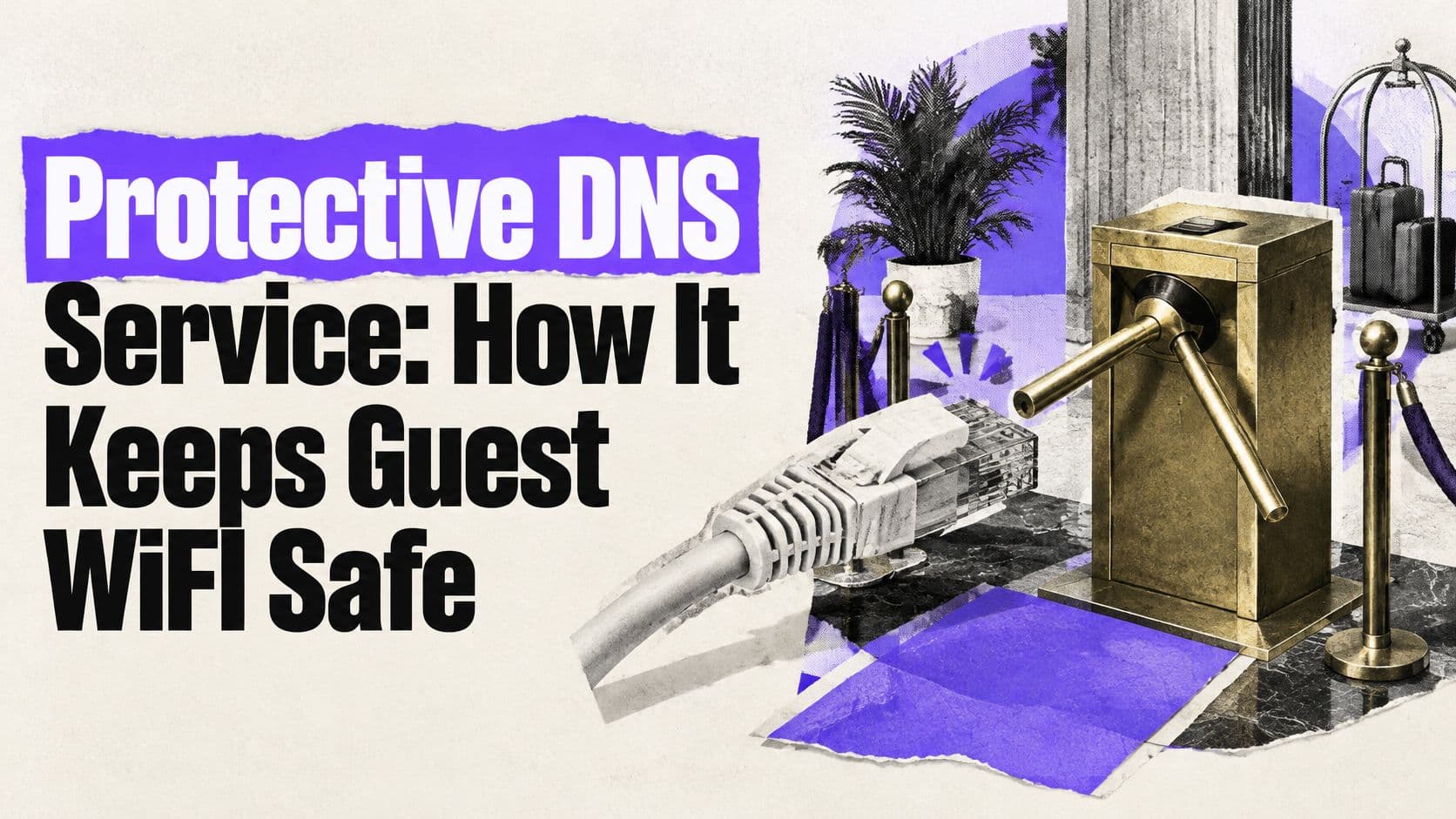
You're on guest WiFi in a hotel lobby or a pub, phone in hand, and the network has already handed you an address. Somewhere on that same SSID is a laptop that picked up malware last week. Before either device opens a page, it has to ask where the name lives. A protective DNS service is the receptionist at that door: it checks the name against a list, and a refused name never gets an address.
That checkpoint exists because DNS was built as a phone book, not a guard. DNS was designed in the early 1980s to turn readable names into IP addresses, and the basic protocol did not authenticate who sent a response or prove the record was unchanged, which is why a resolver could accept a forged answer before a device ever connected, as set out in resolver security research from BYU. DNSSEC later added origin authentication and integrity checks. The DNS root zone was signed in July 2010, and most top-level domains were signed through 2010 and 2011. DNSSEC answers "is this response genuine?" A protective DNS service answers a different question: "should this name be resolved at all?" Phishing, malware, adult content, gambling, and ad domains can be refused while the lookup is still in flight.
Table of Contents
- What Protective DNS Blocks on Guest and Public WiFi
- How a DNS Lookup Becomes a Checkpoint
- Protective DNS Compared With Firewalls and Endpoint Agents
- Why Guest and Public WiFi Need DNS-Layer Protection
- Where Protective DNS Stops Short and What to Add
- Setting Policies for Each Network Type
- Choosing a Protective DNS Service
- Confirm a 30-Day Trial on Your Network
What protective DNS blocks on guest and public WiFi
Think of the resolver as a receptionist with a guest list. The device asks for a name. If that name is on the stop list, the door never opens, because no address is handed back. Threat defence blocks command-and-control callbacks from infected devices and blocks known phishing and malware domains at the lookup. With ad blocking on, Shield drops ad, tracker, and bloatware domains at the same moment, so those hosts never load and pages aren't waiting on them. Stripping that clutter is also why pages can arrive up to 500% faster, and why web traffic across an estate can fall by 20 to 40%.
| Threat or content | Example | What the lookup does |
|---|---|---|
| Command-and-control callbacks | Infected device calling its controller | Refuses the name so the connection never starts |
| Phishing domains | Fake bank login page | Refuses resolution before the page loads |
| Malware domains | File downloader sites | Refuses resolution before download |
| Adult content | Category-filtered sites | Blocked by category policy |
| Gambling | Betting sites | Blocked by category policy |
| Ads and trackers | Ad network and tracker domains | Dropped so they never load |
| Bloatware | App update and telemetry domains | Dropped at lookup when ad blocking is on |
| Unsafe search | Google, Bing, YouTube | Safe Search enforced |
Why the list has to keep moving
Abuse doesn't arrive as a one-off campaign. In 2024, ICANN contractual-compliance data reported an average of 310 phishing-related DNS-abuse cases per month among registrar-accredited-agreement enforcement records, with malware averaging 82 cases per month. That's a steady drip of new names, which means a blocklist that sat still last quarter is already late. Category policy still matters for content you choose to refuse, such as adult and gambling, even when a domain isn't on a threat feed.
Most venues don't need every row. A pub might keep phishing, malware, and command-and-control on, plus ads. A family attraction adds adult content. A school adds Safe Search on Google, Bing, and YouTube, and gambling. Mark the rows that match the people on your WiFi, then leave the rest off so you aren't blocking a payment page or a staff tool by accident.
Practical rule: If you can't name who is harmed when a category stays open, don't turn that category on.
How a DNS lookup Becomes a checkpoint
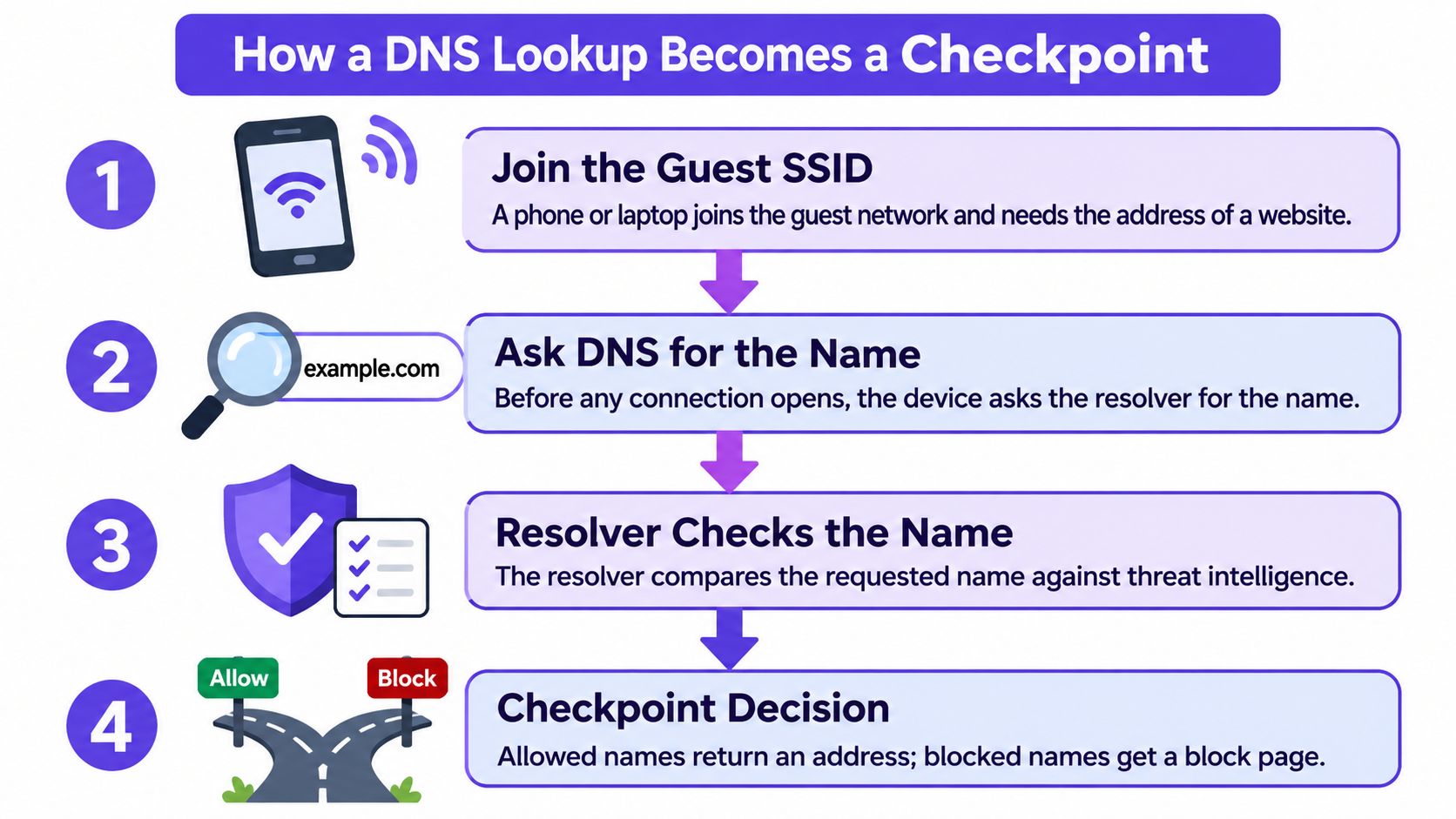
One lookup is a short routine. The security sits in step three, before any site or app session exists.
- A phone or laptop joins the guest SSID and needs the address of a website.
- Before any connection opens, it asks DNS where to find that name. On a network pointed at Shield, Shield is the resolver that must answer, using the policy for the network the device is on.
- The resolver checks the name against threat intelligence and the policy set for that SSID or VLAN.
- If the name matches a threat or a blocked category, the resolver refuses it, returns a non-existent-name answer, redirects it, or sinkholes it. No connection starts. If you want the plain mechanics of that question and answer, see what a DNS lookup is.
- If the name is clean, the address comes back and the device connects as it always did.
- Every blocked query is logged with its network and time, so the dashboard can show venue, category, and when it happened.
Why one pointer covers every handset
Once the DNS change is made, filtering covers every device on that network at once, with nothing installed on any device. Guests won't sideload an agent, and you shouldn't ask them to. The resolver is where their lookups go.
A compromised guest device may still sit on the WiFi. Its malware still can't resolve a known command-and-control hostname, so the follow-on session never gets built. A NIST publication on DNS security treats query logging as a useful signal for spotting possible infection or malicious activity, while CISA describes blocking, redirecting, or sinkholing matched queries and alerting the organisation those queries came from.
A blocked name is containment. The device can remain on the LAN. The callback it wanted never gets an address.
Shield stops threats at the DNS lookup, before a connection starts. The practical layout is a layer behind the firewall you already run: send guest, staff, student, and public DNS through the service, enforce policy by SSID or VLAN, and use the blocked-query record to see which venue, device, category, and time window was involved. That is not a substitute for endpoint security. It cuts exposure before HTTP, TLS, or app traffic begins.
Protective DNS Compared with Firewalls and endpoint agents
You probably already own two controls. The firewall sits at the edge and applies ports, rules, and segmentation. Endpoint agents sit on managed laptops and watch files and processes. A protective DNS service is a third vantage point, at the name lookup, and it runs behind the firewall rather than instead of it.
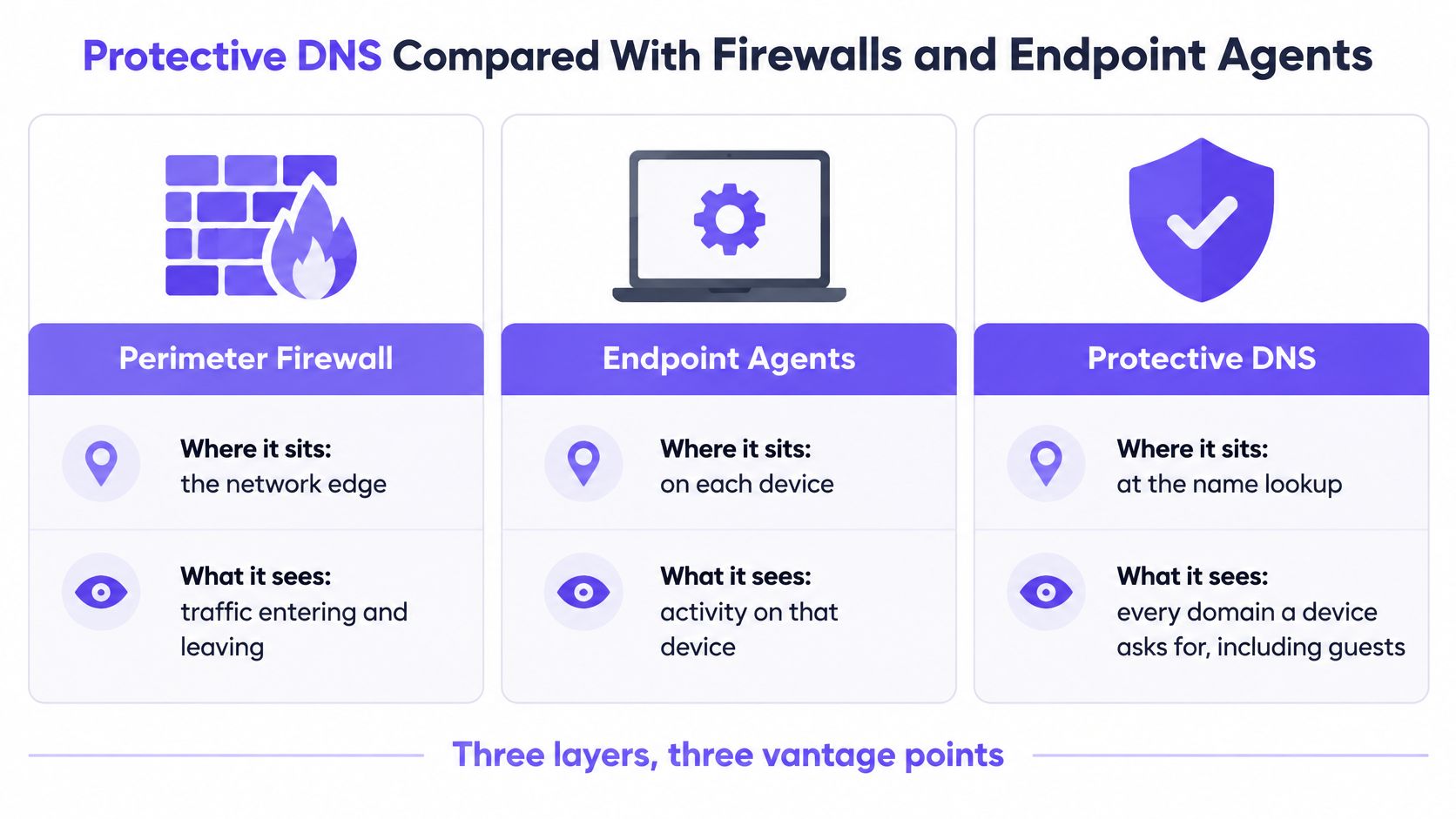
| Control | Where it acts | Needs on devices | Strongest at | Gap |
|---|---|---|---|---|
| Protective DNS | Name lookup before connection | Nothing installed | Blocking known bad and restricted domains on every device | Newly registered domains |
| Firewall | Network perimeter and traffic rules | Nothing installed | Ports, traffic rules, and network segmentation | Domain categories on unmanaged devices |
| Endpoint agent | Each device | Install and updates on every device | File and process behaviour | Devices where no agent can be installed |
Timing is the real difference
Shield works at the DNS layer and needs nothing installed on devices or agents. It answers every lookup on the network it protects, on every device, with nothing on the device to switch off. A guest phone, a contractor tablet, and a smart TV all hit the same policy because they all ask the same resolver.
A firewall rule or an agent often acts once packets are already moving. DNS refusal happens earlier: no address, no session. That earliness is also the gap. A domain registered this morning may not be on a blocklist yet, so a clean answer can still be a bad site. Agents remain the control that sees what a file does after it lands. Firewalls remain the control that stops a scan on a closed port.
On shared WiFi, put protective DNS first for names, keep the firewall and the agents where they already sit, and use each report to show which layer stopped the event. If the dashboard shows a refused phishing name and the agent never alerted, the lookup layer did the work. If the agent quarantines a file from a domain that resolved, the blocklist hadn't caught it, and you tighten from there.
Why guest and public WiFi need DNS-Layer Protection
A guest opens the WiFi in a pub or hotel on a phone that was infected somewhere else. The phone doesn't announce itself. It tries to reach its controller as soon as it has a resolver. Staff devices are different: you can image them, update them, and put an agent on them. Guest devices arrive unknown, their owners won't install your software, and you still have a duty of care to the people you invited onto the network.
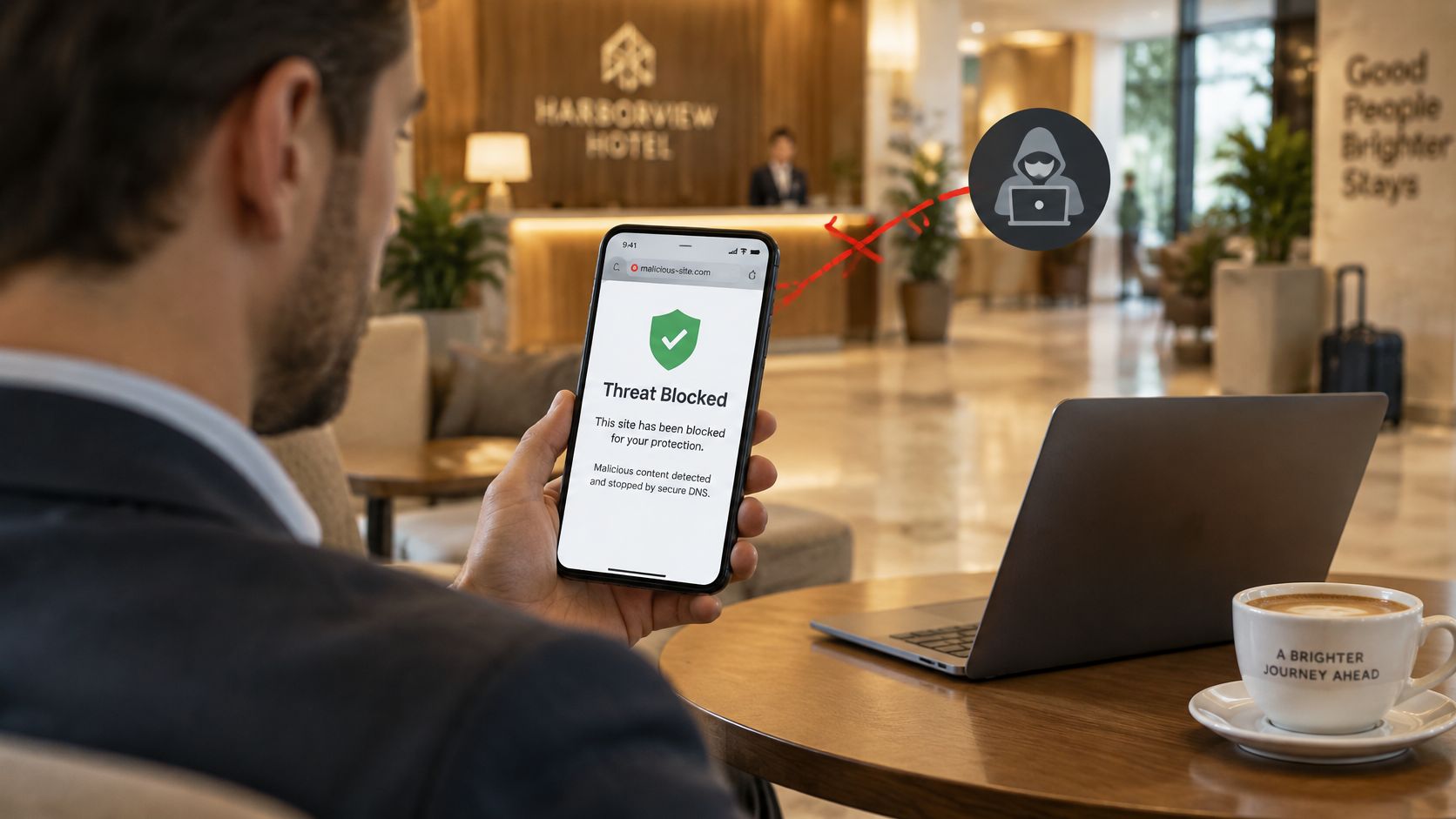
That duty isn't theoretical. In 2025, 36% of surveyed Americans said they suspected a cybersecurity incident after using public WiFi, while 19% were certain one had occurred, according to Panda Security's survey of 1,014 U.S. adults. Operators can't see those suspicions unless the network itself records what was refused.
Duty of care looks different in each building
A family attraction filters adult content because children are on the same SSID as everyone else. A school turns on Safe Search and tighter rules after the teaching day ends. A hospital keeps staff and patient networks apart so a clinical VLAN isn't stuck with guest restrictions, and a waiting-room SSID isn't wide open. A library or an airport shows a block page that says why the name was refused, so the user isn't left staring at a timeout.
Purple Shield's filtering meets the Friendly WiFi and Internet Watch Foundation standards, which is the bar many of those venues are already asked to show. Shield needs no hardware or agents. Pointing a network's DNS at Shield covers every device on that WiFi, including iOS, Android, Windows, and guest devices.
The venues that gain most are the ones where you can't ask anyone to install anything: pubs, hotels, and transport hubs. Travellers hit this problem daily, and RDE Technologies' episode on hotspot security walks through the pitfalls of public WiFi from the traveller's side, which is the same population your guest SSID is full of.
If you want to see what a refused lookup looks like to the person holding the phone, this short walkthrough shows the checkpoint from the user's side.
Where protective DNS stops short and what to add
A clean blocklist does not prove the guest network was safe. Recent hospitality incidents show a compromised gateway can change DNS settings and send people to convincing phishing pages. Switching guests to a public resolver such as Google DNS does not necessarily stop that, because the gateway can alter plaintext requests before they ever reach the resolver, as described in this hospitality DNS incident write-up.
What the lookup layer will not do for you
- Unknown names: A domain that isn't on a feed yet can still resolve. Containment covers known bad names, not every name that will be bad tomorrow.
- Encrypted DNS to someone else: Devices that send DNS-over-HTTPS or DNS-over-TLS to an outside resolver can skip your categories and your logs unless the network forces lookups through the approved path. Read how encrypted DNS changes the path before you decide to block it outright.
- Everything that isn't a name: Router hardening, firmware management, client isolation, HTTPS validation, full-tunnel VPNs for corporate users, and monitoring for unauthorised gateway changes are still required. High-bandwidth streaming can be limited at busy times, and that throttle is a capacity control, not a substitute for those steps.
A Shield expert shows how the network handles VPNs and encrypted DNS before a customer trials Shield, so those bypass paths are mapped before you trust a week of quiet logs.
The record you can actually produce
Treat DNS controls as containment and evidence, not as proof that every phishing or credential-theft event was prevented. After a guest-network incident, work in this order.
- Validate the resolver settings on the gateway against what you intended to deploy.
- Compare the DNS destinations you expected with the destinations you observed.
- Preserve timestamped block logs and configuration logs before anyone "fixes" the router.
- Notify the stakeholders who were on that SSID or VLAN.
- Escalate corporate users to their own VPN, which does not depend on the venue resolver.
The log shows what was blocked and which gateway change was seen. That is the evidence an operator can hand over. It is not a certificate that nothing else happened.
Setting policies for each network Type
Policies attach to the network, not to the person. One DNS layer filters content, stops threats, and strips ads across every device on every network, with a policy per SSID, VLAN, and venue, and one dashboard. Time of day belongs in that same policy, so a student network can tighten after 18:00 without a second product.
A guest SSID usually runs category filtering and ad blocking all day. A staff VLAN runs fewer content blocks than the guest network, because staff still need payments, suppliers, and webmail, while threat categories stay on. A student or family network adds Safe Search, adult, and gambling categories, with stricter evening and weekend rules. Where you sell access, a free tier can carry ad blocking and lighter filters, and a paid tier can carry the fuller category set.
Rules that change what people can open
- Separate staff from guests: A staff VLAN must not inherit guest blocks, or the front desk loses the booking system the first time you tighten the public SSID.
- Tighten student and family hours: Evening and weekend schedules belong on those networks, not on the all-day guest SSID.
- Keep local exceptions local: Venues can set allow and block lists per venue, so one site can permit a local council portal without opening it estate-wide.
- Match the tier to what was sold: Ad blocking on the free tier, fuller categories on the paid tier, and say so on the captive portal.
Shield provides one dashboard for blocked URLs, threats, and usage. Blocked-query records show each rule's effect per network, which is the evidence auditors ask for: this SSID, this category, this hour. The per-SSID deployment guide is the place to map those policies onto controller profiles before you push them.
After the policies are live, confirm each network shows the blocks you expected. If a legitimate service is refused, adjust that rule or add a venue allow. Don't leave a false block in place because the report "looks strict."
Choosing a Protective DNS Service
Buy in the order you'll feel pain: speed, then bypass, then what you retain, then what you pay.
Resolver placement decides whether filtering feels like security or like a broken network. Independent DNS-performance research found that resolver response times can differ by an order of magnitude depending on location and provider, with cache sharing and cache-hit rates shaping that latency. A separate measurement in the same work reported median latency of just over 1 ms for ISP resolvers versus at least 10 ms for the measured public resolvers, and a roughly 1.5 to 2 times gap between the fastest and slowest public options. Ask whether filtering runs on geographically distributed, highly available resolvers with real caching. A slow or dead resolver stops guest browsing as surely as a block does. From each major venue, test both address families, note p50 and p95 latency and timeouts, and check what happens when a resolver or the WAN fails.
Encrypted DNS, logs, and the quote
DNS-over-HTTPS encrypts queries on the local network, which is better against casual interception. Devices that switch to an external resolver can also leave your categories and your reporting behind. ManageEngine's note on DNS-over-HTTPS frames that tension plainly: encryption helps privacy, and unmanaged resolvers skip local policy. For each network, decide whether approved encrypted DNS is allowed, whether managed resolution is enforced, and what you tell guests. On a children's SSID, enforce the managed path. On a staff VLAN, an approved encrypted resolver can be fine if you still have the logs you need.
Category and block logs are enough to show a policy works. Don't retain full browsing detail you have no reason to keep, and separate staff logs from guest logs. Then write down the trial length, what the free period includes, and what a paid tier limits, and take prices from the provider's quote rather than from a slide.
Confirm a 30-Day trial on your network
Start a 30-day free trial on one network before you roll the estate. During that trial, the network's DNS is pointed at Shield and that network runs Shield free for 30 days. Before day one, confirm with the provider how this network handles VPNs and encrypted DNS, so the test isn't blind to bypass.
- Point the network's DNS at Shield, either as a per-network setting or a DHCP change on the controller. Setup starts there.
- Set a policy for each SSID or VLAN in the trial: categories, Safe Search, and ad blocking, matched to who joins.
- From a guest device, request a category you blocked and check that the block page appears.
- Open the dashboard and confirm the blocked query was logged with the right network and time.
- At day 30, read the block log and decide which other networks deserve the same policy.
The decision in front of you is narrow. Does this guest network stay on the protective DNS service after the trial, or do you revert the resolver and accept unfiltered names again?
Purple Shield checks every guest and public lookup before a connection starts, with category filtering, threat defence, and ad blocking you can set per SSID, VLAN, and venue. If your shared WiFi still answers every name a phone asks for, visit Purple Shield and point one network at the service for a 30-day trial before you change the rest of the estate.