
WiFi captive portal explained: How it works for guests
A WiFi captive portal is the login page guests see before they get online. Learn how it works and how operators secure it.
Published 25 November 2026
A WiFi captive portal is the web page that intercepts a newly connected device and blocks its internet access until the person holding it logs in, accepts the terms of use or enters a code. The mechanism stopped being an improvised browser trick in December 2015, when the Internet Engineering Task Force published the first specification for telling devices that a portal stood in their way, and a revised standard replaced that document in September 2020.
You know the scene. There's a coffee in one hand, the phone finds the cafe's network, a tick appears beside the signal bars, and the article you were reading turns into a blank screen. Half a minute later a window arrives with a logo, a wall of terms and a button marked Connect. You press it and the internet returns as though it had never left.
Table of Contents
- What a WiFi Captive Portal Is and What Guests See
- How the Login Gate Works Step by Step
- What Operators Configure and Control
- Where the Portal Fits in Guest WiFi Security
- Privacy and Tracking Before Users Accept Terms
- Fixing a Portal That Will Not Open
- Confirm the Portal Works Before Guests Connect
What a WiFi captive portal is and what guests see
A hotel reception desk works as a useful comparison. You can enter the lobby, but the key card does not open a room until someone at the desk has checked the register. A portal works the same way: it keeps the door closed until the required step is complete.
A WiFi captive portal controls what a joined device can reach, and that is the point of it. The device is already on the network, already holding an IP address, and still not permitted to send a request out to the wider internet. The page you see is the visible end of that restriction, like a receptionist asking for your details before handing over a key.
You will meet these gates at airports, hotels, cafes, trains, stadiums, hospitals, schools and libraries. In nightlife districts where venues sit close together, a group can cross several different portals in one evening. For anyone planing a route between venues, Leidseplein bar hopping tips can make those repeated sign-ins easier to expect.
A password is not a portal
Guests mix these up constantly, and the mix-up is what makes a working network feel broken. A WPA2 or WPA3 password decides who may join the radio in the first place. Without it, the device never connects at all. That is the door to the building.
A portal sits one step later, inside the building. The device has joined, the radio has accepted it, and a separate policy layer decides how far its traffic travels. Someone who has the correct password and still cannot browse has probably met the second gate without noticing it. The signal bars show a radio connection, while the portal controls whether that connection reaches the internet.
What venues ask guests to hand over
Sign-in methods vary widely, and the trade-off stays simple. The less a guest gives, the less the venue learns about them. A gate that asks for little also gives the operator little to work with. A gate that asks for more can identify a session more precisely, but asks more of the guest.
| Login method | What the guest gives | Typical venue |
|---|---|---|
| Click-through terms | Accepts terms of use, no account needed | Cafes, public libraries |
| Voucher or access code | Enters a code from a receipt or card | Hotels, conferences, trains |
| Room or ticket number | Enters surname and room or booking number | Hotels, cruise ships |
| SMS or email verification | Enters a phone number or address, then a one-time code | Airports, stadiums, retail |
| Social or account login | Signs in with Google, Facebook or Apple | Hospitality, family venues |
| Paid access | Pays by card for a time or data allowance | Airports, transport hubs, hotels |
A click-through needs nothing from the guest and gives the venue little beyond a record that someone accepted the terms. Phone verification works differently: it ties a number to a person and a session, which is a heavier trade. A voucher sits between them because it connects access to a receipt, booking or event without asking for an account.
The trade to watch for: when a page asks for a phone number and an email address to let you read a train timetable, the access control and the marketing list have been merged.
The first-line test. Full bars and nothing loading means a gate, not a broken router. The sign-in page is usually sitting in a browser tab, in a pop-up window, or in the WiFi settings of the device itself. Treat it like a queue at reception: the building is open, but nobody has processed your visit yet.
How the login gate works step by step
Every portal connection runs through the same five stages, in the same order. Once you can name them, most strange behaviour stops being mysterious.
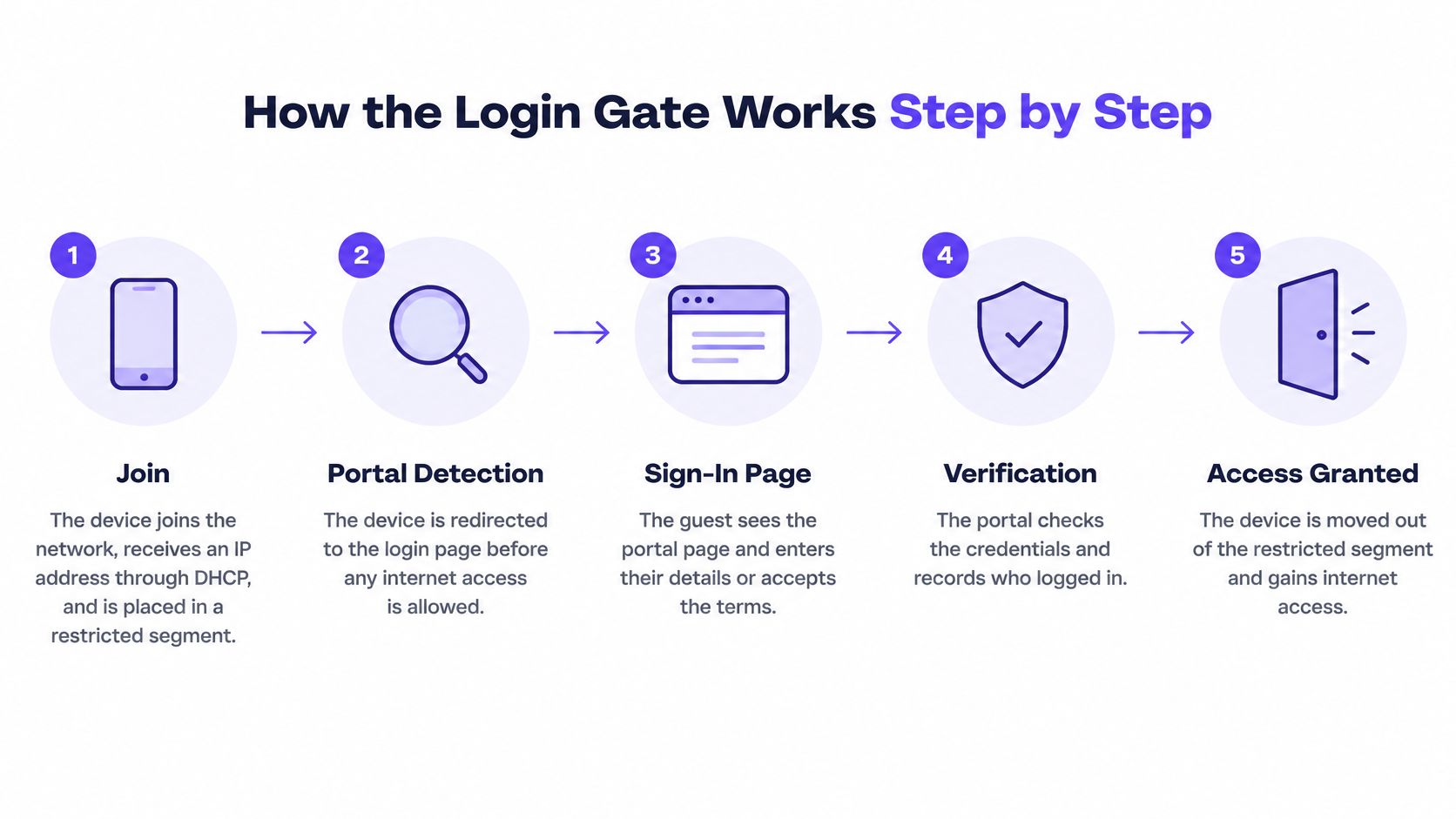
- Join. The device requests an address through DHCP, the protocol that hands out IP addresses automatically, and the network places it in a restricted segment. Only the portal is reachable from there.
- Detect. The phone or laptop runs a connectivity check against a known test address, or reads a portal address from DHCP or IPv6 Router Advertisement options. The IETF standard RFC 8910 defines exactly this: a DHCP option, using code point 114 after a code-point conflict forced a revision of the earlier specification, plus an IPv6 Router Advertisement extension that tells a device both that a portal exists and where its sign-in page lives.
- Show the login page. The browser opens the page with terms, a voucher field or a social login button. This redirect is the part guests notice.
- Authenticate. The portal checks what was submitted against its own database or a RADIUS back-end, which is the central server that holds account records for the network.
- Grant access. The device moves from the restricted segment to the open policy, and a session timer starts counting.
The redirect in stage three is the visible event, but stage two is where most failures begin. A device that doesn't receive a clear portal signal, or receives one it doesn't understand, sits in limbo.
| Stage | What the device does | What the portal does |
|---|---|---|
| 1. Join network | Requests an IP address through DHCP | Places the client in a restricted segment |
| 2. Detect portal | Runs a connectivity check or reads the portal address option | Answers with a redirect or advertises the portal URL |
| 3. Show login page | Opens the sign-in page in a browser | Serves terms, a voucher field or social login |
| 4. Authenticate | Submits details or accepts terms | Checks the back-end, such as RADIUS or a built-in database |
| 5. Grant access | Reaches the internet after acceptance | Moves the device to the open policy and starts the session timer |
Why the phone shows a tick while nothing loads
The link and the IP address exist before stage three ever completes. The radio association succeeded, so the operating system displays full bars and a connected status. Application traffic, meanwhile, is still confined to the restricted segment, which is why a video call fails while the WiFi icon insists everything is fine.
What Operators Configure and control
Picture a 40-room hotel that has thought about its network. A guest joins the hotel SSID, lands on a page carrying the hotel's logo and a short terms box in the local language, types a surname and room number, and is online in under a minute.
Behind that simple flow sit decisions somebody made: the splash page design, the authentication method, a session limit of 24 hours, and a per-device bandwidth cap so one guest streaming in 4K doesn't flatten the line for everyone else.
The walled garden rule: everything a guest needs to finish signing in must be reachable before sign-in. A payment page the guest cannot load is a dead end with no way out.
The settings a network team actually touches
| Setting | Typical options | Why it matters |
|---|---|---|
| Splash page and branding | Logo, terms text, language choice | Sets trust and records consent |
| Authentication method | Click-through, voucher, SMS, social login, RADIUS | Decides friction and how much personal data is collected |
| Session time limit | 30 minutes to 24 hours | Controls how long a guest stays online before re-login |
| Bandwidth limit | Per-device caps, commonly 5 to 10 Mbps | Protects shared capacity for all guests |
| Per-network policy | Separate SSID or VLAN for guest, staff or paid access | Keeps staff traffic off the guest segment |
| Walled garden | Domains reachable before login, such as payment or terms pages | Lets guests complete required steps |
| Logging and reporting | Login, session and access records | Supports audits and disputes |
Staff and guest traffic normally live on separate SSIDs, the network names a device sees, and often on separate VLANs, the virtual lanes that keep traffic apart even when it shares physical cabling. A guest device should never find a route into the point-of-sale terminal or the bookings server, and on any site taking card payments that separation is a compliance requirement as well as good practice.
What guests may reach after login is a separate layer of work from deciding who gets in, and content filtering on guest WiFi covers that side of the configuration.
Session timers are the setting guests feel without knowing its name. When the timer expires, the device drops back to the portal and the page returns mid-scroll, which is why a guest who was happily working suddenly has to sign in again.
Where the portal Fits in guest WiFi security
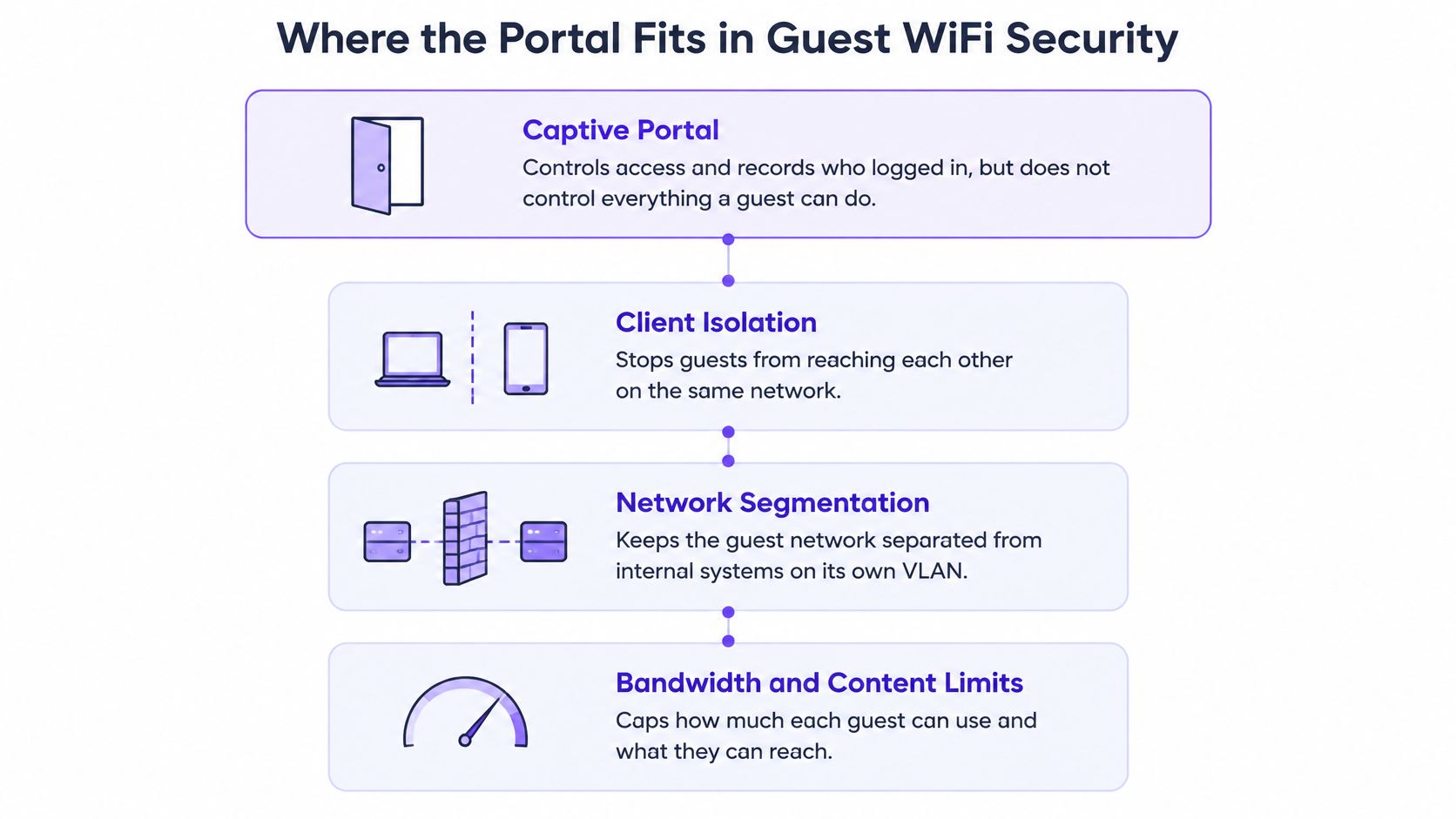
A portal answers one question: may this device use the internet right now. Everything that device does after the answer is yes belongs to other controls. The portal is the front door, and the rest of the guest network decides what happens inside the building.
Three layers, each doing a different job
Guest WiFi security works like a staffed building. The portal is the receptionist checking names at the door, and the quieter layers behind it decide which rooms each guest can enter.
Client isolation stops one guest device from reaching another on the same network. Without it, a laptop running a network scan can see every other guest's phone, and shared printers become shared attack surfaces. Every guest shares the corridor, but each device stays behind its own locked door.
Network segmentation puts guest traffic on its own VLAN so it never touches internal systems. Getting this right is the difference between a guest network and an open door into the estate, and setting up a dedicated guest network on the router is the practical first move.
DNS filtering checks each domain lookup before any connection starts. DNS, the service that turns a name like example.com into a numeric address, is the first request a device makes for almost everything it does online. Filtering at that point blocks malicious or unwanted destinations for every connected device, including the ones nobody manages, with nothing installed on the device itself. When a domain is blocked, the connection never starts and the user sees the network owner's block page instead.
| Control | What it does | What it cannot do |
|---|---|---|
| Captive portal | Gates access and records who logged in | Does not stop malware on an already allowed device |
| Client isolation | Stops guests reaching each other's devices | Does not filter web content |
| Guest VLAN | Separates guest traffic from internal networks | Needs correct switch and firewall rules |
| DNS filtering | Blocks malicious and unwanted domains for connected devices | Does not identify which person is connected |
| WPA2 or WPA3 password | Controls who can join the radio | Does not control what joined users reach |
| Content filtering | Blocks categories such as adult or gambling sites | Can be bypassed by encrypted DNS or VPNs if not controlled |
Why an online status proves less than it seems
Portal detection depends on probes, the small test requests a device sends to learn whether it can reach the internet, and probes can be altered. The IETF captive-portal architecture document notes that connectivity checks are commonly performed without TLS, because intercepting an encrypted check would produce hostname mismatches, and that DNS over TCP or HTTPS is harder for a portal to modify than plain UDP DNS.
That uncertainty shows up in the field. Detection goes wrong in both directions: devices report themselves online while a portal still holds them, and connected devices get flagged as captive. A status icon is a probe result, and a probe is an opinion.
Operational rule: treat "the device says online" as one signal among several, never as proof that authentication and policy enforcement both finished.
What to watch instead, separately: authentication success, redirect failures, DNS-resolution anomalies, and whether a device can load a page after it has signed in. Where the network exposes a portal-state API, use it rather than guessing from probes, and keep a controlled fallback for older devices.
Privacy and tracking before users Accept terms
A consent checkbox feels like the end of the privacy question. It's usually the start, and sometimes it's a cover for what already happened.
A peer-reviewed study of 67 public WiFi hotspots in Montreal found that 59.7% leaked MAC-address or last-visited-site data to third parties, 38.8% leaked user-agent information and 35.8% leaked browser information. The same study recorded tracking activity before users accepted the privacy policy or terms of service.
Read that again as an operator. The policy on the page described a decision the network had already made on the guest's behalf. A checkbox changes nothing about requests the splash page fires while it renders.
What to audit before the page asks for anything
- Capture every outbound request the sign-in page makes in a browser developer tools session, and repeat it with a fresh profile before consent is given.
- Cut social login where it isn't needed. A voucher or room number is enough for most venues, and a Google or Facebook handshake pulls in far more than an access decision requires.
- Write down every third party that receives data from the page, including analytics and font or stylesheet hosts.
- Separate access control from marketing analytics so the gate still works if the analytics code is removed.
- Set a retention period for session and login logs, and delete on schedule rather than "when someone remembers".
- Offer a low-data path, such as an anonymous tier or a short-lived token, for guests who only want a timetable or a menu.
DNS-based security and content controls don't need the portal to become a behavioural tracking system. A lookup can be judged and blocked without anyone being profiled, which is also true when guests use encrypted DNS through DoH and the resolver, not the browser, holds the decision.
What a guest can check in ten seconds
Ask whether the page wants more than the access requires. A menu and a timetable don't need a date of birth. Ask whether the social login is optional. If there's no click-through, voucher or room-number alternative in sight, the login method is doing marketing work rather than access work.
Fixing a portal that will not open
Guests hit the same five problems in the same order, and so do the people supporting them.
The guest's fallback sequence
- Forget the network and reconnect, then toggle WiFi off and on. A stale address from a previous session can leave the device unable to reach the sign-in page at all.
- Open a plain http website rather than an app. Apps often never launch a browser, so the prompt never appears and the guest concludes the network is dead.
- Look for the sign-in prompt before assuming a fault. If a captive window closed before the form loaded, reopen it from the WiFi settings rather than from the app you were using.
- Take certificate warnings seriously. An encrypted site throwing a certificate warning usually means the portal is intercepting the connection. Finish the sign-in page instead of clicking through the warning.
- Log in again if the session expired. Changing the WiFi password fixes nothing here, because the password was never the problem.
The operator's diagnosis order
Start with two separate numbers: authentication success and redirect failures. They fail for different reasons and a single "WiFi is down" ticket hides which one moved overnight, so pull them apart before touching any configuration.
Fast check: load the sign-in page on a device that has never joined the network. If it appears there and not on the guest's phone, the fault is on the device side, not the gate.
Then compare the failing device's address against the guest segment. A device sitting outside the expected range is usually on the wrong SSID, or holding an address from a network it joined hours ago.
Confirm the portal works before guests Connect
The last job before opening a guest network is proving it works, on real hardware, with a real phone.
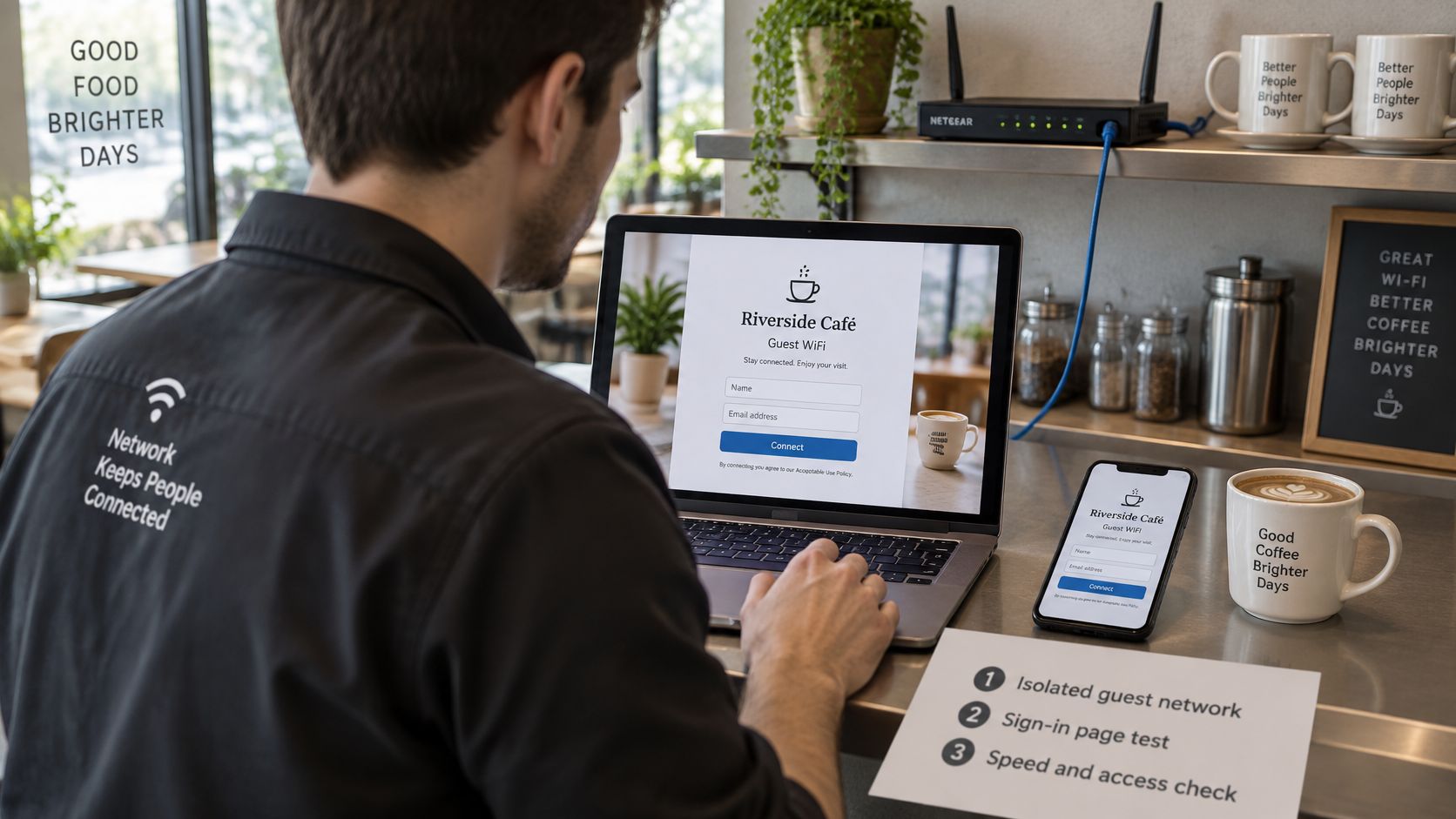
Seven checks before the first guest arrives
- Confirm the guest network is isolated. Client isolation on, separate VLAN, no route to internal systems. Verify it rather than assume it.
- Test the sign-in page on a fresh phone and a fresh laptop. Both should reach it without anyone typing a URL.
- Run every login method you offer, including the voucher and room-number paths, not just the click-through.
- Check post-login reachability by loading a normal website and an app after accepting terms.
- Let a test session expire and confirm the device is pushed back to the portal instead of staying online.
- Review what the page sends before consent, using the audit routine above.
- Confirm the logs record logins and sessions and that a retention period is written down somewhere other than someone's memory.
A short walkthrough makes the whole flow easier to picture, including the parts guests never see.
A device that reports itself online hasn't proved that the portal works. Only a fresh device, a real sign-in and a deliberate expiry test prove that. Run all seven now, on the live network, before the first guest connects.
Filtering belongs on the guest network as well as the sign-in page. On Purple Access's captive portal the guest network gets our strictest policy, with family-safe categories, Safe Search and ad blocking applied to every device that signs in. Shield runs standalone on any WiFi network or bolts onto Purple Access, and when a domain is blocked the connection never starts, so the device sees the venue's own branded block page instead of a generic error.
A guest network that filters at the DNS layer protects everyone on it without an agent on any device, and Purple Shield applies that protection per SSID, VLAN, venue and time of day, with reporting that shows exactly what was blocked and where. It runs on the access points you already own, standalone or alongside Purple Access, and needs no appliance and no firewall change. Visit Purple Shield to see how the policy would look on your own guest network.