
How to speed up public WiFi: Guest and venue fixes
Learn how to speed up public WiFi on your cell phone or laptop, then cut ads, trackers and congestion with venue-level fixes for guests and network operators.
Published November 24, 2026
The usual advice for slow public WiFi is to stand closer to the access point, hop to another band, or restart the phone. That helps one person in a quiet room. It does almost nothing when the login page never appears, or when the same seat is fine at breakfast and unusable at dinner. If you want to know how to speed up public WiFi, measure the seconds from joining to the first loaded page before you blame the speed test. Guests feel a faster first page long before they feel a bigger number on a test.
Table of Contents
- Find the Real Bottleneck Before You Fix Anything
- How to Speed Up Public WiFi on Your Own Device
- Block Ads and Trackers That Slow Every Page
- Fix Sign-In Friction and Captive Portals
- Reduce Congestion Through Channel and Airtime Planning
- Fix Queues and Slow Clients With Fair Scheduling
- When a Newer Access Point Will and Won't Help
- Choose the Fix That Matches Your Network
Find the real bottleneck before you fix Anything
“Connected” only confirms part of the journey. A guest still needs the sign-in flow, name lookups and page requests to complete before the connection becomes useful. The 2026 TRAI consultation document identifies cumbersome network discovery, portal redirection, cell phone number entry, SMS one-time passwords and repeated submission as causes of timeouts, privacy concerns and abandoned sessions. A guest can also walk out of coverage before the form finishes.
Separate the connection process from what happens after login. That distinction determines whether you should fix the portal, investigate busy-hour airtime or examine queues.
Match what you see to a cause
| Symptom | Likely cause | First check |
|---|---|---|
| Login page never appears or times out | Captive portal not triggered or stalled | Open a plain http page in a private window and watch for the redirect |
| Connected but pages hang before loading | Slow DNS or time-to-internet delay | Record the wait for login separately from the wait for the first page |
| Speed test looks fine but video and calls lag | Bufferbloat or contention | Watch call or video responsiveness while another device runs a speed test |
| Slow only in the evening | Crowd load on shared airtime | Repeat the same test at the same spot at different times |
| Only one device is slow | Band, signal or background sync on that device | Test a second cell phone at the same spot |
Time-to-internet and throughput measure different things. Record the seconds from joining until the first real page finishes, noting where the wait occurs. Then run a speed test. A healthy download result does not explain a stalled redirect, slow DNS lookup or queue that grows under load.
Keep streaming-specific diagnosis separate. IPTV Canada throttling fixes addresses IPTV and ISP throttling; buffering alone does not establish that throttling is the cause of a public WiFi slowdown.
Practical rule: Locate the delay before changing the setting. A fast speed test does not clear the portal, DNS or queues.
Try the portal on iOS, Android and Windows where possible. If the redirect works on a laptop but fails on a phone in the same location, investigate portal compatibility before changing radio settings. After login, check name lookups, secure pages and ordinary browsing separately. Operators can analyze network traffic to examine what crosses the LAN rather than treating one speed-test screenshot as a diagnosis.
Prioritize fixes by where the delay appears. Resolve sign-in friction first so guests can reach the internet. For evening-only slowdowns, investigate shared airtime before assuming the internet connection needs upgrading. If browsing works until another device starts transferring data, examine queue behavior and fair scheduling. Keep a single-device problem separate from a venue-wide fault: changing the whole network to address one phone can leave the actual cause untouched.
How to speed up public WiFi on your own device
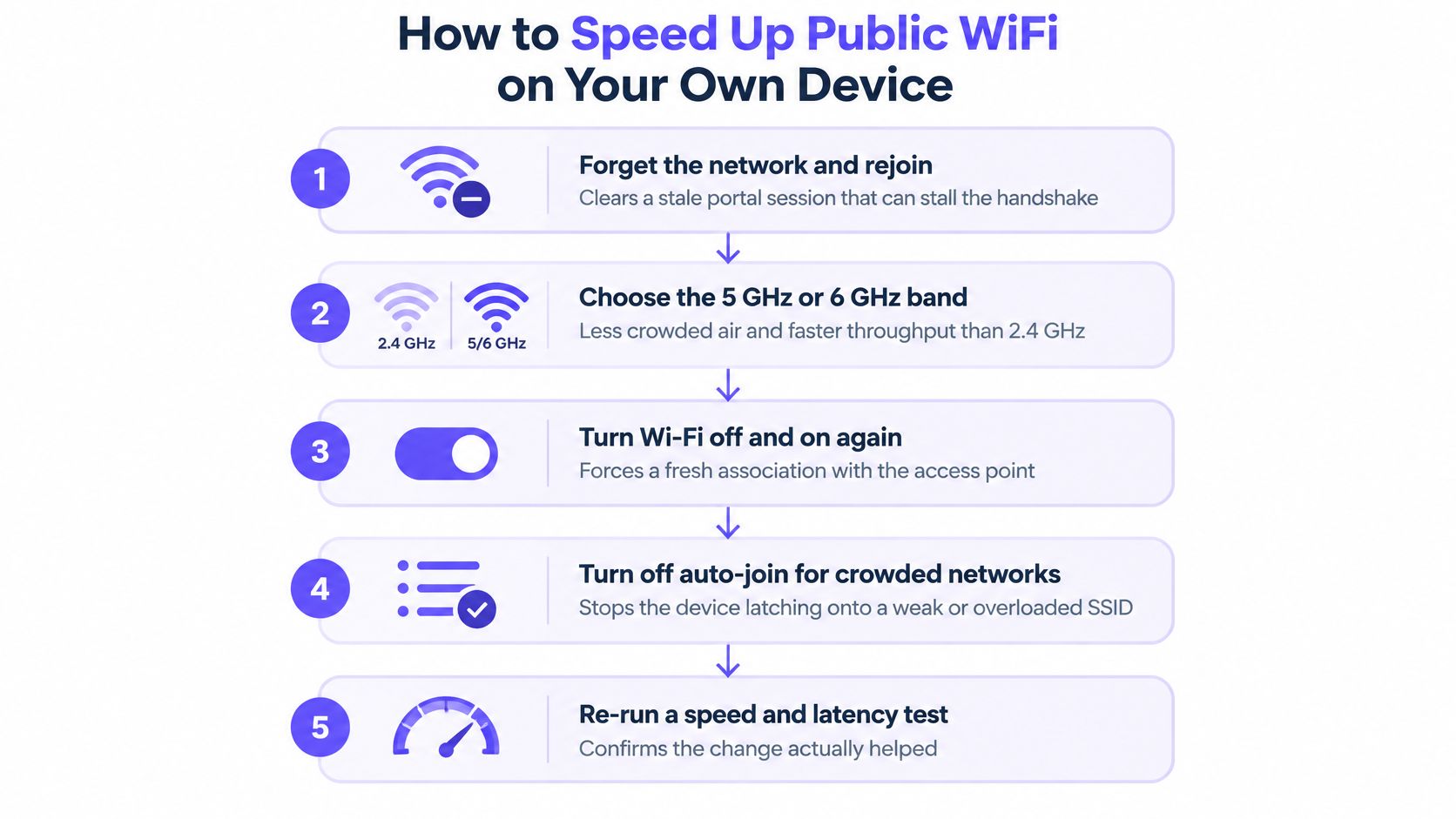
You don't control the access point. You do control the stale session, the band your cell phone picks, and the background jobs that steal the first minute of airtime. Work through the device checks below in order, then stop when the first page is quick and stable.
A seven-step guest checklist for improving public WiFi speeds on a mobile device or laptop.
- Forget the network and rejoin. A half-finished portal session can sit in the phone and stall the next handshake. Forgetting the network clears that state so the redirect can start clean.
- Pick 5 GHz or 6 GHz when the venue publishes separate names. The 2.4 GHz name usually carries the oldest clients and the most overlapping neighbors. A higher band is less crowded and finishes each transmission sooner, which is why the same password on the other name can feel like a different network.
- Stand in open space relative to the access point. A wall, a metal cabinet or a packed bar absorbs and reflects the signal. You want a clear line, not the farthest corner of the room.
- Pause cloud photo backups, app updates and large downloads until the first page loads and stays up. Those jobs grab airtime the moment you associate, so the page you wanted waits behind your own camera roll.
- Drop video to 480p or 720p for calls and streams in a busy room. A high-bitrate stream keeps the radio busy for everyone near you, including you.
- Turn a VPN off only if the portal requires it and your own policy allows it. Encryption and the extra handshake add delay, and some portals cannot redirect through a tunnel. Put the VPN back on after you are online if that is how you protect the session.
- Move big downloads to cellular data when the cellular signal is strong. The shared radio is a poor place for an operating-system update.
A healthy result is specific. The first page loads within a few seconds, later pages don't hang, and a second cell phone at the same spot behaves the same way. If every device in the room is slow, stop tuning yours. Your next lever is the venue's setup, not another reboot.
Walls, old cable and a badly mounted access point are not settings on your phone. Venues that keep that physical plant working often rely on telecom infrastructure maintenance crews rather than another guest reboot. The short walkthrough below shows the same guest checks in order, useful when you want to confirm you didn't skip the rejoin.
Block ads and trackers that slow every page
Load one news page twice. First with your blocker off, then with it on. In the browser's network panel, compare time to first content and the amount of data transferred. You are looking for ad scripts, tracker pixels, third-party video embeds and auto-playing media that start before the article you came for. If the second load is clearly lighter, the page was waiting on other people's tags, not on your typing.
| Method | Where it runs | Best for | Trade-off |
|---|---|---|---|
| Browser content blocker | Installed in the browser on the device | Personal cell phones and laptops | Must be installed per device, and some sites detect it |
| Built-in tracker prevention | Browser settings | People who won't install an extension | Blocks fewer requests than a dedicated blocker |
| Network DNS filtering | Resolver controlled by the venue | Operators covering every guest device | Guests can't switch it off or inspect it |
| Personal filtering DNS | Device network settings | People on untrusted networks they don't run | Can interfere with captive portals if misconfigured |
What each layer actually removes
A browser content blocker is the strongest personal option because it can stop scripts and pixels after the page has started. Built-in tracker prevention is the right fallback on a locked-down work laptop, but it leaves more third-party requests alone. Network DNS filtering never reaches the guest's home screen, which is why it is the only layer a cafe, hotel or hospital can apply to every phone. A personal filtering DNS on the device helps when you roam across networks you don't trust, and it is also the one most likely to break the sign-in redirect. Allowlist the venue's portal before you turn it on.
Sites sometimes detect a blocker and refuse to render, or a checkout script fails because a tag it needed was stripped. That is a real cost, not a reason to leave every tracker running. Allowlist the sign-in page and any payment step that breaks, then keep the block on for ordinary browsing.
Venues can't push an extension onto guest phones. If you operate the network, filtering has to live on the resolver you control. A concise look at a network ad blocker shows how that layer sits in front of page loads without an app on the cell phone. The rule is simple. Block at the layer you control, and keep an allowlist for the page that gets people online.
Fix sign-in friction and captive portals
Most guests give up before a single content page loads. I would fix that flow before touching channel width, because a modern access point can't help someone who never finishes the form. Test the path on iOS, Android and Windows. Confirm the redirect fires, then count the screens between join and a usable browser.
- Drop cell phone number entry and SMS codes where a terms click, a room number or another short method is acceptable. Each extra screen is a place people abandon, and a code that arrives late feels exactly like a dead network.
- Keep the portal page light. No video, no large frameworks, no fonts that have to download on a weak signal. The page has to render for someone standing at the edge of coverage.
- Allow the portal and its authentication domains through every filter. A blocker that stops the sign-in page recreates the original problem.
- Set a session length that matches the visit. A coffee shop guest shouldn't see the form again on a restroom break. A hospital visitor shouldn't be dumped back to the start every hour.
- After a successful login, prove that DNS, HTTPS and ordinary browser traffic all work. A session that "signs in" and then can't load a page is what guests describe as slow WiFi.
Record join-to-first-page at the same spot in a quiet hour and again when the room is full. If that timer is long in both cases, the portal is the bottleneck. If it only blows out when the room is full, you still have an airtime problem, but you will see it clearly only after sign-in is short. Portal limits show up no matter which login type you swap in, so change the flow itself. This matters most in airports, cafes, hospitals and transit hubs, where people leave before a slow form finishes.
Reduce Congestion through channel and airtime Planning
Inventory the busy hour, not the hour when the room is empty. On each access point, record channel utilization, client count, RSSI and SNR, retry rate, packet loss, latency and per-client throughput while the venue is full. Then run a spectrum scan and a controlled walk. You are looking for co-channel overlap and adjacent-channel energy, not for whatever channel the automatic planner picked at 7 a.m.
Assign channel and transmit power from that contention, not from the default. A radio shouting across the whole floor on full power creates the overlap you just measured. Smaller cells and reuse usually beat one loud access point.
Width is not free capacity
Test 20, 40 and 80 MHz in separate runs. A wider channel can raise peak throughput for a single client. It also consumes spectrum that neighboring access points needed, and in a dense room it often raises latency instead. Judge the run on 95th-percentile latency and packet loss, with a crowd that includes sticky low-rate clients parked at the edge. A clean average next to the access point during a quiet install proves little.
The NHS connectivity hub treats packet loss below 5% and latency around 20 to 50 ms as strong operational targets, alongside channel steering, access-point latency, roaming, throughput, jitter and the client's experience.
| Metric | Target | How to measure |
|---|---|---|
| Packet loss | Below 5% | Busy-hour crowd, 95th percentile |
| Latency | Around 20 to 50 ms | Busy-hour crowd, 95th percentile |
| Channel utilization | Add access points or shrink cells if it stays high | Per access point, busiest hour |
| Retry rate | It should fall after a channel or power change | Per access point, busiest hour |
| Per-client throughput | No single low-rate client dominating airtime | Sample that includes sticky low-rate clients |
A result that only looks good beside the access point, in an empty room, is not an acceptance test.
If utilization stays high after you have stopped wasting spectrum on overlapping wide channels, add access points and reuse channels. Don't keep widening. One page per zone, with these five rows filled from the busy hour, is enough to decide the next change.
Fix queues and slow clients with fair scheduling
A distant phone on a slow modulation can occupy the radio for far longer than a laptop next to the access point, even when the laptop wants to send more data. Queues make that worse when they hold a deep pile of packets and then release them as a burst of latency. Measure this against the same busy-hour sheet, not against a single speed-test average.
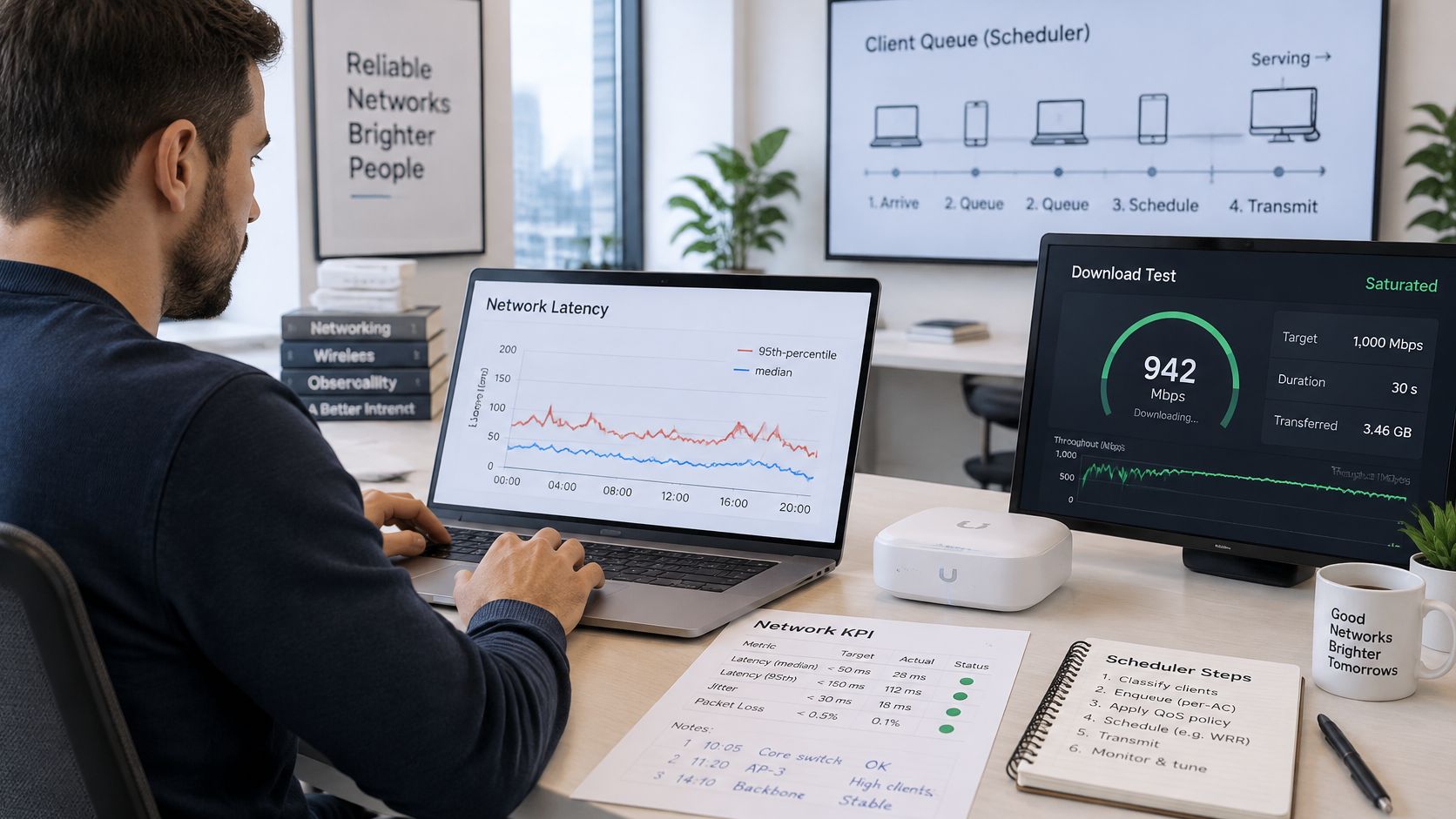
- Take two baselines. One is unloaded. One is a saturated download. Record median and 95th-percentile latency, goodput, retransmissions, and whether fast and slow clients get a fair share.
- Cap the WAN queue at the gateway so the buffer isn't storing seconds of packets. A deep first-in-first-out buffer is why a call collapses while a download still "looks fast."
- Enable FQ-CoDel, or an equivalent fair-queuing scheduler, on the router or firewall. The point is to stop one flow from sitting in line behind a bulk transfer.
- Turn on airtime fairness only after you check client compatibility. The setting exists so one far-away, low-modulation phone can't take a disproportionate share of transmit time. Some older clients misbehave when it is turned on blindly.
- Separate operational, staff and guest traffic onto different SSIDs or VLANs, and reserve capacity for the services that can't wait. Guest streaming shouldn't sit in the same queue as a payment terminal.
- Roll the change onto one treatment access point and leave a control access point alone. Reject any config that lifts average throughput and worsens 95th-percentile latency, or that starves the slow clients entirely.
In experimental evaluation, an airtime-fair queueing design reached near-perfect fairness, improved aggregate throughput by up to five times, and cut latency under load by up to an order of magnitude. Those are laboratory results. Reproduce them on your mix of cell phones and traffic before you promise the same gain. The two mistakes that undo the work are trusting only speed-test throughput, and leaving large first-in-first-out buffers in the router. Cutting waste on the wire is the same idea as the steps to reduce bandwidth usage once the radio is no longer the only queue.
When a newer Access point will and Won't help
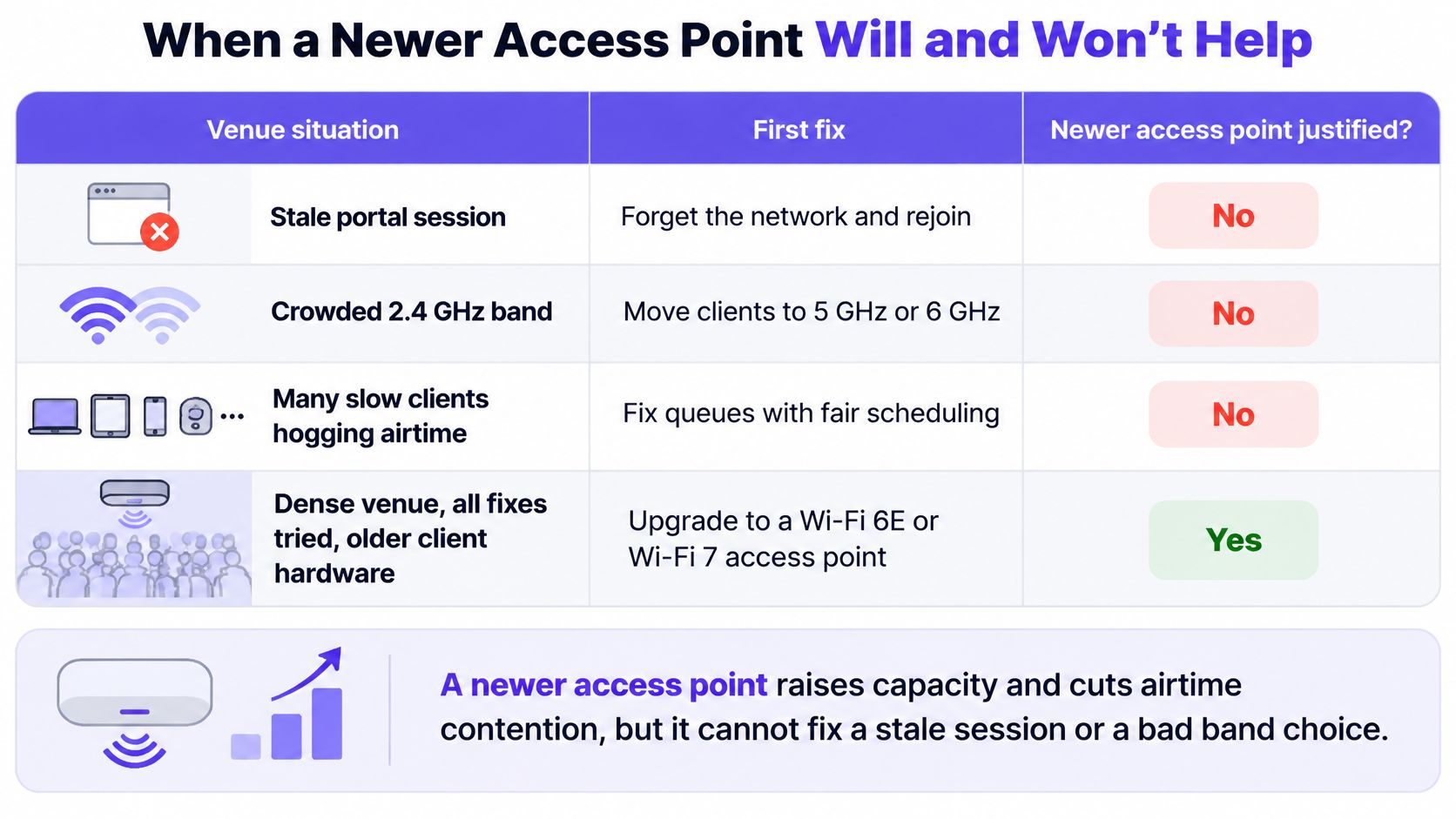
A newer radio raises peak capability. It doesn't repair a portal, a stuffed uplink, or a room full of clients that can't use the new band. Decide from the situation in front of you.
| Situation | First fix | Upgrade to a newer AP? |
|---|---|---|
| Slow only at peak hours with mostly recent devices | Rebalance channels and add access points in busy zones | Yes, as a targeted deployment |
| Many older cell phones and laptops that can't use 6 GHz | Tune 5 GHz channels and reduce cell overlap | Partly, mainly for new clients |
| Dead zones behind walls or outdoors | Add access points where coverage is measured as weak | Only where new sites need WiFi 6 features |
| Slow right after sign-in, or stalls before the first page | Fix the captive portal and backhaul latency | No, not on its own |
| Interference from neighboring networks in dense urban sites | Scan the spectrum and move to a cleaner channel | No, unless the scan shows no usable channel left |
Ookla reported that WiFi 7 represented only 1.8% of global Speedtest samples in Q1 2026, compared with 26.7% for WiFi 6, 38.3% for WiFi 5 and 33.2% for WiFi 4. Most of the phones in a hotel lobby are not on the newest standard. Six gigahertz helps only the clients that support it. Unlicensed 2.4 GHz and 5 GHz in busy city centers are already crowded, and a new label on the access point doesn't move your neighbors off those channels.
Use the busy-hour readings before you buy. High airtime on modern clients, plus measured coverage gaps, justifies a targeted WiFi 6 or 6E deployment. WiFi 7 is a capacity purchase for a zone that has already had its sign-in, channels and queues fixed. It isn't a universal remedy, and a congested uplink will hold a new access point back however current the radio is.
Choose the fix that matches your network
Guests start on the device. Forget and rejoin, move off the crowded band, and pause the backup. Add a browser blocker where the device allows it. You can't reconfigure someone else's access point from a hotel bed.
Operators go in a fixed order. Measure join-to-first-page and the busy-hour sheet first. Shorten sign-in second. Then fix channels and airtime. Then fix queues and airtime fairness. Buy hardware last, and only for the zone the sheet says is full of capable clients.
If you want ad and tracker blocking on every guest device without installing software, Purple Shield is one option built for guest and public WiFi rather than corporate endpoints. The vendor's DNS-layer filtering strips ads, trackers and bloatware so they never load, with pages arriving up to 500% faster and about 20 to 40% less web traffic, and high-bandwidth streaming can be limited at busy times on the free network. A venue that can already change the portal, the channels and the queues may not need another service to get the first page fast.
The fastest fix is usually the one that cuts waste, not the one that adds capacity.
Purple Shield is protective DNS and content filtering for venue, guest and public WiFi, stripping ads and trackers before they load and applying a policy per network without an app on each phone. If slow first pages on your guest network come from that extra traffic, it is built for the same problem this guide has been working through. Visit Purple Shield to see how the filtering sits on the WiFi you already run.