
Router guest network explained: Isolation, risks, and setup
Learn what a router guest network is, how it isolates visitors from your main network, and when extra filtering and oversight are needed.
Published November 15, 2026
Customers keep asking for your cafe's WiFi password, but the card terminal and office printer use that same router. You want to offer internet access without inviting every visitor's phone into the business network. A router guest network can provide that boundary, but only if its settings do more than broadcast another WiFi name.
Table of contents
- What a Router Guest Network Separates From Your Main Network
- Guest Network Controls and What Each One Stops
- How to Turn On a Guest Network in Your Router
- Venue Examples and the Trade-Offs Each One Forces
- How to Test Your Guest Network Isolation
- Confirm Your Guest Network Controls Before Opening Access
What a router guest network separates from your main network
A router guest network is an additional wireless network, usually provided by the same router, that gives visitors internet access while restricting their access to your main network. In the cafe, customers should be able to browse and send messages without reaching the office printer, staff laptop or payment equipment.
Think of a hotel keycard. It opens the guest's room and approved shared areas, but not staff corridors or the safe room. The permissions provide the protection, not the label on the card. Likewise, a different WiFi name, called an SSID, doesn't establish a security boundary by itself.

Public access is an established connectivity model: an academic history of WiFi reports approximately 169 million public WiFi hotspots worldwide in 2018. For an individual venue, the important issue isn't the size of that network. It's that the operator doesn't control the devices joining it.
A visitor's laptop might be well maintained, infected or configured to share files openly. You shouldn't have to determine which before allowing someone online. With network segmentation, you define what visitors can reach rather than trusting every device they bring.
Separate the boundaries
Guest networking needs to address distinct relationships:
- Guest to business: Visitors shouldn't reach trusted systems or administration interfaces.
- Guest to guest: Unmanaged devices shouldn't contact neighboring visitors unless there's a legitimate reason.
The second boundary requires its own control. A network can successfully protect your office computer while still allowing customers' devices to communicate with each other.
Practical rule: Treat the guest WiFi name as an entrance sign. Check the access rules behind it before handing out the password.
Guest network controls and what each one stops
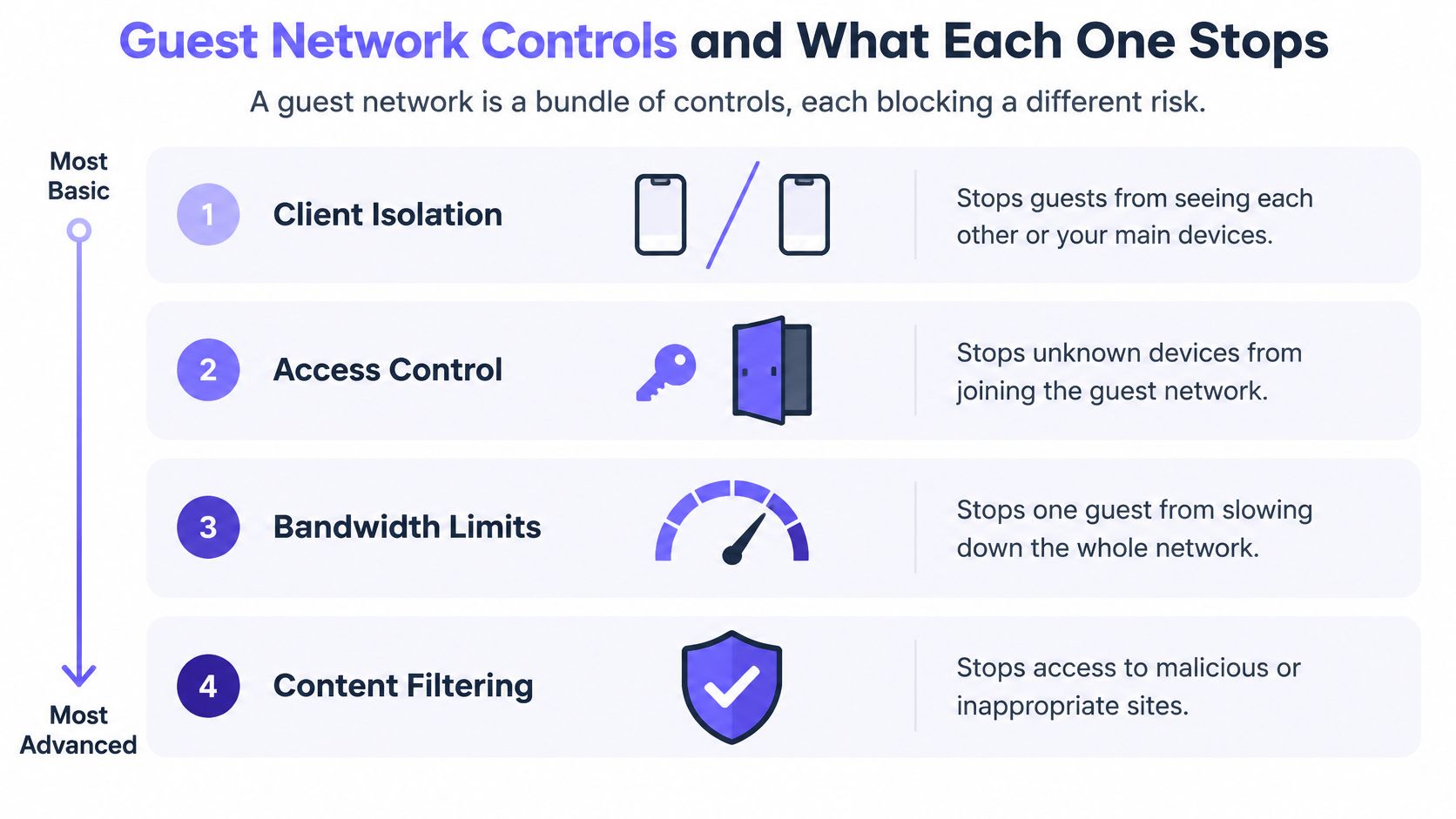
A guest network is a bundle of controls, each blocking a different risk. Some govern local communication, others govern internet destinations or how long someone can connect.
Use this comparison to distinguish those jobs.
| Control | What it blocks | What it does not block | Typical use |
|---|---|---|---|
| Guest mode with internet-only access | Guest devices reaching the main network | Guest-to-guest contact, malware and phishing | Home and small-office routers |
| Wireless client isolation | Guests seeing or contacting each other on the same wireless network | Main-network access without separate rules | Public and high-density WiFi |
| Inter-access-point isolation | Guests on different access points reaching each other | Main-network access without separate rules | Supported multi-access-point venues |
| Separate VLAN or physical path | Guest traffic reaching printers, cameras, management interfaces and staff systems when access rules prohibit it | Phishing, malware callbacks and harmful content | Hotels, schools, hospitals and multi-site operators |
| Protective DNS and content filtering | Requests to identified malware, phishing and blocked-category destinations | Lateral movement between devices | Venues with safeguarding responsibilities |
| Time-limited credentials | Continued access using expired guest credentials | Misuse during an active session | Captive-portal and paid WiFi |
Local boundaries aren't internet protection
NIST's wireless LAN security guidance recommends separate wireless networks where security profiles differ, including guest versus internal access, and says devices on logically separated networks shouldn't connect to devices on another. A VLAN, or virtual local area network, provides a logical segment, but firewall and routing rules must enforce its boundaries.
Client isolation addresses a different problem: communication between guests. The Wi-Fi Alliance deployment guide recommends disabling client-to-client forwarding where it isn't needed, both within the same wireless service set and across different service sets on the network. In practical terms, check isolation across access points, not just within each access point.
The visual groups the controls by purpose. Remember that guest-to-main-network separation and guest-to-guest isolation still need separate verification.
What filtering adds
Isolation won't stop an infected laptop contacting an attacker-controlled internet server. Protective DNS checks requested domain names against policy before allowing their resolution. Content filtering adds rules for categories the venue doesn't want to provide.
Neither guarantees that every harmful destination will be identified. They also don't replace local access restrictions.
Filtering controls destinations. Isolation controls neighbors. Neither substitutes for the other.
Say a student joins a school guest network with isolation enabled but no protective filtering. Their tablet can't contact nearby devices, yet it can still open a phishing destination. Conversely, a filtered tablet on an unrestricted local network might still reach an exposed file share.
Bandwidth limits have another purpose entirely: managing shared capacity. They aren't a malware control.
How to Turn on a guest network in your router
Make changes from a trusted device connected to the main network. Keep the router's manual available because manufacturers use different names for similar settings.
Configure access and separation
Open the administrator interface. Use the gateway address shown in your device's network settings or the router's label and documentation. Sign in with the administrator password, not the WiFi password. You should reach the router's settings dashboard.
Enable guest WiFi. Look under wireless, guest access or advanced settings. Confirm that you're creating a guest network rather than adding another SSID to the existing network.
Set distinct credentials. Choose a recognizable guest name and a unique passphrase using WPA3 or WPA2 security, according to device support. Don't reuse the staff-network password.
Enable peer isolation. Look for client isolation, AP isolation or wireless isolation. Check the description carefully: an option might cover only clients connected to the same access point.
Disable local access. Turn off permissions allowing guests to reach the local or intranet network. If bandwidth controls are available, reserve enough capacity for business operations.
Save and check. Connect a test cell phone to the guest SSID and confirm normal internet access. Where the router uses separate address ranges, verify that the cell phone receives a guest-range address. That's an initial configuration check, not proof of isolation.
Check the hardware's limits
A router that offers another WiFi name without enforceable separation isn't sufficient for this job. For a larger installation, use a router, firewall and access points that support the required VLANs and access rules. An access point advertising VLAN support can't provide the complete boundary on its own.
Check operating mode, too. Equipment used as an access point behind another router may handle guest traffic differently from equipment doing the routing.
For a visual setup walkthrough, use the video alongside your own router's documentation.
Venue examples and the trade-offs each one forces
A hotel lobby bar needs easy onboarding without allowing strangers' devices to interact. A sensible starting policy combines strict peer isolation, family-safe filtering and expiring room-guest vouchers. Room casting needs a more selective solution than allowing every guest to discover every television.
CISA's enterprise wireless guidance recommends separating guest wireless from organizational networks. Applying that principle doesn't mean every venue should use identical permissions. A classroom, waiting area and conference hall have different legitimate communication needs.
Match permissions to the activity
At a school, keep staff, student and visitor networks distinct. Apply the intended filtering policy to each, while allowing classroom casting only between approved devices and displays. Don't solve a discovery problem by opening the staff network.
In a hospital waiting area, patients' tablets need internet access, not access to clinical equipment. Strict peer isolation and firm separation from clinical and medical-device networks should take priority over convenient local sharing.
| Venue | Isolation and separation | Filtering | Exceptions and limits |
|---|---|---|---|
| Hotel lobby bar | Strict peer isolation | Family-safe filtering | Time-limited room-guest vouchers |
| School | Separate staff, student and visitor networks | Filtering across connected devices | Controlled classroom-casting exceptions |
| Hospital waiting area | Strict peer isolation; separate clinical and medical-device networks | Threat and content filtering | Patient tablets never reach clinical systems |
| Convention center or campus event | Controlled attendee collaboration | Threat filtering and event-appropriate categories | Expiring credentials; monitor bandwidth concentration |
| Corporate office with visitors | Visitor VLAN with no route to printers; separate smart-display network | Threat filtering and visitor content policy | Document exceptions before enabling |
A conference organizer may need delegates to collaborate locally. Give that activity a restricted collaboration segment rather than relaxing the entire public network. At a corporate office, offer a controlled presentation service instead of granting visitors broad access to office displays and printers.
The same principle applies at home. Global's guide to renting out a spare room provides useful hosting context; network access should likewise distinguish a tenant's needs from access to household devices.
Measure what stricter settings break
Client isolation and captive portals can interfere with wireless printing, accessibility devices, casting and smart displays. Before changing a guest WiFi policy, establish a baseline and compare:
- Onboarding: Failed joins, portal difficulties and authentication friction.
- Legitimate use: Incorrectly blocked destinations and unavailable local services.
- Support and capacity: Help-desk contacts and guests consuming disproportionate bandwidth.
Choose permissions for the venue's actual activities, not because another site uses the same router.
How to test your guest network isolation
Treat guest WiFi as an untrusted network requiring continuous verification. A settings screen describes intended behavior; testing shows what a guest device can do.
CISA's guest-network segmentation guidance calls for distinct VLANs or physically separate paths from enterprise traffic, with labeled telemetry to support incident triage. Include the upstream firewall and switches in your checks, rather than testing wireless settings alone.
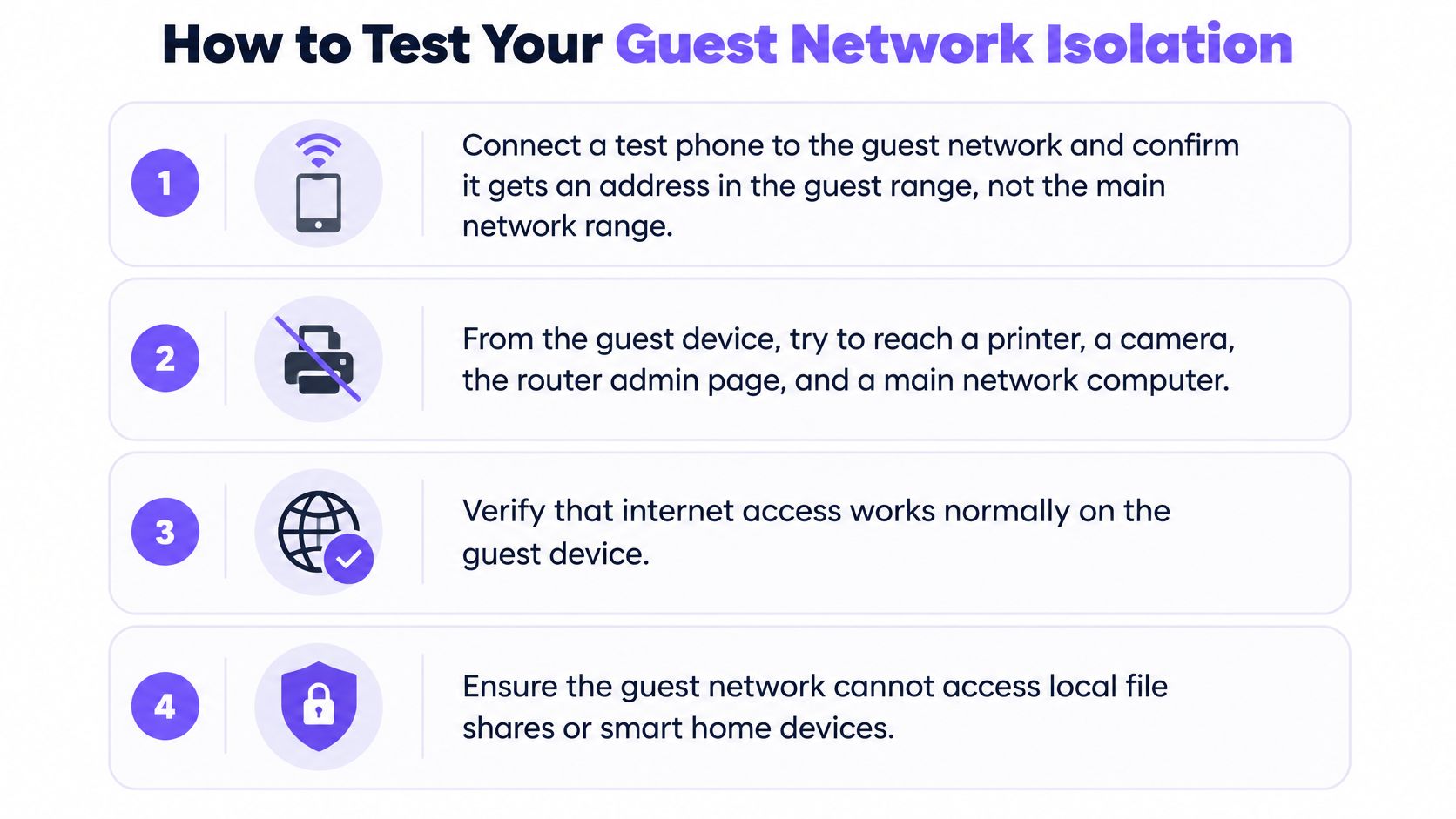
Use the visual checklist as a starting point, then complete the detailed tests below.
Run the checks from a guest device
Confirm addressing and internet access. Join the guest SSID and inspect the assigned network details. The expected result is the configured guest segment with working internet access. Disable cell data so it can't disguise a failed WiFi connection.
Try protected destinations. Attempt authorized connections to a printer, camera, router administration page and staff server using their recorded addresses. Each should fail unless an explicit exception exists. Test the actual service, not just whether a device answers ping.
Repeat with IPv6. Where IPv6 is available, repeat the protected-destination checks over it. The expected result is the same access policy as IPv4, with no alternate route into internal systems.
Check guest peers. Use another test device with a known working service, then try reaching it from the guest device. With peer isolation required, access should fail both on the same access point and across different access points.
Verify DNS enforcement. Confirm queries use the intended filtering service and visit its harmless category-test page. The expected result is the configured block response and a matching policy log. Account for DNS over HTTPS, which can bypass a network resolver if your enforcement design permits it.
Inspect discovery. Check printer and casting discovery. Unapproved devices shouldn't appear; approved services should remain available only to their intended users.
Retest after changes. Repeat after firmware updates, mesh additions, access-point replacements or routing changes. Expected permissions should remain unchanged.
Record evidence, not assumptions
Use only devices and systems you're authorized to test. A failed connection isn't conclusive if the destination was offline, so confirm test services work from an approved network first.
Record the expected result, actual result, date and responsible owner. A repeatable test is more useful than a screenshot showing guest mode enabled.
Label guest-network logs clearly and investigate unexpected successful connections before reopening access.
Confirm your guest network controls before opening access
Before publishing the password or enabling the portal, make decisions in this order. Start with the boundaries that protect business operations, then add controls for visitors' online activity and access lifecycle.
Approve the policy in order
Confirm separation from trusted systems. Establish that guests can't reach staff systems, printers, cameras or management interfaces. Include the wired network and upstream routing, not just wireless clients.
Enable client isolation unless a service needs an exception. Document the destination, permitted users and service involved. An exception for a presentation display shouldn't become unrestricted local access.
Add protective DNS and appropriate content filtering. Where visitors include children, patients or other groups needing safeguarding, define categories deliberately. Give someone responsibility for reviewing legitimate blocked destinations.
Set an access lifecycle. Use expiring credentials for paid stays, temporary visitors and events. Decide who issues them and who handles extensions.
Run and retain the tests. Assign an owner to unresolved failures and don't treat a successful internet connection as approval of the whole configuration.
For unmanaged visitor devices, work through the complete checklist. In a private office without public access, separation and peer isolation remain the starting priorities; select filtering and credential rules for the people who connect.
Give every guest network an owner
Your next action is straightforward: list every guest SSID and confirm that each has a documented policy. Include its VLAN or other segment, allowed services, filtering rules, credential process and test owner. Don't assume identically named networks at different sites have identical enforcement.
For the filtering step, Purple Shield provides protective DNS with policies per SSID and VLAN, without hardware or agents on guest and BYOD devices. When you request a trial, our expert maps your networks, venues and users, then returns a policy for every SSID you run.
A well-run guest network lets visitors get online without exposing internal services. Staff can explain necessary exceptions, identify the policy applied to each network and produce a current test record.
Add protective DNS and content filtering to the isolation controls your guest network already needs. Visit Purple Shield to request a trial and have our expert map your networks, venues and users into a policy for every SSID.