
Google SafeSearch: How it works and where it stops
Google SafeSearch explained: what Filter, Blur and Off modes hide, why it covers only Google Search, and how to enforce it on public WiFi.
Published November 9, 2026
If Google SafeSearch is on, is the network safe? Most operators treat that checkmark as proof. It isn't. Google SafeSearch only changes what Google Search shows. Everything else, other engines, typed addresses, apps, still needs its own control, and you should be able to show which layer did the work.
Table of Contents
- How Google SafeSearch Filters Results
- Where SafeSearch Stops and What Stays Open
- Who Can Lock SafeSearch and Where
- Network Controls That Close the Gaps
- Why SafeSearch Looks Broken and How to Test It
- Venue and Campus Scenarios in Practice
- Choose Your Layered Network Policy
How Google SafeSearch Filters results
What changes when someone searches on Google?
Think of the results page as a store window. Google SafeSearch decides which items stay in that window, which get frosted glass, and which stay on the shelf. It does not lock the street outside the store.
Google's SafeSearch help describes three modes. Filter blocks detected explicit images, text, and links. Blur blurs explicit images and can still show explicit text and links when they match the query. Off returns relevant results even when they are explicit. Detection looks at signals from text, images, videos, and links, and the categories include nudity, sexually explicit material, violence, and graphic gore. Google also says no filter is 100% accurate, and SafeSearch is not meant to hide material with substantial educational, historical, documentary, scientific, or artistic value. On managed devices, accounts, or networks, the setting can be locked so people cannot change it.
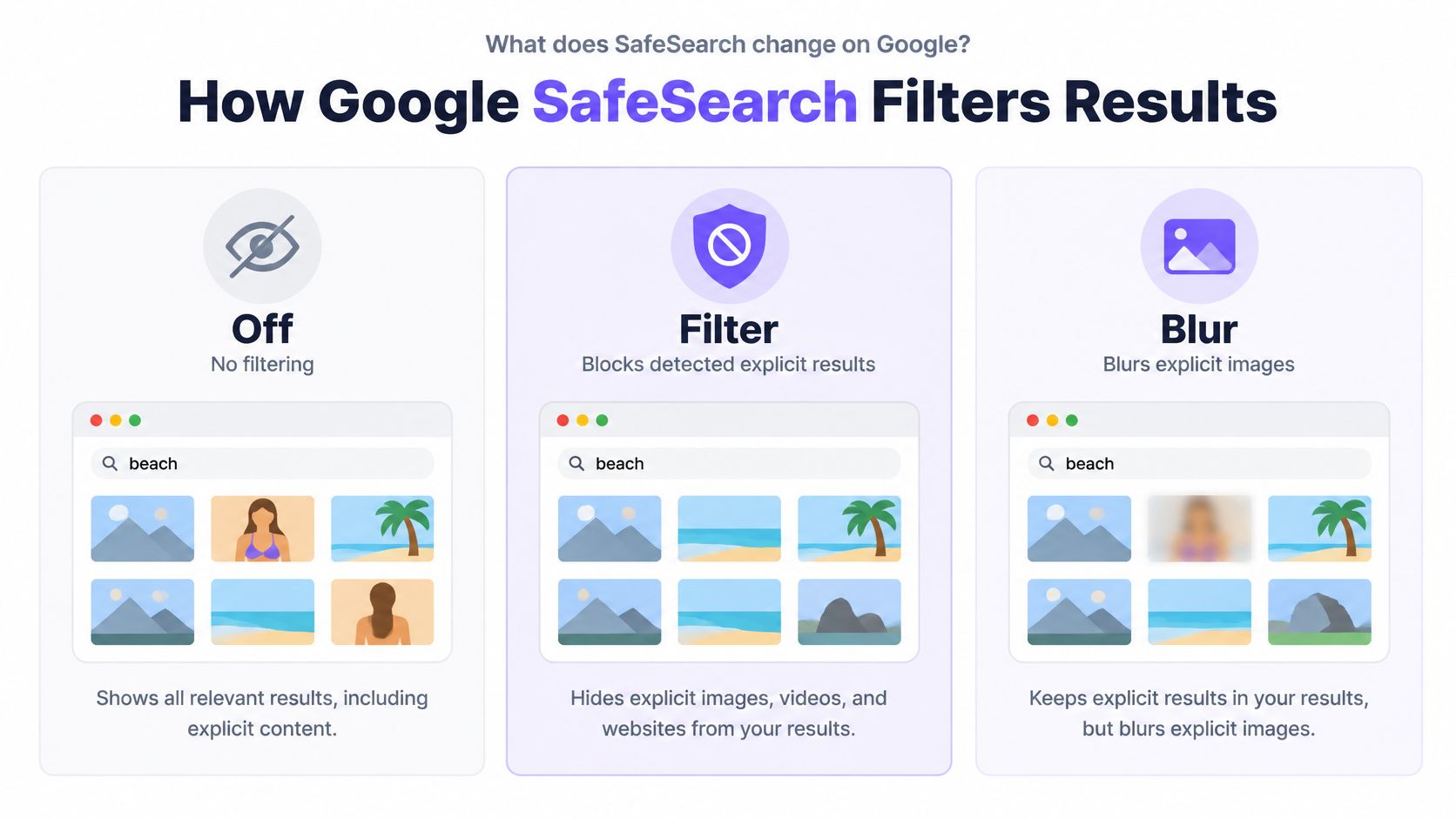
| Mode | Explicit images | Explicit text and links | Best fit |
|---|---|---|---|
| Filter | Blocked | Blocked | Shared, managed and child-focused networks |
| Blur | Blurred | May still appear when relevant | Adults who want context visible |
| Off | Shown when relevant | Shown when relevant | Adult accounts that need unrestricted results |
Check the mode before you troubleshoot
Open Search settings, or the SafeSearch control on the signed-in account, and write down what you see.
- Read the active mode. Note Filter, Blur, or Off before you change anything.
- Look for a lock. A lock means that device, account, or network will not accept a local change.
- Match the audience. Filter fits shared and child-focused use. Blur fits adults who still want the words. Off fits an adult account that needs the full result set.
Practical rule: If you cannot name the mode and whether it is locked, you are not ready to call the filter broken.
Where SafeSearch stops and what stays open
SafeSearch screens the catalog in one library. It does not guard every door into the building.
Google's SafeSearch page is plain about the boundary. This is a search-result classification and presentation control, not a general web-content firewall. Filter blocks detected explicit results. Blur obscures explicit images while explicit text and links may still appear. It applies only to Google Search, so a typed address, another search engine, an app, or other web traffic is outside it.
| Access path | Covered by SafeSearch | Control needed |
|---|---|---|
| Google Search results | Yes, according to the active mode | SafeSearch setting or lock |
| Other search engines | No | DNS or category filter |
| Direct visits to websites | No | DNS or category filter |
| Apps and social platforms | No | Category DNS or app-level controls |
| Explicit material Google does not classify | Not guaranteed | Logging and an escalation process |
What a guest network still leaves open
A guest can skip Google entirely. Bing, a bookmark, or a social app never asks SafeSearch for permission. Automated filtering is not completely accurate either, so a page Google does not classify can still load.
That is why a bar, hotel, or library cannot treat a locked search setting as full protection. Adult content, gambling, malware, and phishing need a DNS or category policy on top. Operators should log what was stopped, test the policy, and keep an escalation path for false positives and misses. Our guide on where DNS filtering stops is the right companion when you are mapping those leftover paths.
A green SafeSearch status is evidence about Google results. It is not evidence that the network is clean.
Who Can Lock SafeSearch and where
Several parties can set SafeSearch. The owner of that setting decides whether the person at the keyboard can change it.
Google's management guidance says administrators can force filtering for a whole network and lock it so users cannot turn it off. Filter blocks detected explicit results. Blur mainly hides explicit images and may still show explicit text or links when they fit the query. For accounts managed in Google Family Link, SafeSearch is on by default for signed-in users under 13, or the minimum age that applies in their country. A parent can instead turn Search off entirely. Ranking and query systems still try to cut unwanted exposure when the mode is Blur or Off. The control still covers Google Search only, so a school or venue that needs every domain covered still needs a network control beside it.
| Enforcement point | Who controls it | Scope | Can the user override it? |
|---|---|---|---|
| Family Link supervised account | Parent or guardian | Signed-in account, on by default under 13 | Only through parental controls |
| School or workplace account | Administrator | Managed accounts | No, when the setting is locked |
| Managed device policy | Device administrator | Enrolled devices | Usually no |
| Venue router or public WiFi | Venue IT team | Every device on that network | No, while connected to that network |
| ISP controls | Internet provider | Connections through that provider | Only if the provider publishes an opt-out |
| Operating system controls | Device owner or administrator | The device | Only if the owner allows it |
| Security software | Installed app owner | Single device | Yes, if the user holds admin rights |
Account lock and network lock are not the same
A lock on a Google account travels with that sign-in. A lock on the venue WiFi stays with the connection and drops away when the device leaves.
Start with the signed-in child or staff account, then the enrolled laptop, then the guest SSID, then the ISP and any security app on that one device. The next test shows which of those owners is holding the lock.
Network controls that Close the Gaps
Search filtering handles Google results, category DNS handles direct visits, threat blocking handles malware and phishing, and logging proves what happened.
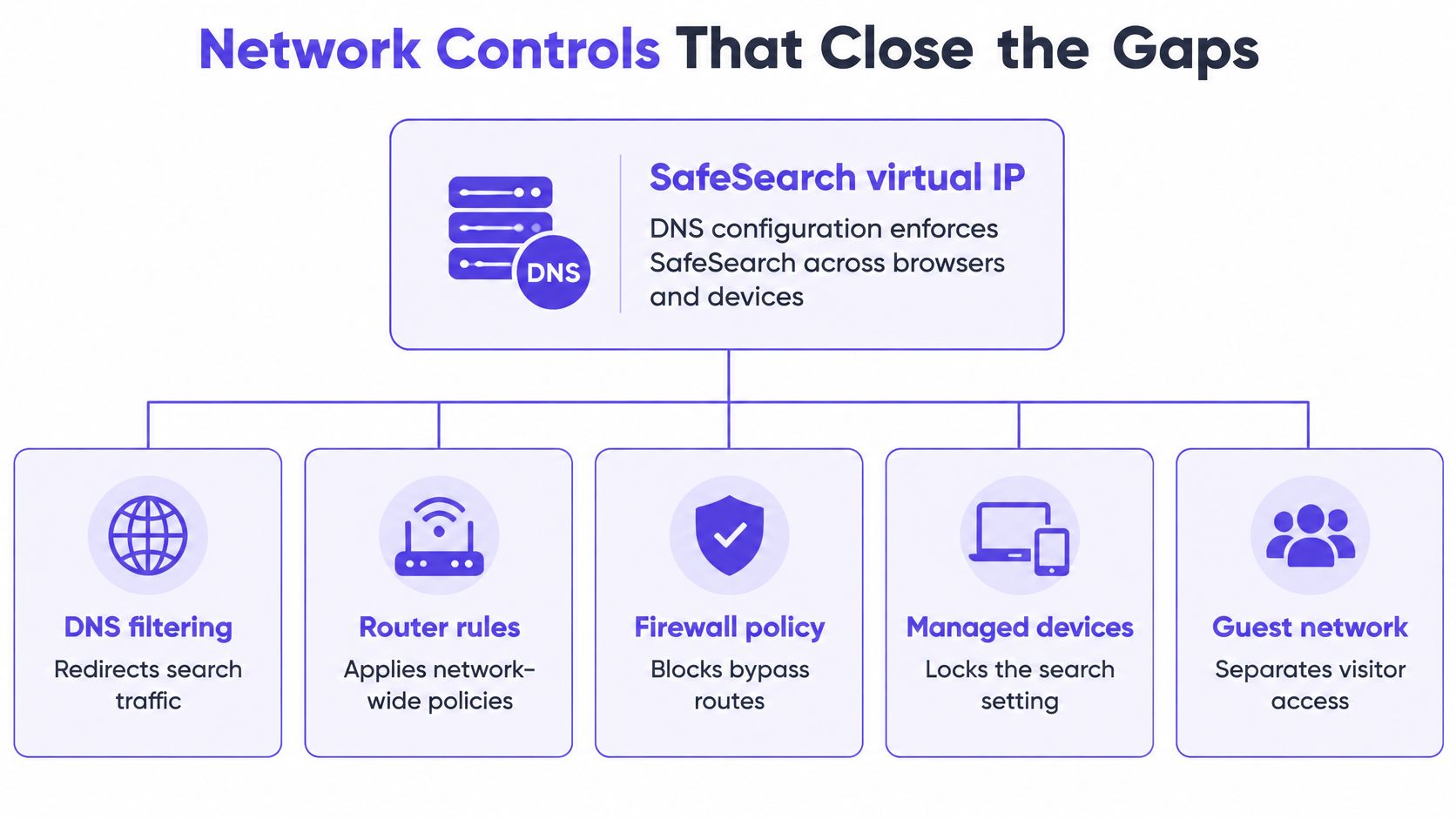
Google supports a SafeSearch virtual IP reached through DNS, so the same filtered Google results apply across browsers and devices while HTTPS stays intact. That still stops at Google Search. Pair it with category filtering you can apply per SSID, VLAN, or time of day.
| Control | What it covers | Where it applies | Main limit |
|---|---|---|---|
| SafeSearch virtual IP with DNS | Google Search results | Whole network, all browsers | Google Search only |
| DNS category filtering | Adult content, gambling and other categories | Per SSID, VLAN or schedule | Only as accurate as the category list |
| Threat and phishing DNS blocking | Malware, phishing and command-and-control domains | Whole network | Known threats only |
| Browser safe-browsing settings | Pages in one browser | Individual devices | Bypassed by switching browsers |
| Firewall rules | Ports and IP addresses | Network edge | Weak against domain-level content |
| Device or app controls | Specific apps and accounts | One device or account | Not network-wide |
Pick the control that matches the path
Match the path people use most, then add the rest as the policy matures.
- Mostly Google queries. Put the SafeSearch DNS path in place first, then category filtering for the sites people type.
- Mostly apps and bookmarks. Category DNS and app controls matter more than another search toggle.
- Shared guest WiFi. Threat blocking at lookup stops many callbacks before a session starts. A firewall still cannot read a domain the way DNS can.
- One managed laptop. Device policy locks that account. It does nothing for the cell phone on guest WiFi.
Purple Shield's filtering meets the Friendly WiFi and Internet Watch Foundation standards, which is the bar many family venues are asked to show. Compromised equipment on the same LAN is a separate problem. Nutmeg Technologies' note on how to protect your company from Garmin-style hacks is a useful reminder that a search setting will not contain a poisoned update.
Why SafeSearch looks broken and how to test it
People say SafeSearch is broken when the lock is doing exactly what its owner set. Google's lock troubleshooting lists separate enforcement points: Family Link and age rules, school or workplace admins, managed devices, public WiFi, routers, ISPs, the operating system, and security software. A lock on a managed account stays across networks. A lock from WiFi or an ISP disappears on cellular data. Venues, schools, hospitals, libraries, and hotels hear "broken" when the policy was inherited on purpose.
Run one controlled test
Use the same cell phone and the same browser. Change one thing at a time.
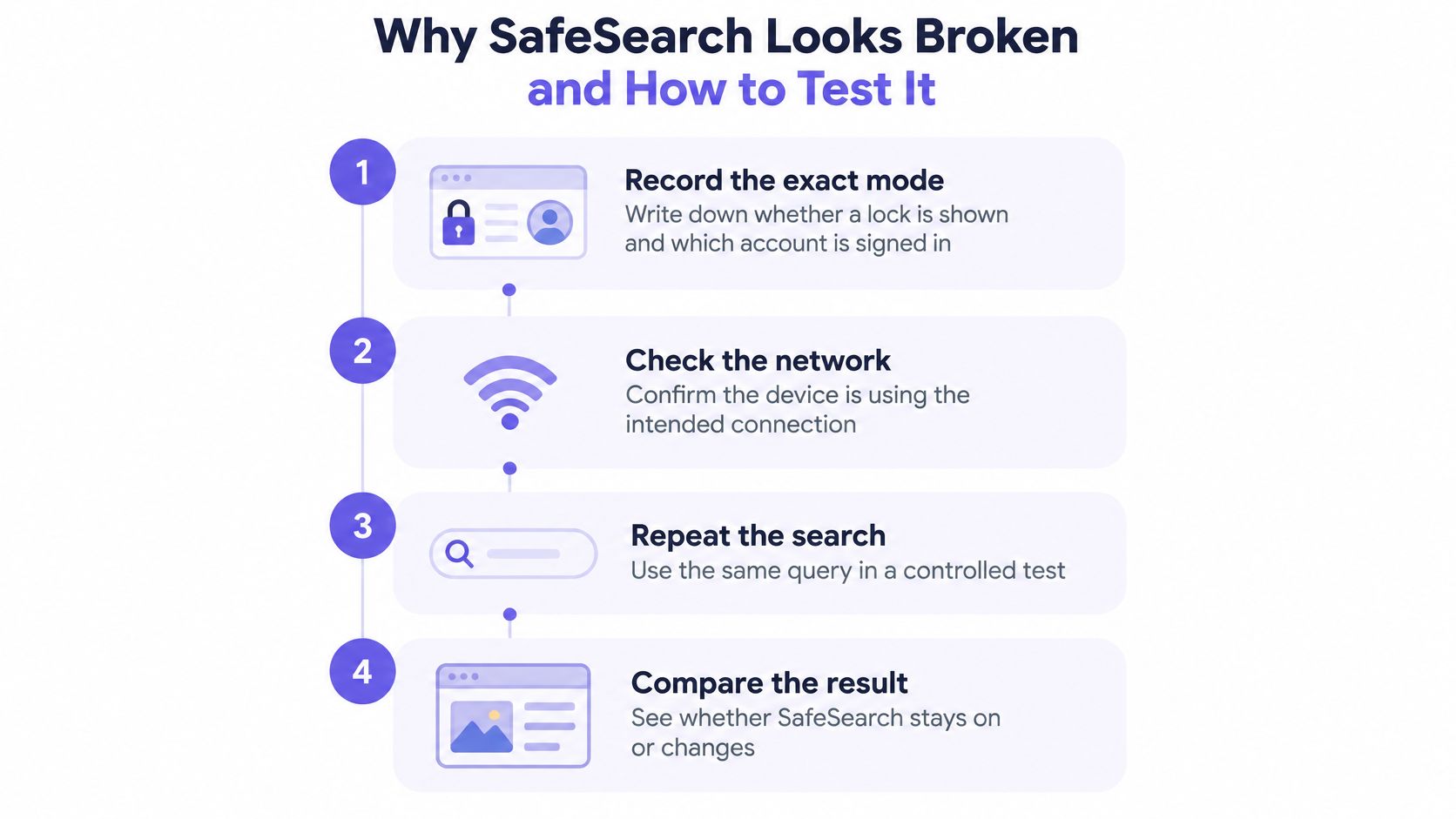
- Record the mode. Write Filter, Blur, or Off, whether a lock icon shows, and which account is signed in.
- Repeat on cellular data. Run the same Google query on managed WiFi, then on cellular data.
- Swap the identity. Repeat signed in to a personal account, then signed out.
- Read the split. If the mode changes only on WiFi, the policy is the network. If it follows the account onto cellular data, the policy is the identity.
- Inspect DNS on that WiFi. Confirm Google queries are resolved through your SafeSearch configuration. If browsers use their own encrypted resolver, read how DNS over HTTPS changes filtering before you blame the router.
- Name the owner. Match the lock to Family Link, a school or workplace admin, a managed device, the venue network, or the ISP.
- Log it. Note the result, the owner, and the time. Send a false positive to that owner. Do not bypass safeguarding to make one complaint go away.
A lock that survives every network is an account or device policy. A lock that vanishes on mobile data is the WiFi or the ISP. Google's virtual IP path is what lets you keep that network rule across browsers without dropping HTTPS.
Venue and campus Scenarios in Practice
The same SafeSearch mode means a different duty in each building.
Bars, hotels, and family sites
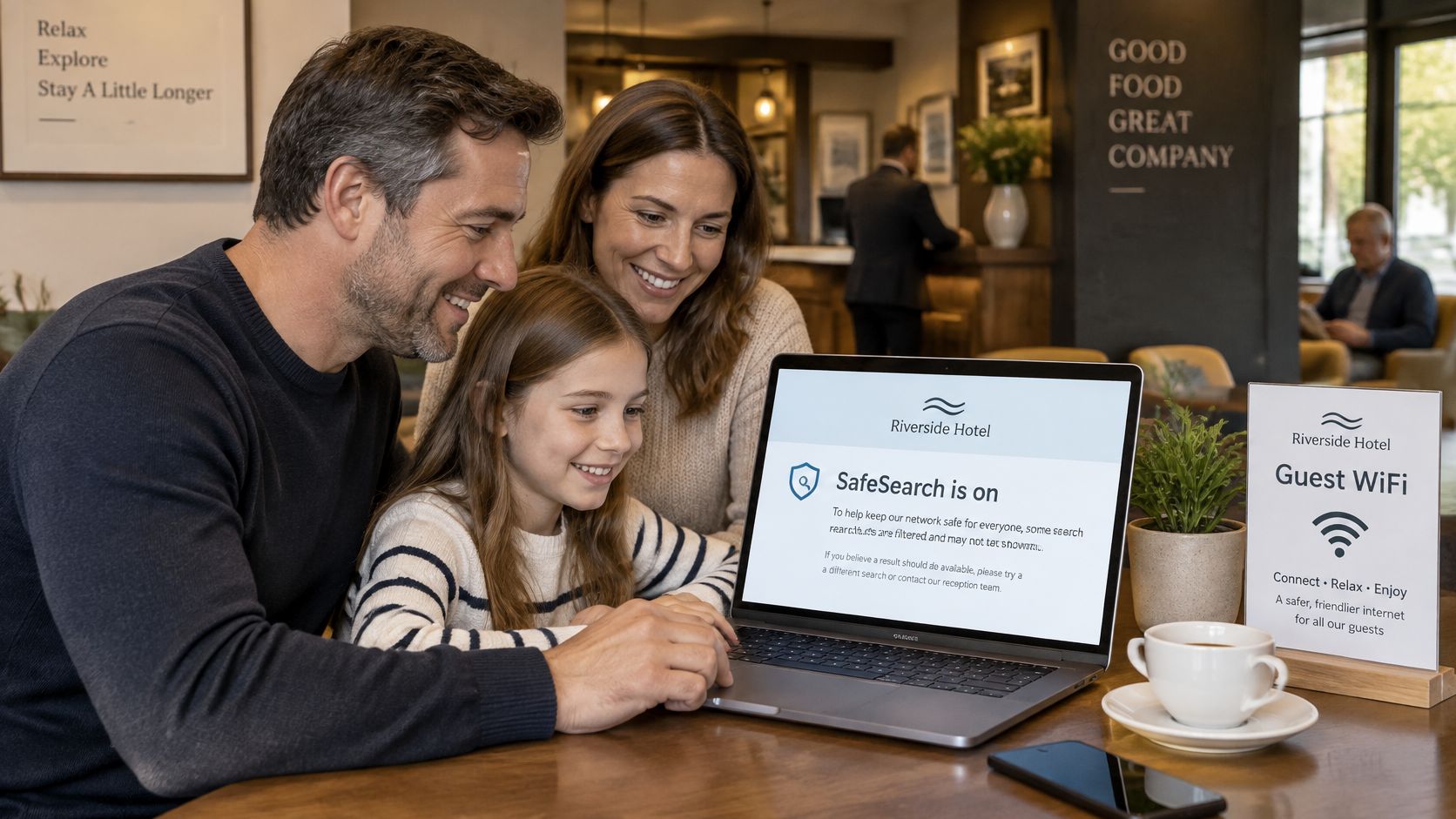
The risk is a guest, including a child, landing on explicit results in a shared lounge. SafeSearch on Google cuts that search path. Category filtering has to sit beside it, and a branded block page should say why the page was refused instead of showing a blank error.
Schools and colleges
The risk is a student account on a shared network, plus staff who need wider results for lessons. Lock SafeSearch on managed student accounts and devices, and add category DNS for adult and gambling content on the student SSID. Keep a separate staff policy. Web filtering for schools walks through that split in more detail.
Hospitals, libraries, airports, and local governments
On a hospital or library terminal, evenings and weekends are when unattended use climbs. Stricter hours, plus a report of what was blocked, give an auditor something better than a screenshot of a setting.
Airports and city sites should split by SSID. Staff WiFi can run a looser category set than the public guest network. SafeSearch can stay on both. The category policy is what should differ.
Match your site to the closest case before you write the policy. A hotel lobby and student housing can both show Filter and still need different neighbors beside it.
Choose your Layered network policy
If the venue serves the public, SafeSearch is necessary and never sufficient.
- Map the paths. List the search engines and sites people open.
- Set and lock the mode. Lock it on every managed account and network that allows a lock.
- Add the network layer. Category DNS for adult and gambling content, plus threat blocking for malware and phishing.
- Split the policy. Use a different SSID or schedule for guests, students, and staff, including tighter evenings and weekends.
- Keep the evidence. Reporting should record blocked URLs, threats, and usage.
- Name an escalation route. Someone has to review false positives and missed content without turning the policy off.
Review the live policy against that list, then run the WiFi versus mobile-data test on one network. Shield can block adult content, gambling, and other categories, and it enforces Safe Search on Google, Bing, and YouTube. At St George's Healthcare NHS Trust, Shield blocks around 241,000 threats a week on the guest WiFi. Purple Shield is certified and aligned to ISO 27001, CCPA/CPRA, CCPA, and Cyber Essentials.
This week, name the policy owner for guest WiFi and write down the current SafeSearch mode and the category settings on that SSID.
Purple Shield is protective DNS for guest and public WiFi, enforcing Safe Search on Google and filtering adult, gambling, and threat categories without software on each device. If you run a venue, campus, hospital, or public site, that network layer is what turns a search setting into something you can evidence. See how it fits your SSIDs at Purple Shield.