
What is YouTube restricted mode and how it Works
What Is YouTube Restricted Mode? Learn how it screens videos, how to turn it on across devices, and how networks enforce it with Safe Search.
Published November 8, 2026
YouTube Restricted Mode is an optional setting, launched in 2010, that screens potentially mature videos while keeping most of YouTube available, and it applies per browser or device rather than across a whole network.
If you switch it on at the front desk, what protects the guest watching YouTube on their own phone? That's the gap parents, teachers, and venue managers can easily miss. A visible toggle confirms a setting in that viewing environment, not a safety policy for everyone nearby.
Table of Contents
- Restricted Mode Explained in Plain Terms
- How Restricted Mode Decides What to Hide
- Turning Restricted Mode On Across Your Devices
- How Networks Enforce Restricted Mode with Safe Search
- What Restricted Mode Misses and Why It Still Matters
- Confirm Restricted Mode Works on Every Network
Restricted mode explained in Plain Terms
Restricted Mode is a maturity filter for YouTube, designed to limit exposure to potentially adult material without blocking the platform entirely. Introduced in 2010, it serves individuals as well as schools, libraries and public organizations, as explained in YouTube's Restricted Mode help guide.
Think of a librarian moving potentially adult titles away from the open shelves while leaving the rest of the library available. Visitors can still browse widely, but some material is harder to reach. The analogy has a limit: YouTube makes classification decisions at scale, rather than having a librarian personally assess every visitor's needs.
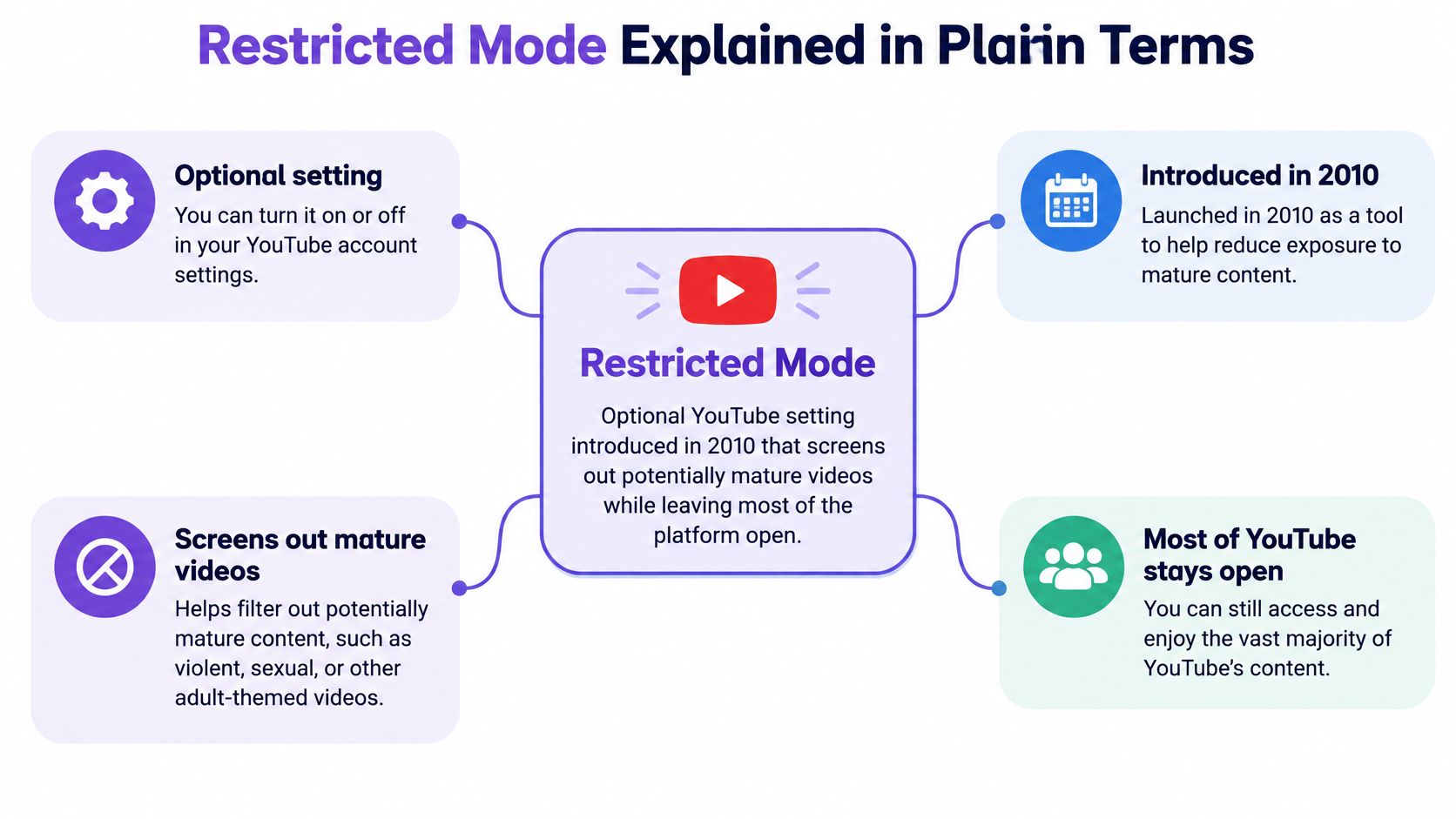
What the setting isn't
A school librarian might enable Restricted Mode so students can use tutorials and documentaries. That doesn't mean every available video has been approved for the lesson, or that the laptop is protected against dangerous websites.
These distinctions prevent the most common misunderstandings:
- It isn't age restriction. Age-restricted videos follow YouTube's separate eligibility rules. Restricted Mode adds a broader screening layer to the viewing experience.
- It isn't complete internet protection. It doesn't replace malware protection, website-category filtering or a safeguarding policy.
- It isn't a network-wide switch. Changing a setting on a staff laptop doesn't configure students' tablets or visitors' cell phones.
Think in viewing environments, not just accounts
Say a teacher enables the setting in Chrome on a classroom laptop. Another browser, another device profile, and the YouTube app on a tablet are separate places to check. Signing into the same account isn't proof that every viewing environment has inherited the setting.
That distinction matters just as much in a hotel lobby or public library. A shared computer can have its own controls while the guest WiFi remains governed by a different policy.
For a quick check, open YouTube while signed out and find Restricted Mode in the profile or account menu. Some layouts may expose it elsewhere, including older footer controls. Read its current status rather than assuming that a previous sign-in or someone else's setup covered that browser.
How restricted mode Decides what to Hide
Restricted Mode doesn't assess a video exactly as a teacher or parent would. YouTube evaluates a combination of signals to decide whether the video should be available with the setting enabled. No single word or label provides a reliable prediction of the final decision.
YouTube makes the content-classification decision. Your browser displays the result, but it doesn't independently judge whether a documentary, music video or tutorial is mature.
Signals Restricted Mode uses to screen videos
| Signal | What It Reads | Practical Effect |
|---|---|---|
| Title | Words used in the video name | Mature wording can contribute to screening, even when the intended context is educational |
| Description | Text describing the video | The description provides context that can affect availability |
| Metadata | Information associated with the upload | Incomplete or misleading information can complicate classification |
| Language | Language used in or associated with the video | The system must interpret wording and context, not just identify a topic |
| Community Guidelines outcomes | Results of policy reviews | Previous review outcomes can inform the screening decision |
| Age-restriction status | Whether the video is already age-restricted | Existing age restrictions are an input, not the same setting |
| Human review | A reviewer's assessment of a specific video | Reviewers can make a video unavailable in Restricted Mode |
Treat this table as an explanation of the inputs, not a formula for predicting individual videos. A title that mentions a sensitive topic doesn't establish how YouTube will classify the full upload. Equally, neutral wording doesn't establish that its content is suitable.
Music can look available without playing
In YouTube Music, filtering can affect both music and videos. A track marked Explicit may remain visible in the interface but be skipped when you try to play it. Seeing a listing and being permitted to play it are different things.
Context is the difficult part across these formats. A health lesson and an entertainment clip might discuss similar subjects for different reasons. Automated classification can misunderstand that difference, so neither an available result nor a hidden result should be treated as a personal suitability judgment.
For teachers, this means previewing the actual lesson material in the environment students will use. For parents, it means checking more than whether a familiar channel appears in search.
Turning restricted mode on across your Devices
Start with an inventory of the places people watch YouTube. Include shared laptops, mobile apps, tablets, televisions and any separate browser profiles. Otherwise, it's easy to configure the device in your hand and overlook the screen used most often.
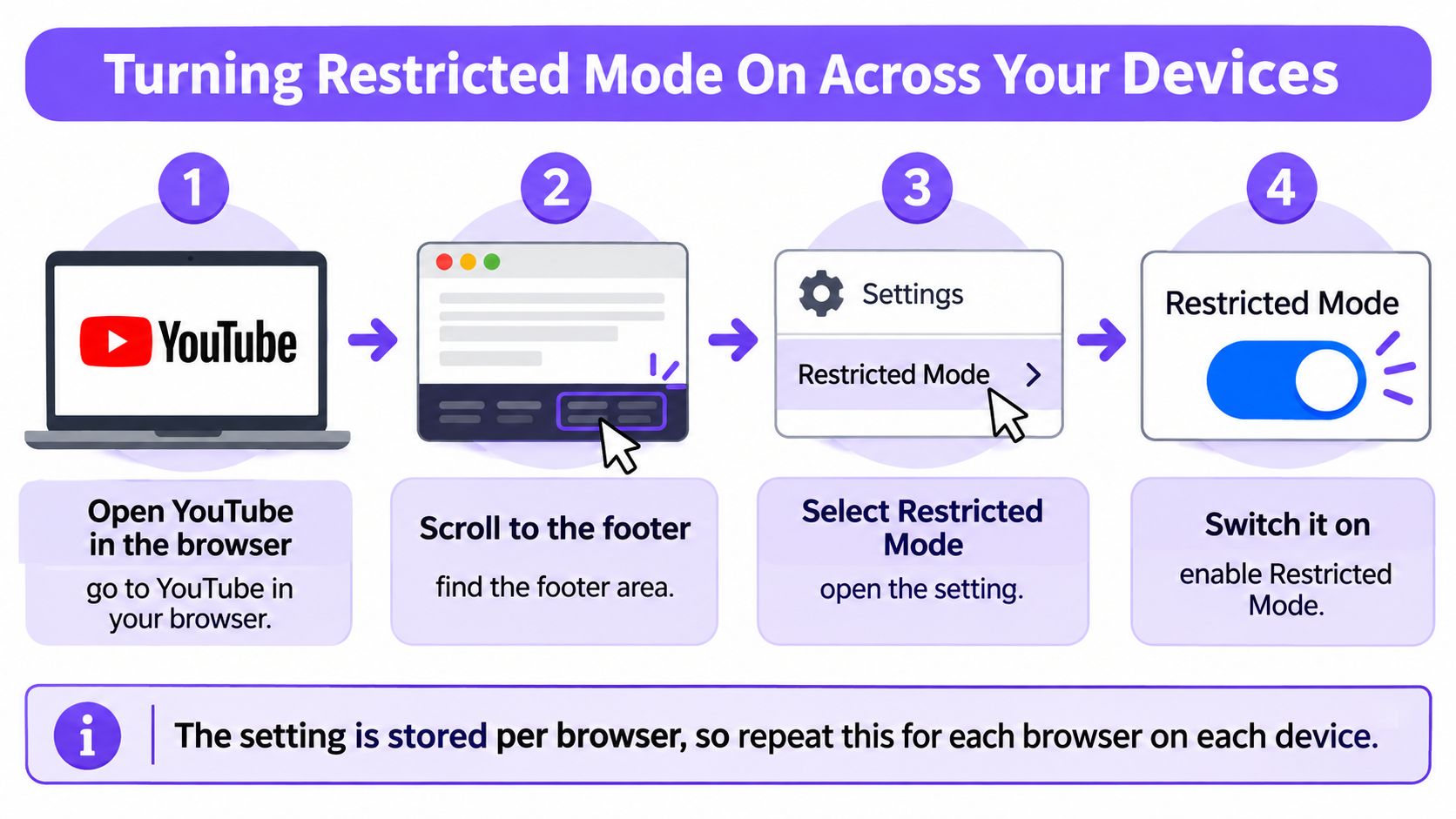
Enable it where viewing happens
- Check each web browser. Open YouTube, select the profile or account menu, find Restricted Mode, and enable it. If your layout has a footer control, you can use that instead, but don't rely on the footer being present.
- Configure the mobile app. Tap the profile picture or account area, open Settings, and look under General for Restricted Mode. Menu organization can change, so search for the toggle rather than expecting an identical screen on every cell phone.
- Inspect separate profiles. Switch to each relevant browser, device or signed-in viewing profile and confirm the status. A parent's successful check doesn't establish what a child sees in another profile.
- Visit television and console settings. Open the YouTube app's settings and look for Restricted Mode. Don't assume that changing the cell phone used to control the television also changes the television app.
- Test the result. Reopen the viewing environment and check the toggle again, including a signed-out check where relevant. If you have a known example that becomes unavailable in Restricted Mode, use it as a playback check, not as proof that all unsuitable content is blocked.
- Check management options. Where supported, use supervised-account or administrator controls to prevent unauthorized changes. Verify the available controls rather than assuming every app offers a lock.
Keep a simple verification record
Record the device, browser or app, profile, toggle status and test result. Mark an environment as untested if you couldn't access it, rather than treating it as covered.
Practical rule: A setting you haven't checked in the actual viewing environment is a setting you shouldn't count on.
Repeat the check when you replace a device, introduce a browser, or change account supervision.
How Networks enforce restricted mode with Safe search
A guest network needs a policy that doesn't depend on visitors configuring their own cell phones. Network administrators can enforce safer service settings and block categories of websites, but those controls operate differently from a personal YouTube toggle.
Even the strict option has limits: Google's network guidance for YouTube Restricted Mode states that Strict Restricted Mode doesn't block every video. Administrators should describe their policy as exposure reduction, not complete removal of unsuitable material.
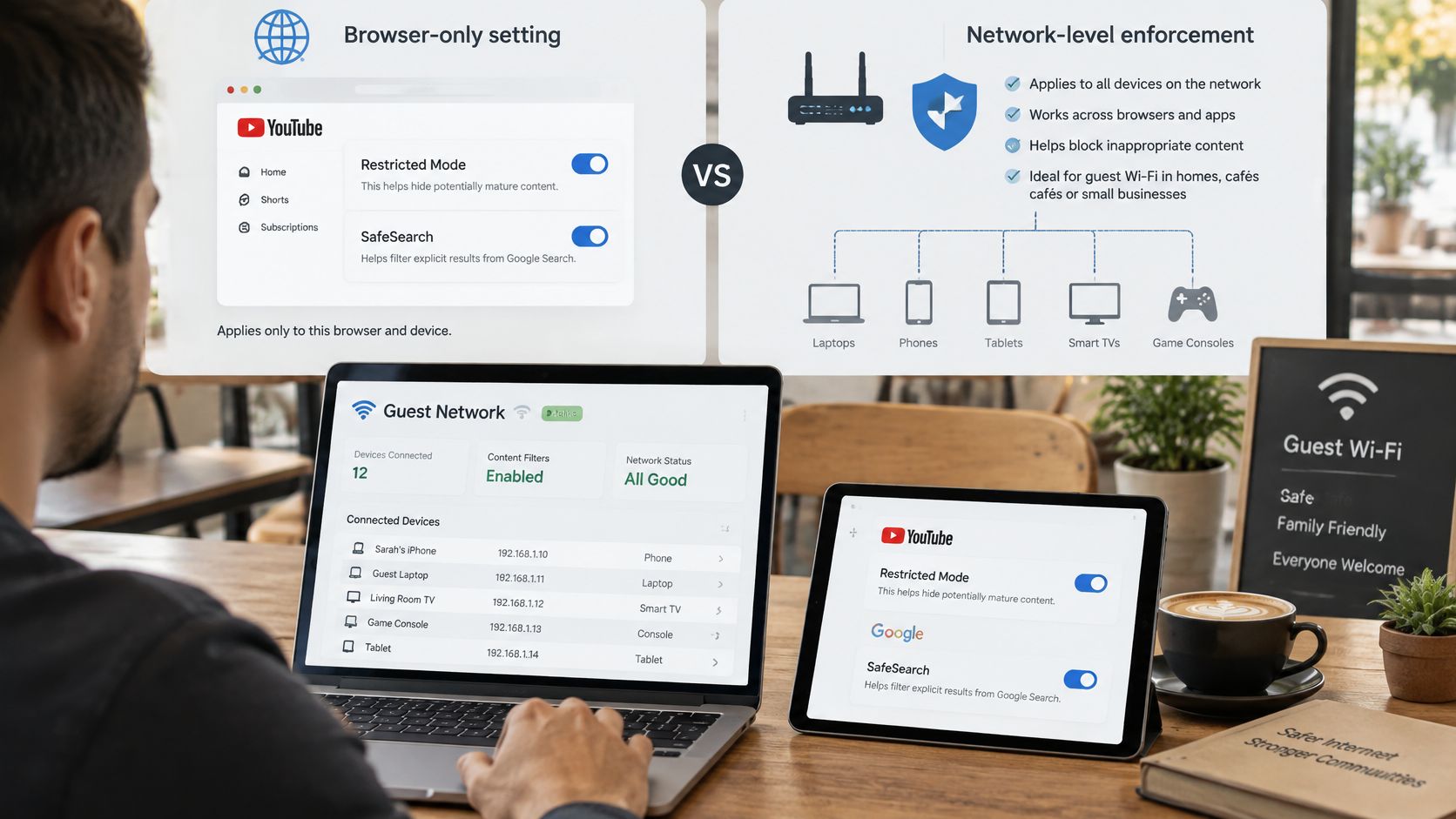
Enforcement methods for Restricted Mode on a network
| Method | Where It Applies | Coverage | Main Limitation |
|---|---|---|---|
| Browser or device setting | A configured browser, profile or app | Viewing in that environment | Users may be able to change it |
| Signed-in account lock | Supported supervised or managed account contexts | Environments governed by the account policy | Doesn't establish coverage for signed-out visitors |
| Safe Search enforcement through DNS | Devices using the network's enforced DNS path | Supported safer settings for Google, Bing and YouTube | Cellular connections and bypassing VPN paths aren't covered |
| Network category filter | Connections governed by the network policy | Domain blocking by content category | Can't judge an individual video's meaning |
| Managed filtering service | Traffic passing through the configured service | Category rules, safer-search enforcement and reporting where provided | Coverage depends on configuration and the connection used |
The browser setting is the narrowest approach. Managed-account controls can strengthen it, but don't assume an ordinary account toggle follows someone everywhere. For visitors you don't manage, enforcement needs to happen through infrastructure they use.
DNS filtering and video classification do different jobs
DNS filtering controls domain resolution. It can prevent a device from reaching a blocked domain, but it doesn't watch a video and interpret its subject matter. YouTube's classification service handles decisions about individual videos.
Network-enforced safer settings connect these approaches: the network directs supported services toward their restricted behavior, while those services still decide which results or videos qualify. Google and Bing SafeSearch and YouTube Restricted Mode are related policy goals, not identical features.
A broader content filter also lets an operator control categories outside YouTube. That's useful when the policy must address adult websites or gambling domains without closing access to educational video altogether.
Test from an ordinary guest device, not just an administrator's laptop. Check each guest network separately, and confirm that alternative DNS settings or permitted VPN use don't create an unexamined route around the intended policy.
What restricted mode Misses and why it still matters
In March 2017, approximately 1.5% of YouTube's daily views came from users with Restricted Mode enabled, and an April 2017 correction made 12 million additional videos available in the mode, according to YouTube's update on Restricted Mode. These are historical figures, not a measurement of current adoption or accuracy.
The correction included hundreds of thousands of videos containing LGBTQ+ content. It demonstrates why “hidden by a filter” shouldn't be confused with “automatically inappropriate.” YouTube acknowledged false positives, and its changes altered what viewers could access.
Broad topics don't establish suitability
The screening covers mature subjects such as profanity, depictions of violence, addiction and eating disorders. Those subjects can appear in harmful material, but they also appear in health education, news and support resources.
Consider these hypothetical cases:
- An educational video is hidden. A school science lesson discusses addiction, and wording associated with mature material contributes to its exclusion. The teacher has a legitimate learning purpose, but the system doesn't necessarily interpret that purpose correctly.
- A mature video remains available. An upload has a neutral title and description, yet includes material a parent wouldn't choose for their child. The available signals don't lead to the screening decision that parent expected.
Neither example establishes how YouTube will handle a particular upload. They illustrate the different consequences of overblocking and missed content, both of which matter when you plan access.
Separate filtering errors from connection gaps
An unsuitable video playing while Restricted Mode is active raises a classification question. An entire viewing session escaping the intended network policy raises a different question about enforcement.
Encrypted DNS is one configuration area administrators should understand. Our explanation of DNS over HTTPS can help you assess whether browser DNS settings align with your network policy.
A video being available means it passed the applicable screening decision. It doesn't mean someone approved it for your child, classroom or venue.
Confirm restricted mode Works on every network
Use a checklist that separates configuration, coverage and evidence. A toggle confirms configuration. A guest-device test checks coverage. Reports help you understand what the network stopped.
Put the policy into practice
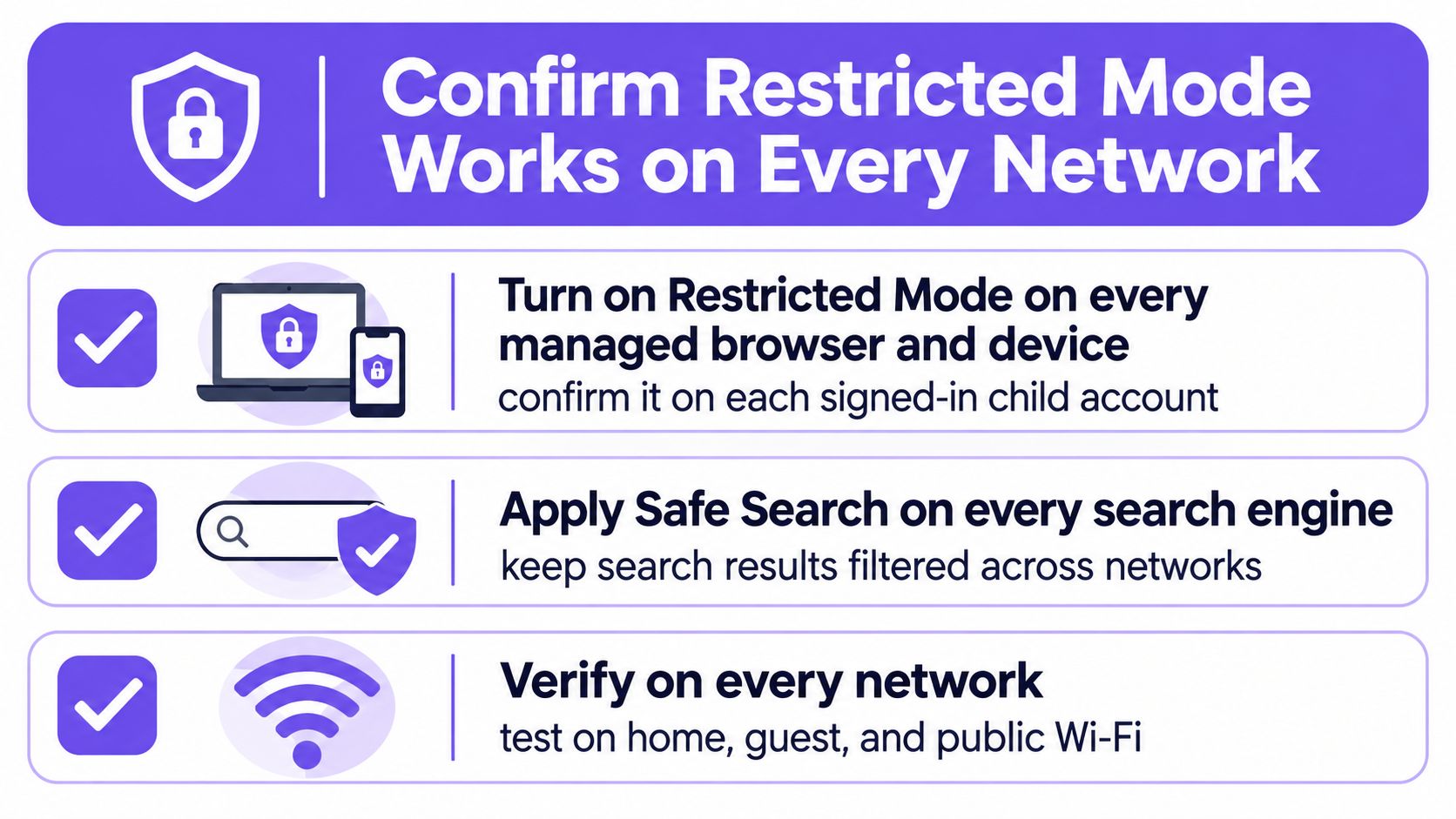
- Configure managed viewing environments. Enable Restricted Mode in each relevant browser and app, and confirm the status under each child or managed profile.
- Enforce supported safer-search settings. Apply network controls for Google, Bing, and YouTube, then verify that connected clients use the intended enforcement path.
- Block unsuitable website categories. Include adult content and gambling where appropriate to the venue's policy.
- Maintain exceptions carefully. Keep an allow list and block list for each venue, and review them monthly. Document why an exception exists.
- Review blocking reports monthly. Investigate unexpected blocks and apparent gaps, then retest after changing policy.
A WiFi content filter should support a policy you can explain to staff and guests. Write down who owns changes and who handles a teacher's or visitor's request to review a block.
Test the paths people actually use
Connect an ordinary guest device to the venue WiFi. Check the Restricted Mode status, test appropriate known examples, and confirm that a deliberately blocked website category produces the expected outcome.
Repeat on cellular data and with a VPN active, where permitted. These checks establish whether the device has left or bypassed the venue's filtering path, not whether the venue can control an unrelated connection. Record the device, connection, expected behavior, and observed result.
With Purple Shield, we block adult content, gambling and other categories, enforce Safe Search on Google, Bing and YouTube, support each venue's allow and block lists, and provide blocked-URL, threat and usage reporting in a dashboard, but you should still run these tests before relying on the policy.
These checks reduce exposure and reveal coverage gaps. They don't guarantee that no unsuitable video will appear.
For network-level controls alongside YouTube's own setting, visit Purple Shield to explore category filtering and enforced Safe Search for guest WiFi. Use your device-and-network checklist to assess the coverage you need, then verify the policy from a guest connection before putting it into service.