
Online Safety for Schools: A Step-by-Step Guide
Learn how to set up online safety for schools: policies, web filtering, device management, and incident reporting, with a checklist you can act on this week.
Published November 5, 2026
Schools experience an average of five cyber incidents per week, and the U.S. Department of Education's K-12 cybersecurity guidance is clear that phishing and outdated software remain major attack paths. That volume is why online safety for schools can't be treated as a document you refresh before audit.
I judge a setup by what students do, and by how fast a concern reaches a named adult. A filter that exists, or a policy staff have signed, doesn't pass that test on its own.
Table of Contents
- The Five Layers Every School Needs
- How to Write an Online Safety Policy Staff Will Follow
- Filtering Every Network Students Can Reach
- Managing School and Personal Devices
- Teaching the Risks Students Actually Meet
- Reporting Incidents and Measuring What Changes
- Start a 30-Day Online Safety Audit This Semester
The Five Layers Every School Needs
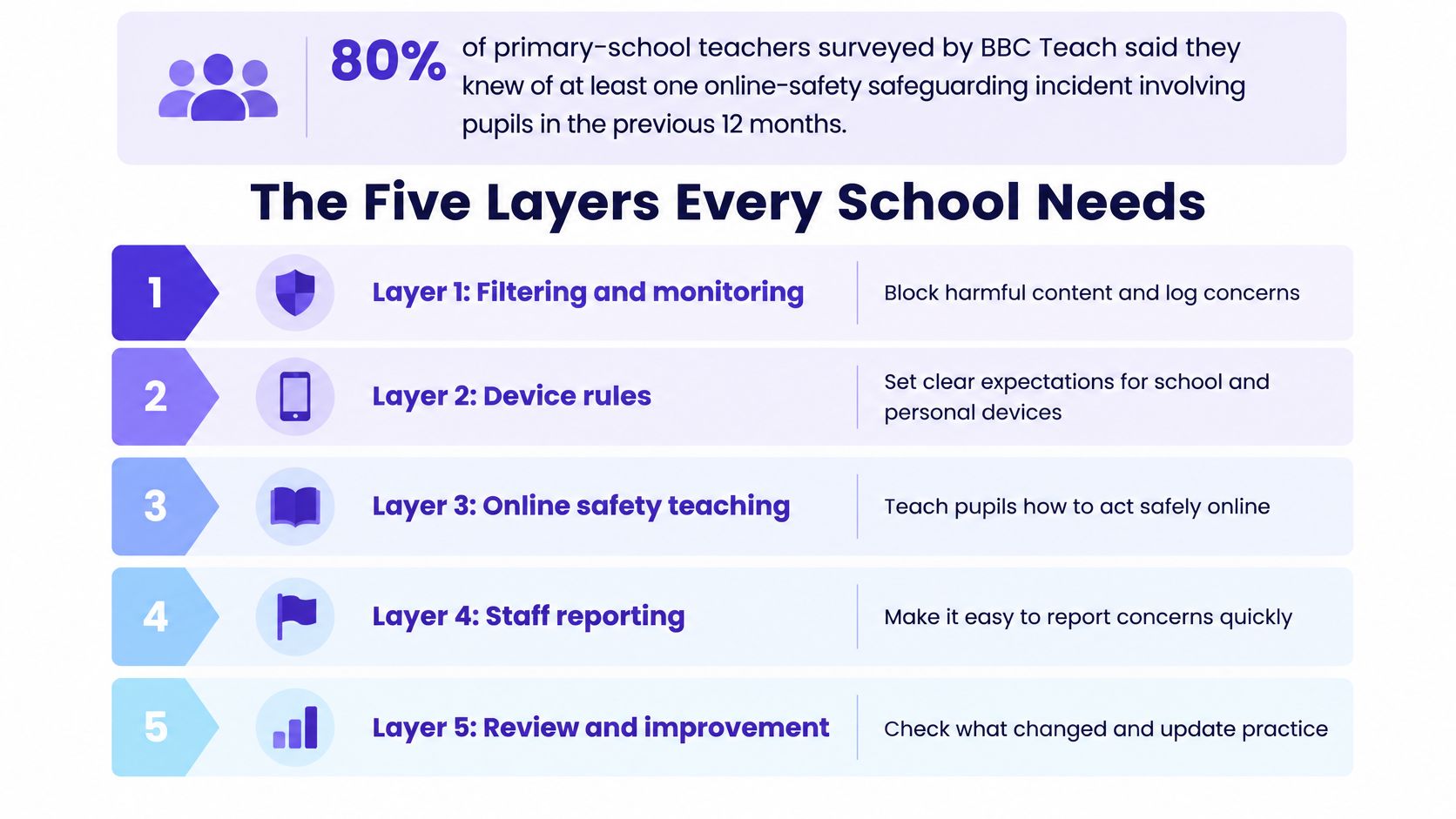
In 2025, 80% of elementary school teachers surveyed by BBC Teach said they were aware of at least one online-safety-related safeguarding incident involving students during the previous 12 months. The work is already on the desk.
Five layers have to operate in the same week: policy, web filtering, device management, reporting and teaching. If one is only written down, the others carry a hole.
| Layer | What It Covers | Typical Owner | How to Verify It |
|---|---|---|---|
| Policy | Acceptable use, roles, reporting and sanctions | Senior leader and safeguarding lead | Staff can name the lead and reporting route in one sentence |
| Web filtering | Category blocks, Safe Search, allow and block lists per network | IT lead with safeguarding lead | Test a bypass and a false positive each semester |
| Device management | Enrollment, app rules, updates and admin account security | IT lead or managed service provider | Audit enrollment and admin MFA each semester |
| Reporting | Routes, evidence handling and feedback to the reporter | Safeguarding lead | Time a mock report from student to named adult |
| Teaching | Lessons on risk, reporting and privacy repeated across grade levels | Curriculum lead and homeroom teachers | Survey students on whether they can name a reporting route |
Where the layers break
Say a student sends a nasty message in a group chat at 9pm. Teaching should have told them what to keep. Reporting should name the adult who receives it before morning. Filtering never saw the chat. The miss sits between owners, not inside one PDF.
The same pattern shows up in ordinary lessons. A filter blocks a safe research page and the teacher has no named person who can correct it before the period ends. Staff, students and guests share one flat network, so a visitor laptop sees more than it should. Network segmentation keeps those paths apart, and it is an IT change with a safeguarding reason.
Volunteers who run a club or a trip need the same duty to pass on a concern. Price school volunteer background check costs before the first shift, not after something is said in a hallway.
Practical rule: If a student reported harassment tonight, which layer would fail first? If you can't name it in a minute, test that layer this week.
I would start with the reporting route. A fast named adult beats a perfect block list.
How to Write an Online Safety Policy Staff Will Follow
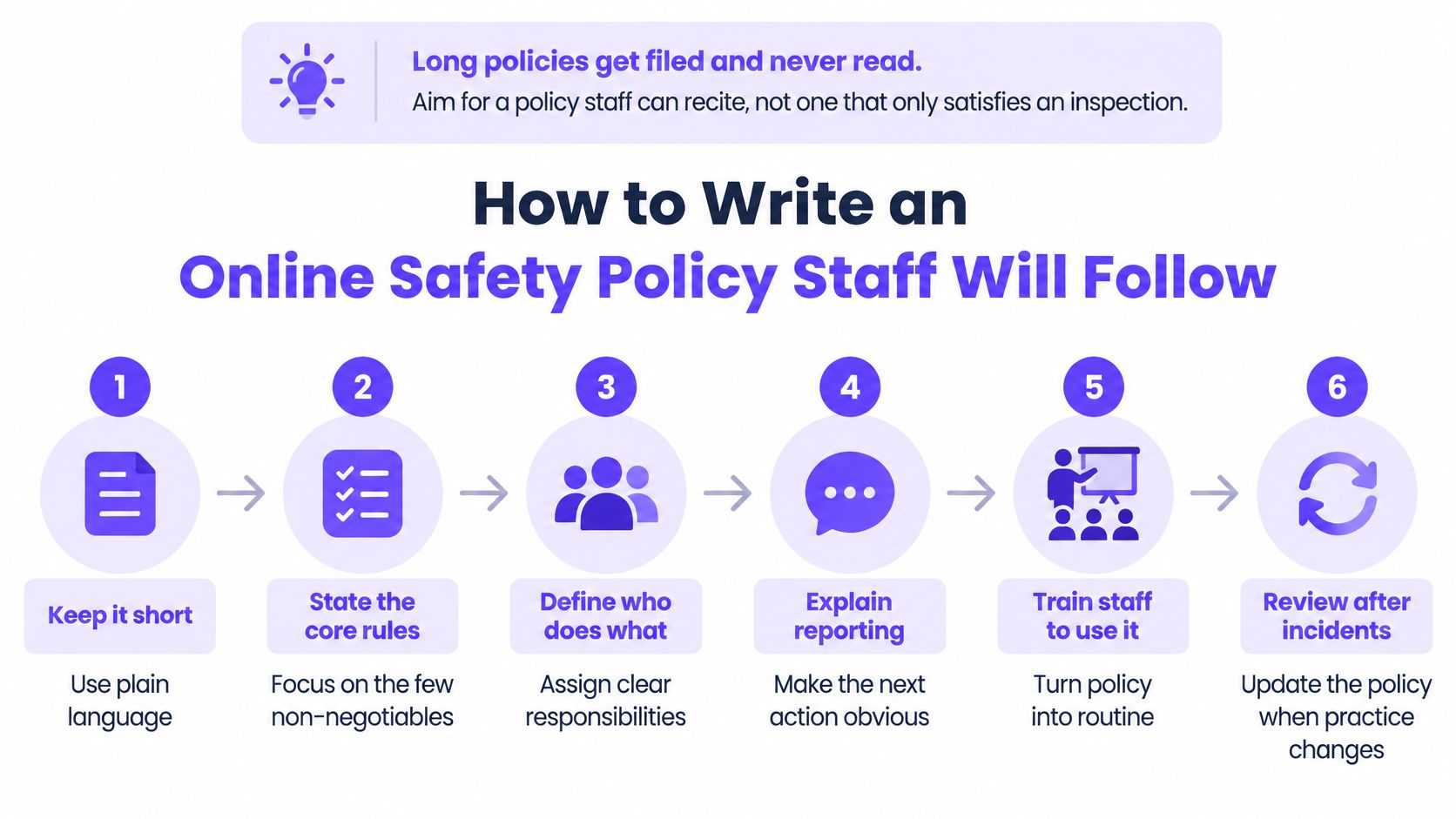
Long policies get filed and never read. Aim for wording a teacher can recite between classes, not a file that only looks complete in a folder.
The United Nations reports that more than one-third of young people across 30 countries have experienced cyberbullying, and one in five affected young people skipped school because of it. Harassment belongs in the policy because it hits attendance and well-being, including on social media and messaging outside school hours. UNESCO observes the International Day against Violence and Bullying at School, Including Cyberbullying, on the first Thursday of November, which is a sensible review date rather than a poster exercise.
Six steps staff can recite
- Audit the last year of real cases. Pull incidents, filter alerts and complaints. The policy has to answer what already happened, or staff will treat it as theory.
- Define who is covered. Students, staff, board members, volunteers and visitors. If a person can see a student online, they need a sentence that says so.
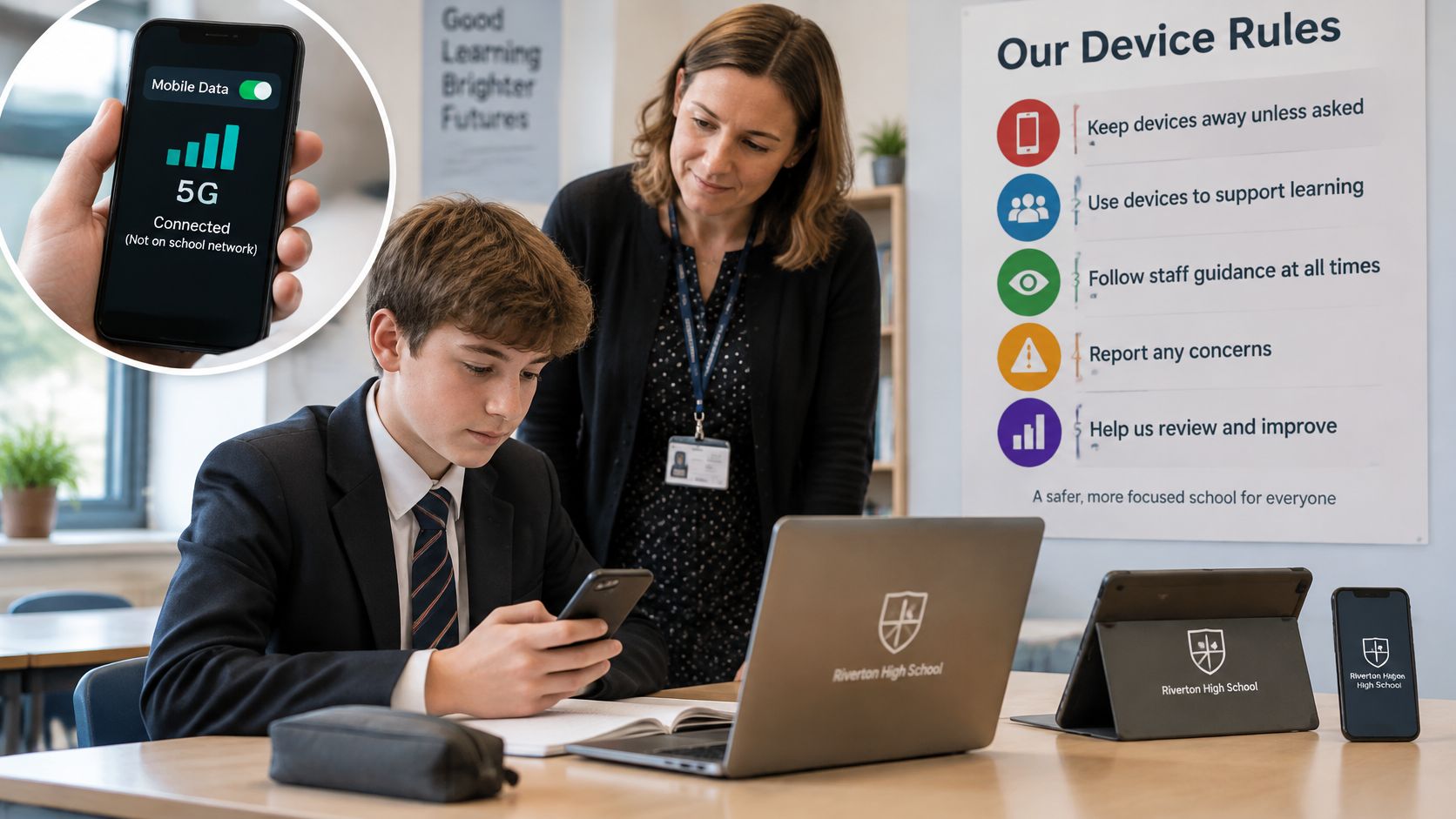
- Set acceptable use for school and personal devices. Include cell phones on cellular data. The school filter doesn't reach that traffic, so the rule has to live with the person, not only on the network.
- Name the reporting route. A safeguarding lead, a named deputy, an anonymous form, and a response time written in hours. "Tell a member of staff" is not a route.
- Link safeguarding and behavior procedures. State sanctions for harassment and for sharing harmful content. Keep screenshots and timestamps before anyone resets an account, and treat that material with the same care you would give any other student record. The responsible handling of student information is part of the route, not a side policy for the office.
- Agree a review date and board sign-off. Put both on the front page. A policy with no owner ages in silence.
Say a high school group-chat case stalls for two days because nobody was named to receive reports. Confidential escalation, evidence kept before any password change, and the same expectations on campus WiFi, school-managed devices and other networks used for learning would have moved it the same evening.
Finish with a one-page staff summary. The test is blunt.
Every adult can name the lead and the route in one sentence. If they can't, the policy isn't in use yet.
Filtering Every Network Students Can Reach
Filtering works at the moment a device looks up a domain. It only controls traffic that passes through the network it protects. One setting for the whole site is how student, staff and guest needs get blurred.
A workable policy has category blocks for adult content, gambling and violence, Safe Search enforced on Google, Bing and YouTube, allow and block lists owned by a named person, and time-based rules where students reside in the evening or on the weekend.
| Network | Typical Policy | Main Gap | Check |
|---|---|---|---|
| Student WiFi | Category blocks for adult, gambling and violence; Safe Search on | Students use VPNs or apps that bypass DNS filtering | Test a known VPN and an encrypted app each week |
| Staff network | Lighter categories with logged admin overrides | Overrides applied without review | Review the override log monthly |
| Guest and visitor WiFi | Strictest family-safe policy, no access to staff systems | Unknown devices on a shared network | Confirm separate VLAN and that block pages appear |
| Personal devices on mobile data | Outside school filtering | No DNS filter applies | Covered by device rules and teaching, not the filter |
| Dormitory or residential WiFi | Time-based rules for evenings and weekends | Rules set once and never reviewed | Review time-based rules each semester and log changes |
What a false positive costs
Say a high school biology site is classed as adult content. The correction takes three days. The lesson is already gone, and the teacher stops trusting the block list. Speed of correction is part of the control, not a favor from IT.
Three checks this term
- Try a bypass on student WiFi. Open a known VPN and an encrypted messaging app. Log whether the lookup was blocked, merely logged, or invisible. Do it on a student device, not a staff laptop.
- Trigger a deliberate false positive. Time the correction from the teacher's request to the page loading again. If that gap is longer than a class period, name a vice principal who can act the same day.
- Read the block page as a student would. It should say what was blocked and who to contact. A blank error teaches people to work around the filter.
Web filtering for schools is the setup I'd hand a new IT lead for categories, Safe Search and separate networks. A clean block report still doesn't prove students are safe. Anything that never hits the resolver has to be caught by people, not by a dashboard.
Managing School and Personal Devices
A student's phone on cellular data never asks the school resolver for permission. Device rules and teaching are what reach it. Filtering can't be asked to do that job.
In 2024, 52% of elementary schools and 71% of high schools in the UK reported identifying a cyber breach or attack during the previous 12 months, according to the UK Government's Cyber Security Breaches Survey. Treat account and device hygiene as routine, not as a project for after an incident.
The order that reduces harm
- Enroll school-owned devices. Mobile device management should control apps, settings and updates. A laptop that never checks in is a personal device with a school sticker.
- Require multi-factor authentication for administrator and staff accounts. Prefer a phishing-resistant method, such as a hardware key or an app prompt that shows the site name, over a code that a fake login page can steal.
- Patch known exploited vulnerabilities within days. End-of-semester change windows are too slow once a flaw is being used.
- Restore one backup each semester. Record how long it took and whether the files were usable. An untested backup is a hope.
Say a teacher account without multi-factor authentication is used to email phishing links to students' families. The lesson isn't "buy more tools". It's that a privileged login without a second factor is an open door to people who trust the school address.
Two choices for personal devices
A BYOD policy only works if you pick one rule and enforce it.
- Enroll, then allow. Personal phones and laptops join device management, with app limits and a lost-device wipe that families have agreed in writing.
- Guest network only. Personal devices stay off staff systems and shared drives. They get the strictest family-safe policy and no route into the admin VLAN.
I would enforce one rule this month. No personal device on the staff network. Everything else can follow once that line is real.
Teaching the Risks Students Actually Meet
Ofcom reported that 93% of UK children aged 8 to 17 who go online could recall having at least one school lesson about online safety, and 76% of those children considered the lesson useful. The same age group still reported harm. 32% of 8 to 17-year-olds said they had seen something worrying or nasty online during the previous 12 months. Among the 30% who received online safety lessons regularly, recall rose to 97%. Repetition beats a single assembly.
Five short lessons, then a practice pass
- Phishing. Use a fake message that looks like the school office or a bank. Students should hover, check the sender, and forward it rather than tap.
- Oversharing. Walk through a 5th grade student who types a home address into a game chat because a teammate asked. The lesson is what never leaves the house, not a list of "bad websites".
- Cyberbullying. Show what to do with screenshots. Save them, don't reply in the chat, and pass them to the named adult before anyone deletes the thread.
- Unsafe contact. An adult or stranger who moves a child off the game and into a private app is the moment to stop and tell someone. Practice the sentence they would use.
- AI tools. A 2025 survey in Taiwan found that 63% of surveyed teenagers reported using AI for schoolwork, yet only 31.5% had discussed AI safety with parents and 52% with teachers. A 2025 U.S. survey found that most parents and about half of students remained concerned about student-data privacy and security as schools adopted AI. Teach what must never be typed into a public tool, including names, addresses and photos, and where that text can go.
Young people ask for clearer reporting tools and simpler privacy explanations. Use their wording on the poster, and let a student group design it. A phone safety lesson for kids gives homeroom teachers a concrete story to start from, which lands better than another slide of rules.
End every session with a reporting simulation. The student has to pass the message to a named adult before the lesson counts as done.
Reporting Incidents and Measuring What Changes
A systematic review found that online-safety interventions generally improved retention of online-safety knowledge, but none produced a significant change in risky online behavior. Several programs were judged somewhat effective for knowledge and ineffective for behavior. Attendance, quiz scores and a signed policy only show that a session happened.
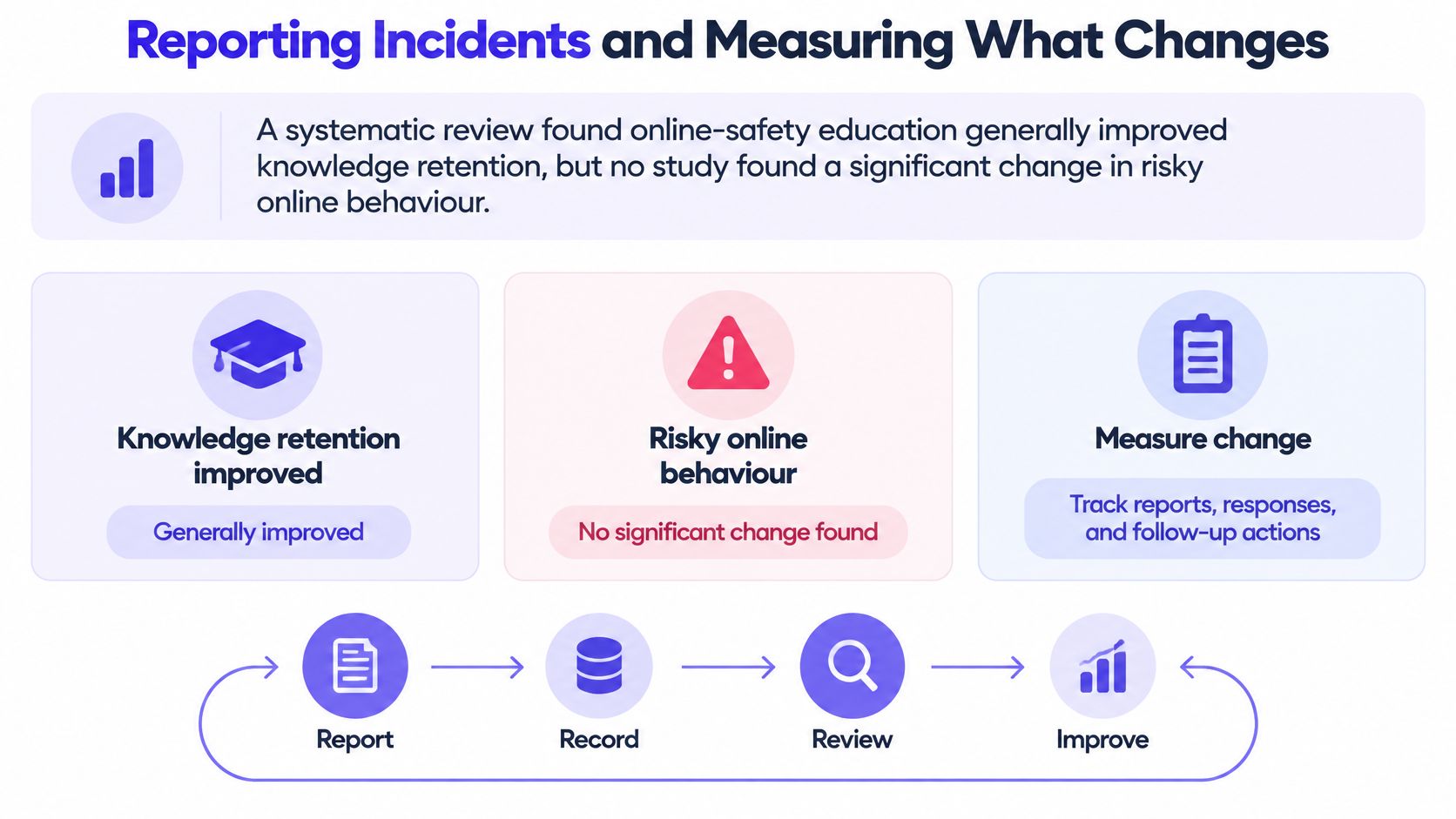
Set a baseline with anonymous student and staff scenarios plus the incident log you already hold. Reassess on the same questions each semester. These five measures replace the quiz.
| Metric | How to Measure It | Read It As |
|---|---|---|
| Time to report | Hours from incident to a named adult being told | Shorter times mean students trust the route |
| Phishing-report rate | Suspected phishing reports logged in the semester, divided by student and staff headcount | A rise early can mean more reporting, not more attacks |
| Repeat-offender rate | Students with two or more incidents in a semester | A falling rate suggests interventions are landing |
| Safeguarding referrals | Referrals logged each semester | Read with time to report; a rise can mean better detection |
| Route recall | Share of students who can name a reporting route in a short survey | Low recall means lessons are not sticking |
Run the route, don't just describe it
- Time a student passing a suspicious message to a named adult. Use a fictional text. Write down each handoff.
- Check the evidence. Screenshots and timestamps should be stored before any account is reset or a device is wiped.
- Confirm feedback. The reporter should hear back inside the response time written on the staff summary.
Say referrals climb after a semester of short lessons. That can look like a worsening problem until you notice students have started to trust the route. Read the set together, not one cell at a time.
Rising referrals with a shorter time to report is usually good news. Rising repeat incidents with flat referrals means cases aren't being logged.
Technical logs still matter beside these numbers, especially on personal devices and guest WiFi. Check false positives, bypass attempts, and whether the block page is usable. Don't treat the log as proof that behavior changed.
Start a 30-Day Online Safety Audit This Term
Give each week one named owner so a check doesn't wait on a single person who is out sick. Keep one log. Next semester's baseline should start from that file, not from memory.
Week 1, senior leader. List the five layers and mark each as written, tested, or unknown. Unknown is an honest status. Don't upgrade it because a policy mentions the layer.
Week 2, IT lead with the safeguarding lead. Run the student and guest filtering checks. Log the VPN test, one false positive, and whether the block page names a contact.
Week 3, IT lead or the managed service provider. Complete device checks. Enrollment gaps, admin multi-factor authentication, update dates, and one backup restoration with the time it took.
Week 4, safeguarding lead. Run the reporting drill on a fictional incident. Time each step and send a one-page summary to staff so the route is public.
For schools, campuses, and student housing, safeguarding has to hold per network and per VLAN. Useful evidence is blocked URLs, threat analysis, and usage you can adjust from one dashboard, read next to the human times in the log.
Fix the layer with the most unknowns first. A school that can't yet name its reporting route has a more urgent gap than one with a weaker filter. I would not spend the month polishing a category list while staff still can't say who receives a concern.
Purple Shield is protective DNS and content filtering for school, campus and Student Housing WiFi, with a safeguarding policy per network and per VLAN, Safe Search on Google, Bing and YouTube, and reporting that shows what was blocked. Put that evidence next to the 30-day log so you can see the network layer and the human route in the same week. Visit Purple Shield to set policies for the networks students use.