
Router parental controls: How to set them up Step by Step
Router parental controls explained: set up schedules and filters step by step, then add DNS filtering to cover the gaps. Tests included.
Published October 29, 2026
You set a bedtime limit, block a few categories, and see the family laptop go offline on schedule. Then your teenager's cell phone keeps streaming because it has switched to cellular data. That isn't necessarily a broken router. It's a coverage gap: router parental controls can govern only the devices and connections that pass through the router.
A reliable setup starts with a complete device list, clear rules for each profile and network, and a test that checks both filtering and likely workarounds. The aim isn't to make one router feature do everything. It's to know what it covers, what it misses, and where a separate device or network control is needed.
Table of Contents
- Which Router Controls You Have and What They Miss
- How to Set Up Router Parental Controls Step by Step
- Devices and Connections Routers Often Miss
- When to Add DNS Filtering on Your Network
- How to Test Your Filters Before You Trust Them
- Choose the Setup That Fits Your Home or Venue
Which Router Controls You Have and What They Miss
| Control | Typical menu label | What it does | Common gap |
|---|---|---|---|
| Access schedule | Access control, Time limits | Cuts internet access at set hours | Wrong time zone or devices not assigned |
| Category filter | Web filter, Content filter | Blocks adult, gambling and similar categories | Category lists differ by brand and firmware |
| Site or URL block | Blocked sites, Denylist | Blocks named domains | Subdomains and new sites slip through |
| Device profile | Profiles, Family, Devices | Groups one child's devices under one set of rules | Unassigned devices get no rules |
| Pause internet | Pause, Quick block | Cuts a device off on demand | Needs manual action each time |
| Usage report | Activity, History | Shows sites visited and time online | History may be short or missing on basic models |
An access schedule is useful for predictable routines, such as limiting internet access overnight. Check the router's time zone and confirm every relevant device is assigned: a schedule attached to the wrong profile, or no profile at all, won't enforce the limit you expect.
Category filters save time, but the label doesn't guarantee identical results across routers. Vendors maintain different category lists, and firmware can change how a filter works. A site block gives you more direct control over named domains, but a block for one address may not cover its subdomains or a new site serving similar material.
Profiles are the key to making rules practical. Put a child's phone, laptop and console in the same profile when the router allows it. If a new device joins the network and remains unassigned, it may inherit no restrictions. A pause button is handy for an immediate interruption, but it isn't a schedule. Reports can help you spot patterns, though a basic router may retain little browsing history or none at all.
Before spending time configuring everything else, confirm that your router supports device profiles and schedules. Some basic models offer only a shared blocked-site list. In Pew Research Center's survey of parents of teens aged 13 to 17, 39% said they used parental controls or other technological tools to block, filter or monitor online activity. That makes it worth checking whether one rule set can cover each child's connected devices, rather than relying on a single device setting. (Pew Research Center's survey on parents and digital monitoring)
How to Set Up Router Parental Controls Step by Step
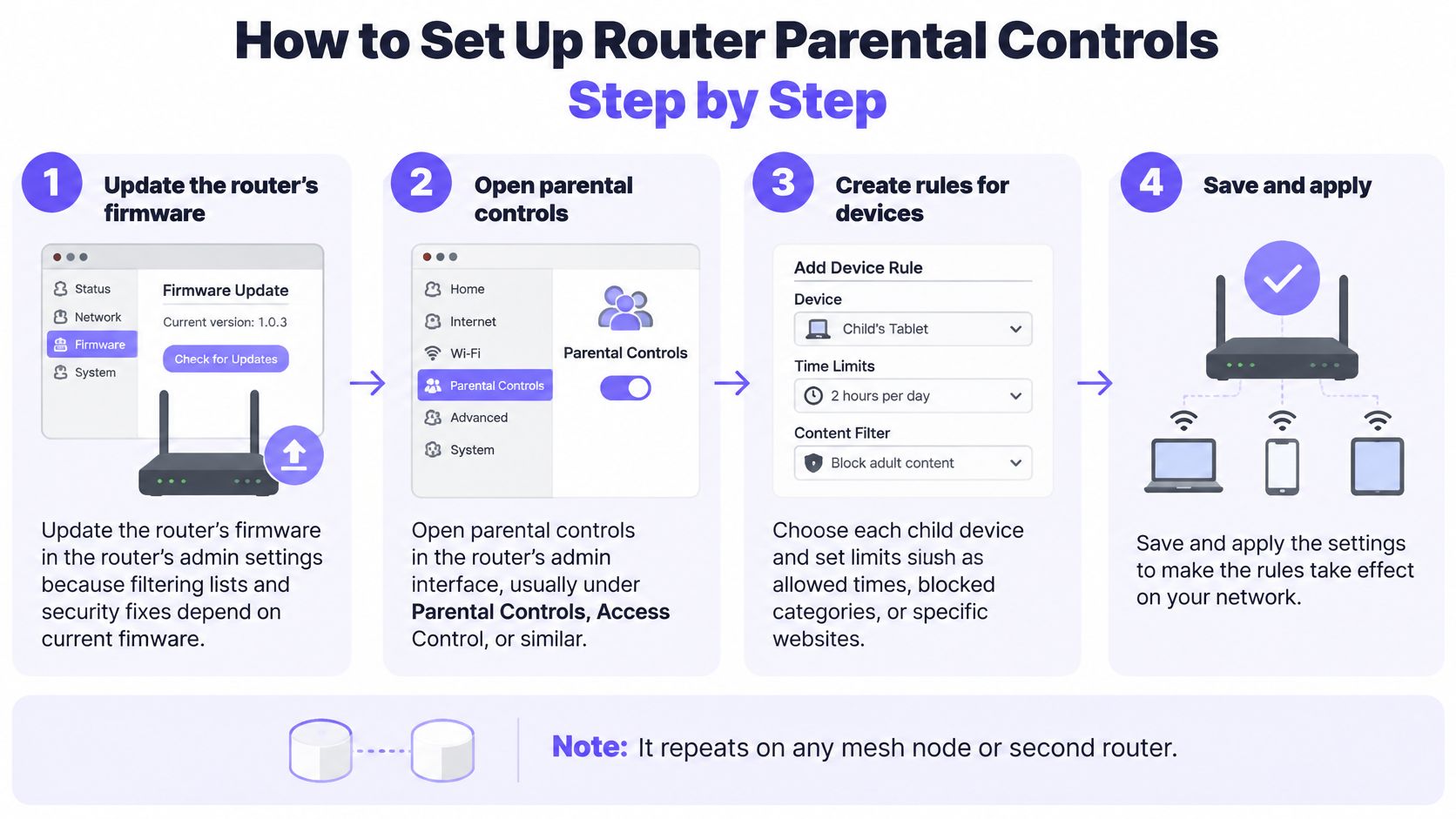
Use this routine in order. Repeat it on any mesh node or second router that handles a separate network or applies its own rules. Menu names differ, but the sequence is broadly the same.
Update the firmware. Open the router's admin settings and install available firmware updates before configuring filters. Filtering lists and security fixes can change with firmware, so start from the current version rather than troubleshooting an old one later.
Secure the administrator account. Replace the default admin password with a unique one and store it in a password manager. Anyone who can log in to the router can change or disable the rules.
Find and open the admin page. Use the gateway address printed on the router label, or the manufacturer's app if that's how your model is managed. Sign in with the administrator account, then locate the parental-control, family or access-control menu.
Create one profile per child. Use a practical label such as “younger child” or “teen” instead of a child's name if you want profiles to remain readable when family routines change. Separate profiles make it easier to give different devices or age groups different schedules and filters.
Assign each device to the right profile. Identify devices by their network name and MAC address, the hardware identifier shown in many router device lists. If a cell phone uses a randomized WiFi address and keeps appearing as a new device, turn off private addressing for the home network or add its current address to the profile.
Set the schedule. Choose hours that fit your household, such as an overnight cutoff on school nights and a later one on weekends. Check the router's time zone and confirm the rule applies to the intended profile, not just one device.
Turn on filters and add specific blocks. Start with the categories you want restricted, such as adult content and gambling, then add particular domains if needed. Category filtering and named-site blocking are different tools, so use each for the job it handles best.
Save and test from a child's device. Try a site you've chosen to block, then check that the device loses access during its scheduled window. Note the time and result; if either test fails, check the profile assignment and rule settings before assuming the filter itself is at fault.
From the child's side, a working setup should apply the agreed rules consistently on their assigned devices while leaving permitted sites and times usable. If the laptop blocks correctly but the phone doesn't, compare the phone's profile, network connection and address before changing every filter.
Devices and Connections Routers Often Miss
Your family computer can follow every rule while a phone remains online. For example, a teen's phone can keep streaming after a 9:00 PM cutoff if it switches to a cellular data connection. The laptop stays blocked because it's still on home WiFi; the phone is outside the router's control.
| Device or path | Router rules apply? | Fix |
|---|---|---|
| Cell phone on cellular data | No | Add a device-level app or set limits in the cell phone's own settings |
| Guest WiFi network | Often no | Close it, or assign it to the same schedule and filters |
| Console or smart TV with its own DNS | Sometimes | Set DNS on the router so the device inherits it, then check it |
| New visitor device | No, until assigned | Review the connected devices list and assign or block it |
| Randomized MAC address | Often no | Turn off private addressing for the home network or add the new address |
| IPv6 traffic | Sometimes | Confirm the router filters IPv6, or turn IPv6 off if it doesn't |
Mobile data is the clearest boundary: when a cell phone uses a cellular connection instead of home WiFi, router schedules and filters don't apply. Use the phone's own settings or a device-level control for that path.
Guest WiFi needs its own check. Some routers keep guest devices separate from household profiles, so either disable the guest network when it isn't needed or give it an appropriate schedule and filter policy. Consoles and smart TVs can also expose settings, including DNS choices, that may not follow the router's filtering as expected.
A device list is only useful if you recognize what's on it. Visitors' cell phones may connect without a profile, and a cell phone with private addressing enabled may appear under a different identifier after reconnecting. Check IPv6 as well: if the router's filtering doesn't cover that traffic, a device may have another route out.
For a closer look at encrypted DNS and why it can make filtering harder, see this guide to DNS over HTTPS. Review the connected devices list monthly and after any visit. A router rule set is only as complete as the devices and connections it manages.
When to Add DNS Filtering on Your Network
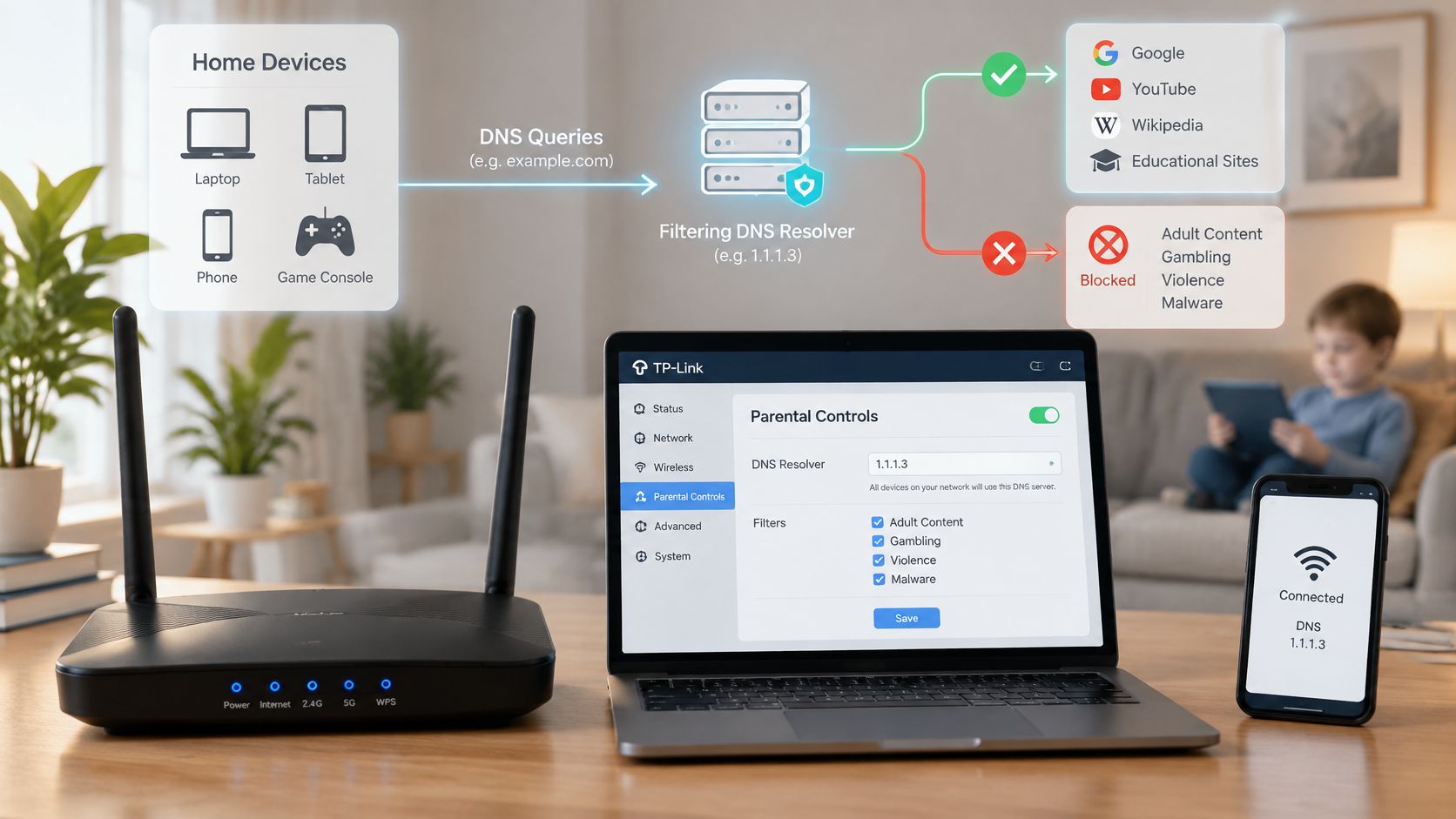
A router can use DNS filtering as another network-level control. DNS translates a domain name into the information needed to reach a site. When a device uses a filtering resolver, the resolver can refuse lookups for domains in blocked categories before the connection begins.
To try it, enter the filtering resolver in the router's WAN or DHCP DNS fields, then reconnect a test device and check that it has picked up the setting. Don't assume the change applies to every device immediately. Some devices retain existing network settings, and a guest network or separate VLAN may need its own policy.
| Approach | Covers every device | Setup effort | Main gap |
|---|---|---|---|
| Built-in router controls | Yes, on the home network | Low to medium | Off-network traffic and unassigned devices |
| Router-level DNS filtering | Yes, on the home network | Medium | Encrypted DNS, VPNs and cellular data |
| Per-device apps | Only devices with the app | Medium per device | Users can remove or disable the app |
| ISP family filter | Yes, on that ISP's connection | Low | Often easy to bypass and tied to one provider |
| Managed protective DNS for business networks | Yes, on every managed network and SSID | Medium to high | Needs a managed network and ongoing policy review |
The limit is straightforward: filtering only governs traffic that passes through the network enforcing it. In an independent University of Twente evaluation of ISP filtering, both commercial and enterprise VPNs bypassed blocking, and changing the resolver to Google DNS bypassed at least one DNS-based mechanism. A successful test in an ordinary browser doesn't prove that other routes are controlled. (University of Twente evaluation of ISP filtering and bypass paths)
Test external DNS, encrypted DNS such as DNS over HTTPS and DNS over TLS, VPN connections, and IPv6 traffic. On a managed network, administrators can redirect outbound DNS, restrict unauthorized encrypted-DNS endpoints where policy permits, and monitor resolver or tunnel activity. These measures can improve enforcement, but they don't make a home router control a cell phone using cellular data.
Pair network filtering with device-level controls for cell phones that leave WiFi. For several sites or shared networks, treat filtering as a managed policy that needs regular review, not a setting switched on once and forgotten. A practical introduction to DNS filtering can help clarify where this network-level method fits.
A short explainer can also help teams understand the basic filtering flow before they test their own network.
How to Test Your Filters Before You Trust Them
A block page on one laptop proves one thing: that laptop, on that network, hit a rule. It says nothing about the tablet on the guest SSID or the cell phone that just dropped to cellular data. Testing is how you find out which devices and paths your policy covers, so use a small, repeatable set of checks and record what happens from inside the managed network.
Build a test set. Choose a small group of domains across adult content, gambling and violence, plus neutral sites that should load normally. Keep the list fixed so you can compare results after any settings change.
Test from an adult's device on the managed profile. Connect an adult's device to the same WiFi and profile the child uses, then visit each domain yourself. Record whether it loads, shows a block page or fails without explanation. Never ask a child to open adult or other sensitive sites to check the filter. Testing from the router's admin machine can mislead you, since it may sit under a different profile or policy.
Measure both blocking and mistaken blocks. Calculate category recall as sensitive domains blocked divided by sensitive domains tested. Separately record false positives, meaning neutral sites that were blocked. A filter that blocks everything looks strict but breaks ordinary browsing, so both numbers matter.
Map what the rule doesn't reach. List which devices sit outside any profile, whether a guest or second SSID runs a different policy, and what a cell phone can do once it leaves the WiFi. Anything outside the managed list is untested, not protected.
Fix the cause, then retest. If a domain loads, check the device's profile, network and DNS settings before changing the category list. If a neutral domain is blocked, adjust the category or exception policy and test nearby sites too.
Keep a dated record. Write down the test date, device, network, settings and results. Retest after firmware updates, policy changes or whenever a new device joins the household.
Filtering quality varies widely, so these numbers are worth keeping. A 2025 IFIP study evaluated seven products and found that some systems failed to block as many as 96% of sensitive domains. A large blocklist alone doesn't establish coverage; count what gets blocked and what slips through.
For a related overview of WiFi content filtering, judge the policy by how it behaves across the actual networks and devices in your test, then repeat the same checks after every change so the record reflects the setup in use.
Choose the Setup That Fits Your Home or Venue
For a young child using one shared tablet, router profiles and schedules may cover the main home-network need. Assign the tablet to the right profile and review connected devices regularly so a forgotten or newly added device doesn't sit outside the policy.
A teen with a personal phone needs more than the router. Keep the home WiFi rules in place, then add a device-level control for the phone's own settings and cellular data connection. Explain what the settings do and revisit them as the teen's needs and independence change.
Schools, hotels and other shared-network operators need consistent rules across guest devices, staff connections and separate networks. Purple Shield is protective DNS and content filtering that can run standalone on WiFi networks or on Purple Access networks, with a policy for each. It supports policies per SSID, VLAN and venue, with one dashboard for blocked URLs, threat analysis and usage. For operators, the relevant work is to review blocks, false positives, exceptions and bypass attempts, not just confirm that a setup screen says filtering is on.
The difference between a household and a public venue matters. Families can explain limits directly and tune them to a child's age; public WiFi operators also need clear guest policies, useful reporting and distinct staff and guest rules. Filtering should support age-appropriate conversation at home, not replace it.
In the FOSI and Ipsos survey of 1,000 US children aged 10 to 17 and 1,000 parents, more than four in five households using each major type of parental control considered it effective, yet more than half of parents did not use controls on every device tested. That points to a practical priority: consistent coverage matters more than a feature checklist or router brand. (FOSI and Ipsos 2025 online safety survey)
Pick one network, apply the setup steps, and run the test set this week.
Purple Shield provides protective DNS and content filtering across managed WiFi networks, with policies for each SSID, VLAN or venue and a dashboard for reviewing blocked URLs, threats and usage. If you need consistent filtering for guest or shared WiFi without installing software on each device, visit Purple Shield to see how it can fit your network.