
What is URL filtering and how it blocks websites
What is URL filtering? Learn how it checks a web address before a page loads, the categories it uses and where it falls short.
Published November 12, 2026
URL filtering checks a requested web address against rules, categories and allowlists or blocklists before the page loads. The check sits at the Domain Name System, the naming layer defined in the IETF's RFC 1034 and RFC 1035 specifications, in the gap between a tap on a link and the page appearing.
A hotel guest taps a link in a booking email. A student opens a search result on a school laptop. A patient in a waiting room tries a video site on hospital WiFi. In each case, the filter judges the destination before the browser has loaded the page. The person sees either the site or a notice that it is blocked on that network.
The decision happens before the filter can inspect the page's content. Its rules and records determine which requests it catches and what happens when it blocks one.
Table of Contents
- What URL Filtering Means in Plain Terms
- How a Filter Decides Before a Page Loads
- Enforcement Methods and What Each One Checks
- URL Filtering Versus DNS Filtering
- Where URL Filtering Is Used and Why Schools Adopted It
- Why Encrypted DNS Can Bypass a Filter
- Why Category Blocks Make Mistakes
- Check Whether URL Filtering Fits Your Network
What URL filtering Means in Plain Terms
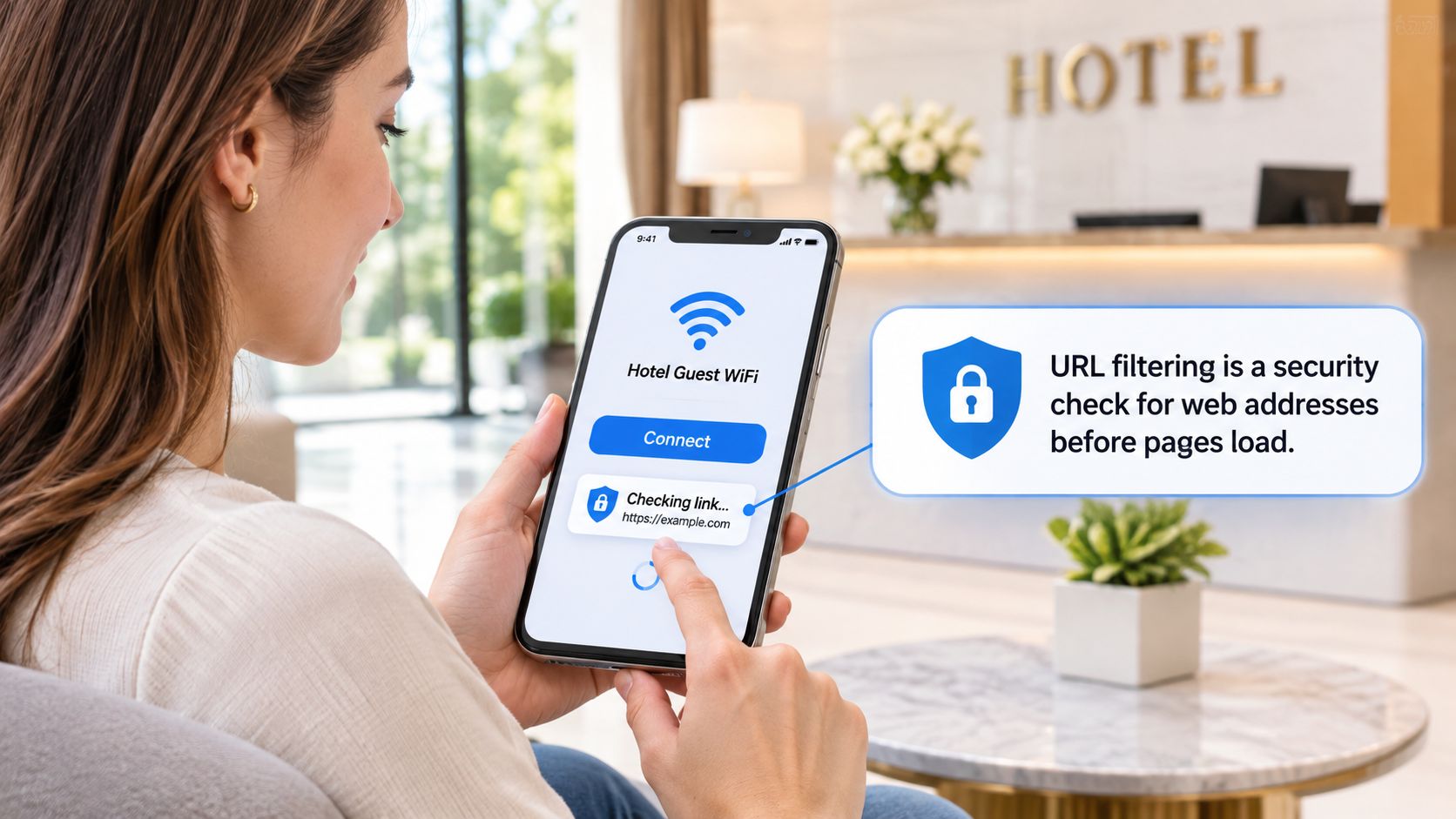
A guest joins a hotel's WiFi, taps a link in a confirmation email, and waits. The page either opens or a branded notice appears. The decision was made a few steps earlier, before the browser had anything to show.
URL filtering is a method of controlling access to websites by checking a requested web address against rules, categories, reputation data and allowlists or blocklists before the connection opens.
Think of a doorman holding three lists. The guest list, the allowlist, waves through the sites your policy names as exceptions even when the general rule would say no. The banned list, the blocklist, turns away named sites whatever else is true. Everyone else is sorted by category, so gambling goes to the door marked no and the study site goes to the door marked yes.
Every filter answers the same three questions, in this order:
- What was requested. A domain name, and in some setups the full path after it.
- Which rule matches. A category, a list entry, a reputation score, a user group or a time window.
- What happens next. Allow, block, or redirect to a notice page that explains the decision.
Be precise about what's being judged. The filter looks at the destination, not the words someone types into a search box or a contact form. Phrase-level control is a different technique that inspects the address or the page itself, and it fails in different ways.
You'll meet this control in schools, offices, hospitals, libraries, airports and every guest network that shows a block page instead of a site.
A filter decides on the address before the content arrives, which is why it's fast, and also why it can't see everything inside a page.
How a filter decides before a page loads
Follow one lookup from end to end and the design makes sense. The Domain Name System turns a readable domain into an address, and DNS-based filtering turns that naming step into an enforcement point, as the BIND DNS history records: the resolver can hand back the correct address, deny the lookup, or send the user to a policy page.
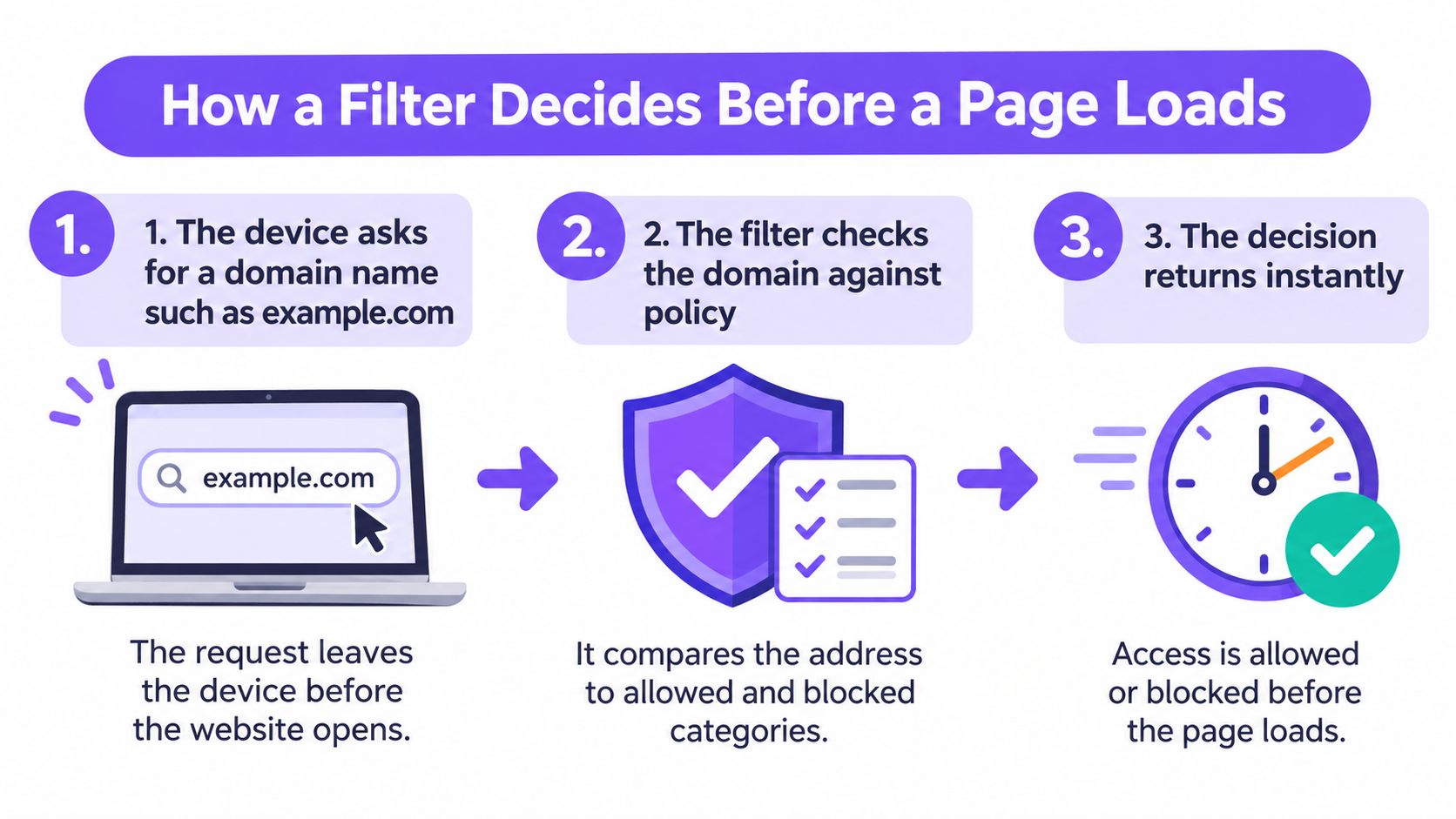
The short walkthrough below shows the same sequence in motion.
Here's the sequence, step by step, with the reason each step matters.
- The device asks for a domain name. That request leaves the device before any page data exists, so the name is all there is to judge at that moment.
- The resolver receives it. This is the naming layer where readable addresses become routable ones, which is exactly why a filter placed here sees every device without touching any of them.
- The domain is compared with policy. Its category, any allow or block entry, its reputation score, and any schedule attached to that network. A match is settled before a connection exists.
- The policy returns an answer. The actual address, no address at all, or a redirect to a notice page. Stronger setups sinkhole the request so the client gets a reply that goes nowhere useful.
- The browser connects or reads the notice. A blocked lookup never opens a connection, so a phishing page or a malware callback dies at the first step instead of being interrupted later.
- The event is written to a log. Time, network, requested domain and decision. Those records let an administrator tune policy or spot one device that keeps asking for the same bad domain.
The mechanism runs at several levels, from exact domain or URL matching through category classification, keyword inspection and reputation scoring for malware and phishing, up to group- and time-based rules. It's strongest on the domain decision, because a modern page pulls content from many domains and encrypted HTTPS hides what's inside, so the name is the reliable signal.
Nothing needs installing on the device. Once the DNS change is made, filtering covers every device on that network at once, with nothing installed on any device.
Two checks you can run this week:
- Confirm which resolver devices use. Look at the DNS settings the network hands out. If devices are pointed at an outside resolver, your policy isn't the one being applied, whatever the console says.
- Load a domain you expect to block. Try it from a guest device, not an administrator's laptop. If the notice page doesn't appear, you have a coverage problem rather than a policy problem.
Enforcement methods and what each one checks
A hotel wants to keep a payment gateway reachable, block gambling sites in family areas, and stop a guest's infected laptop from calling home. Three separate jobs, and each one belongs to a different method. Find the row that matches your problem.
| Method | What it checks | Typical outcome | Example |
|---|---|---|---|
| Exact domain or URL match | A specific address against a list | Allow or block | Block one news site |
| Category classification | The category assigned to a domain | Block a whole group of sites | Block gambling sites |
| Keyword inspection | Words in the address or page | Block or warn | Flag a page path containing a banned word |
| Reputation scoring | Threat intelligence scores | Block known malware or phishing domains | Block a newly registered phishing domain |
| Time or group policy | Schedule, user group or network | Apply a stricter rule at set times | Tighter evening rules on guest WiFi |
Most working deployments combine two or three methods, because each one has a hole. Exact lists are precise and need constant upkeep as sites move. Categories scale across millions of domains but are only as good as the classification behind them. Keyword rules catch what categories miss and over-block innocent pages that happen to share a word. Reputation scoring catches newly registered phishing domains that no category has had time to describe.
Practical rule: Start with categories and threat data, which cover the most ground for the least upkeep. Then add named exceptions for the sites your venue depends on, such as a payment provider or a patient portal. Add keyword rules last, and narrowly.
Each row answers a different question: what is being judged, and what should happen when it matches. The second question is where venues get into trouble, because one blanket rule is rarely right for staff, students, and guests at the same time.
URL filtering Versus DNS filtering
The comparison usually arrives as a product choice, and it isn't one. DNS filtering is a single enforcement point inside URL filtering: the same policy decision, placed at the lookup instead of at a proxy or inside the browser.
In a DNS-layer implementation the client asks for an address first, and the filtering resolver compares the requested domain, plus the address it returns in stronger implementations, with policy rules and threat intelligence. It can then return the actual answer, return nothing, redirect to a block page, or sinkhole the request. CISA and the NSA guidance on selecting a protective DNS service makes the point that this position blocks the first connection to phishing, malware, ransomware, botnet and command-and-control infrastructure rather than waiting to inspect what happens afterwards.
Side by side, the two differ on the attributes that decide fit.
| Attribute | URL filtering (full) | DNS filtering |
|---|---|---|
| Where the decision happens | Proxy, firewall or browser | DNS resolver, before the connection |
| What is checked | Full URL, path, keywords and categories | Domain name and the IP address it returns |
| Needs software on devices | Often yes, or a gateway proxy | No, set at network level |
| Sees inside HTTPS pages | Yes, with TLS inspection | No, domain level only |
| Typical deployment | Enterprise networks and schools with a proxy | Guest WiFi, venues and branch networks |
The domain layer also sees requests users never type. AdGuard's December 2024 tracker report found ad trackers accounted for 7.84% of global internet traffic in 2024, and every one of those requests begins as a lookup.
- Choose DNS filtering when coverage matters more than granularity. Unmanaged guest devices, several venues, and no appetite for installing agents on anyone's cell phone.
- Choose full URL filtering when you need depth. Path-level rules, page-level inspection, upload and download controls.
- Run both where the risk justifies it. Many services already do: the resolver handles the domain decision, the proxy handles what happens next.
The limit deserves stating plainly. DNS filtering can block a site, and it cannot tell you which page on an allowed domain was loaded. If that distinction matters to your policy, you need inspection above the naming layer, and a look at how DNS filtering works sets out what that layer does and doesn't resolve.
Where URL filtering is used and why schools Adopted it
A student clicks a search result on a school laptop. The filter applies the school's rules before the page loads, helping staff manage which sites students can reach. In a nationwide American Association of School Librarians survey conducted in 2012 with 4,299 responses, 98% of respondents said their schools or districts filtered online content, while 94% reported using filtering software.
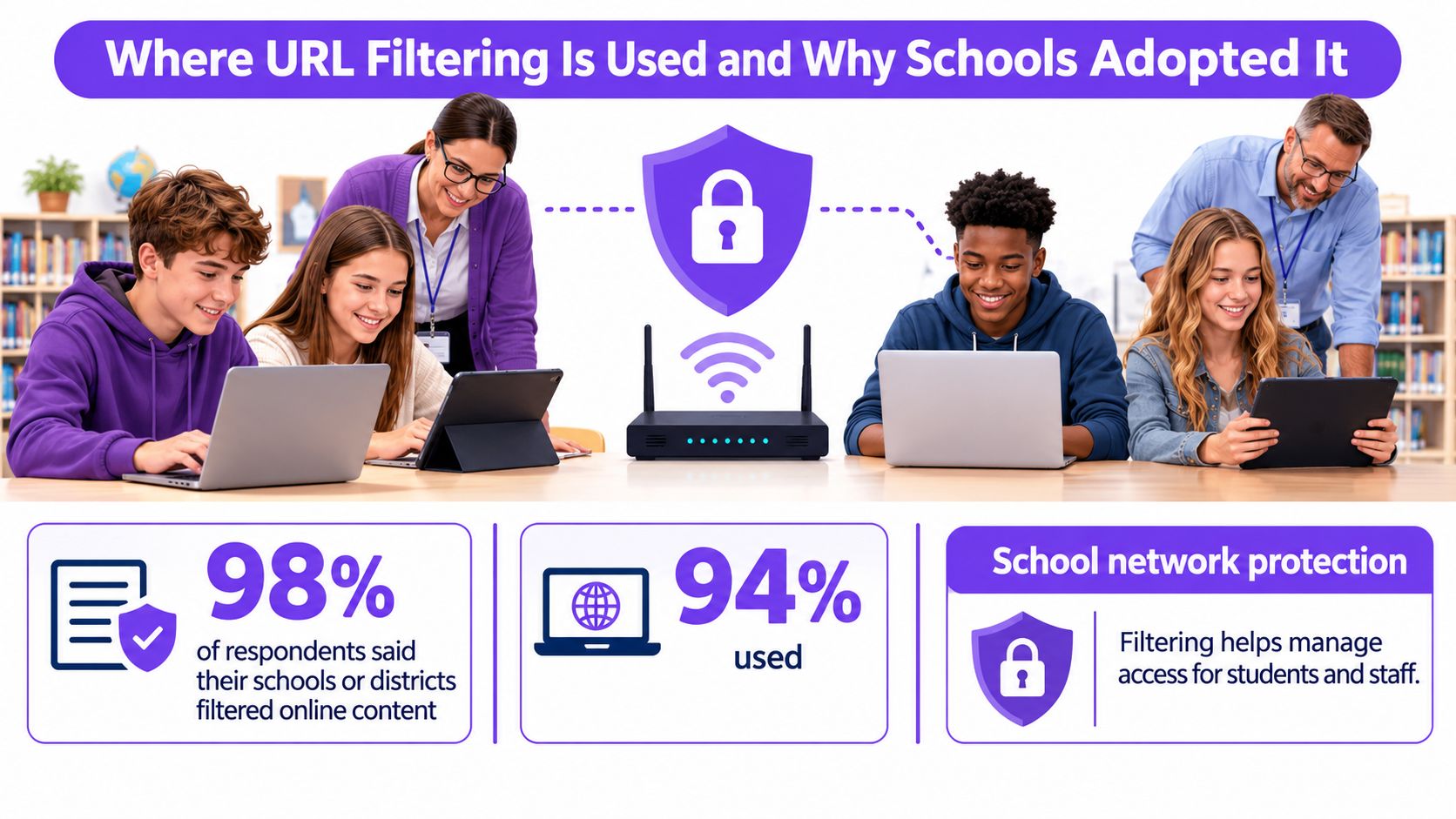
| Measure | Share of respondents | Count |
|---|---|---|
| Schools or districts filtered online content | 98% | Not reported |
| Used filtering software | 94% | Not reported |
| URL-based filtering, most common software approach | 70% | 2,827 |
| Keyword-based filtering | 60% | 2,423 |
| Blacklist use | 47% | 1,898 |
| Filters applied to staff | 88% | Not reported |
| Same level of filtering for students and staff | 56% | Not reported |
URL-based filtering was the most common software approach among respondents, followed by keyword-based filtering and blocklists. Filtering also applied beyond students: 88% said staff were covered, and 56% used the same level of filtering for students and staff.
Those findings point to two roles for school filters: safeguarding students and putting acceptable use policies into practice. A filter is a rule applied to network access, not a guarantee that every page will be classified correctly. Filters can block legitimate material or miss content that a policy aims to restrict, so schools need a way to review and adjust decisions.
The same control in three other settings
- Hospitality venues can apply category rules to guest WiFi, including on cell phones that the venue does not manage directly. A family attraction may choose stricter rules for the network used by children.
- Hospital networks serve staff who need clinical and reference resources, as well as visitors using a separate network. Those groups may need different policies.
- Libraries and airports can apply rules to shared public WiFi. Clear block messages help users understand why a site is unavailable.
Schools make the duty-of-care case especially visible, but the same policy questions arise anywhere people share a network. The guide to web filtering for schools explains how schools approach those policies.
The practical task is to match rules to the people and network. A policy suited to an elementary school may block too much for a hotel bar or too little for Student Housing. A longer category list will not solve that mismatch; the policy needs to reflect the network's audience and purpose.
Why encrypted DNS can Bypass a filter
A school can set its WiFi to use a filtered DNS resolver, yet a student's browser may send domain lookups through a different, encrypted resolver. The filter then loses visibility into those requests. DNS over HTTPS is one protocol that can create this gap, making DNS blocking only partially effective when devices can choose another lookup path.
The paths around a resolver
- Hard-coded resolvers in apps. Some applications ignore the network's DNS settings and use their own.
- Browser settings. A browser can be configured to use an encrypted resolver.
- VPNs. A VPN can carry traffic beyond the network before its DNS lookup reaches the network's resolver.
- Direct address connections. An app that already knows an IP address may skip the domain lookup.
- Shared cloud domains. Blocking a shared domain can disrupt unrelated services. Allowing it may leave multiple services reachable.
What to enforce instead
A network gateway can block outbound DNS requests to unapproved resolvers, directing devices to the network's resolver or preventing those requests from resolving. Logs can reveal failed lookups or unusual resolver traffic, though they do not show every action on a device. Record exceptions so the policy remains understandable and manageable.
What to promise: Devices using the network's DNS path are filtered. Gateway controls can limit some routes around that path, but they cannot guarantee visibility into all network activity.
Guest WiFi makes enforcement harder: visitors' cell phones may use their own settings, and the venue cannot install software on them. Put resolver rules in the network configuration, then be clear about what those rules can and cannot see. Learn how DNS over HTTPS changes network visibility.
Why category blocks make mistakes
At a school, a lesson resource may sit on a domain also used for unrelated material. If the filter puts that domain in the wrong category, students can lose access to the resource along with the content the school meant to block. Category decisions affect everyone who shares the network.
Two ways a category block fails
Under-blocking happens when a harmful page gets through because its domain has not been classified or was classified incorrectly. Over-blocking happens when useful content, such as a health page, payment service, education resource or business tool, is placed in a blocked category.
Some parental-control products have struggled with both errors: missing sensitive domains while blocking appropriate content or applying inconsistent rules. A 2025 review of DNS-filtering accuracy explains why results depend on the reference list used for a particular purpose. Misclassifications can create false positives, and their effects reach more people when the same policy applies across a network, as the TMA 2025 conference paper describes.
At a hotel, a wrongly classified payment domain could prevent guests from completing a transaction. Front-desk staff may hear about the problem, even though they cannot change the filtering policy themselves.
What to ask before you trust a category list
- Precision and recall for each category. Overall accuracy can hide problems in the categories that matter to your network.
- A review route for misclassified domains. Find out who handles corrections and how a site can be submitted for review.
- Allowlist governance. Clarify who can add exceptions, how each change is recorded and when it is reviewed.
- Feedback from the block page. Give guests or teachers a way to report a site that should be available.
- Temporary exceptions. Use time-limited access for a specific need rather than leaving a permanent gap in the policy.
- Reports that separate policy blocks from threat blocks. Category decisions and security events require different responses.
A longer category list does not guarantee better decisions. Each category is another chance to block something useful or miss something harmful, so the quality of classification and the process for correcting mistakes matter more than the list's length.
Check whether URL filtering fits your network
Four questions decide it, and they take less time than a vendor demo.
- List the devices. Managed, unmanaged and guest. The mix tells you whether you can rely on anything installed at the endpoint.
- Decide what has to be blocked. Threats only, harmful categories only, or both. The answer sets your reporting requirements.
- Check whether devices can change the resolver. If they can, ask whether the gateway can enforce one approved path, because encrypted DNS routes around a resolver that isn't enforced.
- Ask for the accuracy evidence. Category-level precision and recall, the review route for a misclassified site, and how allowlists are governed. A vendor who can't describe the review process is selling a list, not a filter.
That checklist is what Purple Shield is built for: one DNS layer that filters content, stops threats and strips ads across every device on every network, with a policy per SSID, VLAN and venue and one dashboard for what was blocked and when. Its filtering meets the Friendly WiFi standard and the Internet Watch Foundation bar.
Start with a one-week pilot on a single test network. Apply the policy, load a domain you expect to block and confirm the notice page appears, then read the first week of logs. What you're looking for is the split between policy blocks, threat blocks and false positives, because that split tells you whether the policy needs tuning before it reaches every site.
Purple Shield puts a protective DNS layer over your venue, guest and public WiFi networks, blocking harmful categories, phishing and malware domains at the lookup and stripping ads and trackers before a connection starts. You can set a separate policy for every SSID, VLAN and venue, then see what was blocked, where and when in one dashboard. Visit Purple Shield to see how it fits your network.